App Settings
Device features
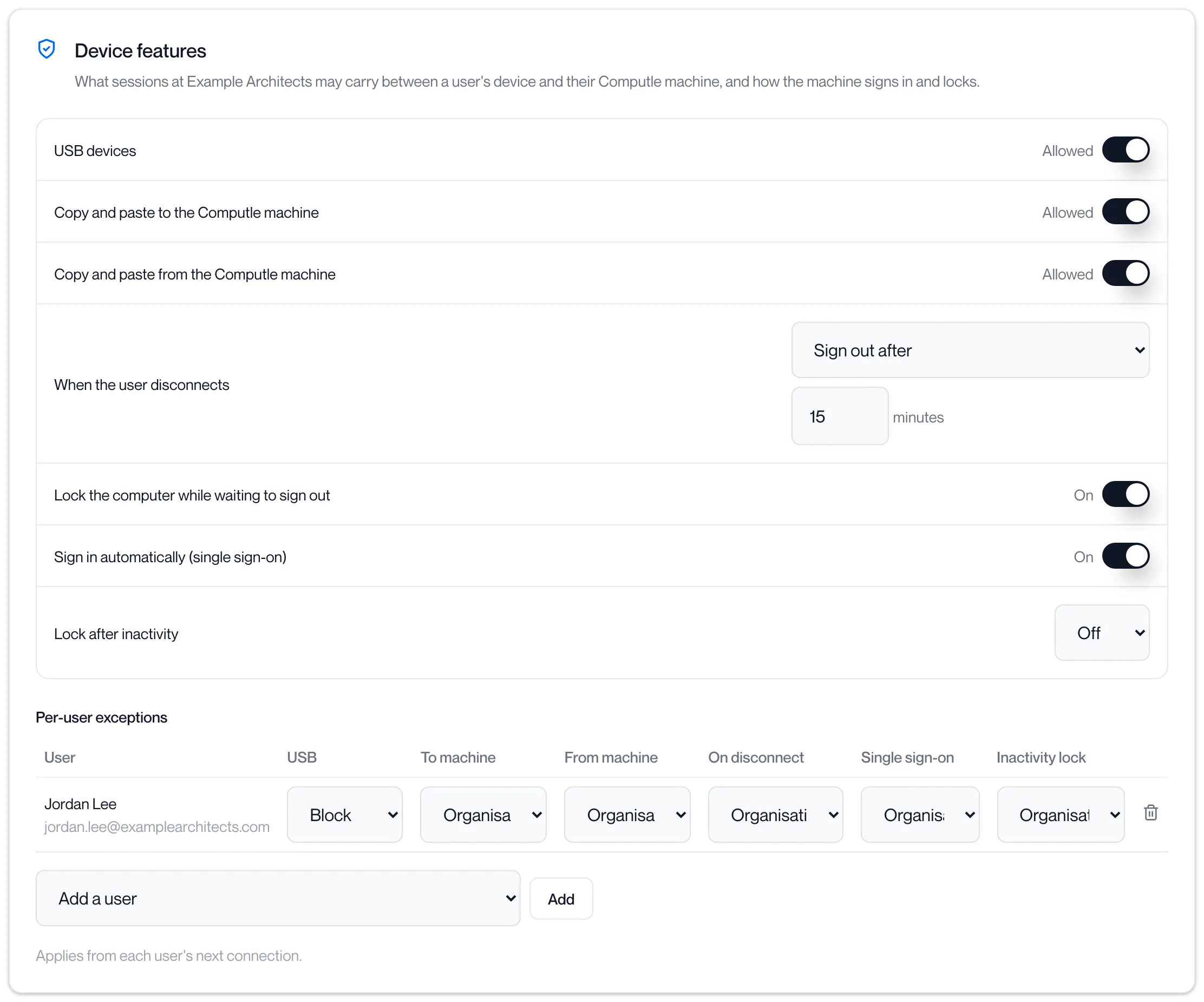
Device features is the organisation’s session policy. It allows or blocks USB sharing, copy and paste into the workstation, and copy and paste out of it, each separately, for the whole organisation or per person. It also sets what the workstation does when the user disconnects or stops typing: lock or sign out on disconnect, sign out after a number of minutes, lock after inactivity, and whether single sign-on signs the user in. Every setting has an organisation default, and any user can be given an exception.
Open Client settings in the sidebar. The Device features tab opens first. The card reads “What sessions at … may carry between a user’s device and their Computle machine, and how the machine signs in and locks.”
How the policy reaches a session
Section titled “How the policy reaches a session”A per-user value replaces the organisation value for that setting only. A setting left at “Organisation default” follows the organisation, including any later change to it.
Organisation settings
Section titled “Organisation settings”Device features
Section titled “Device features”| Setting | Controls | Default |
|---|---|---|
| USB devices | Sharing USB devices plugged into the user’s device with the workstation. | Allowed |
| Copy and paste to the Computle machine | Copying on the user’s device and pasting on the workstation. | Allowed |
| Copy and paste from the Computle machine | Copying on the workstation and pasting on the user’s device. | Allowed |
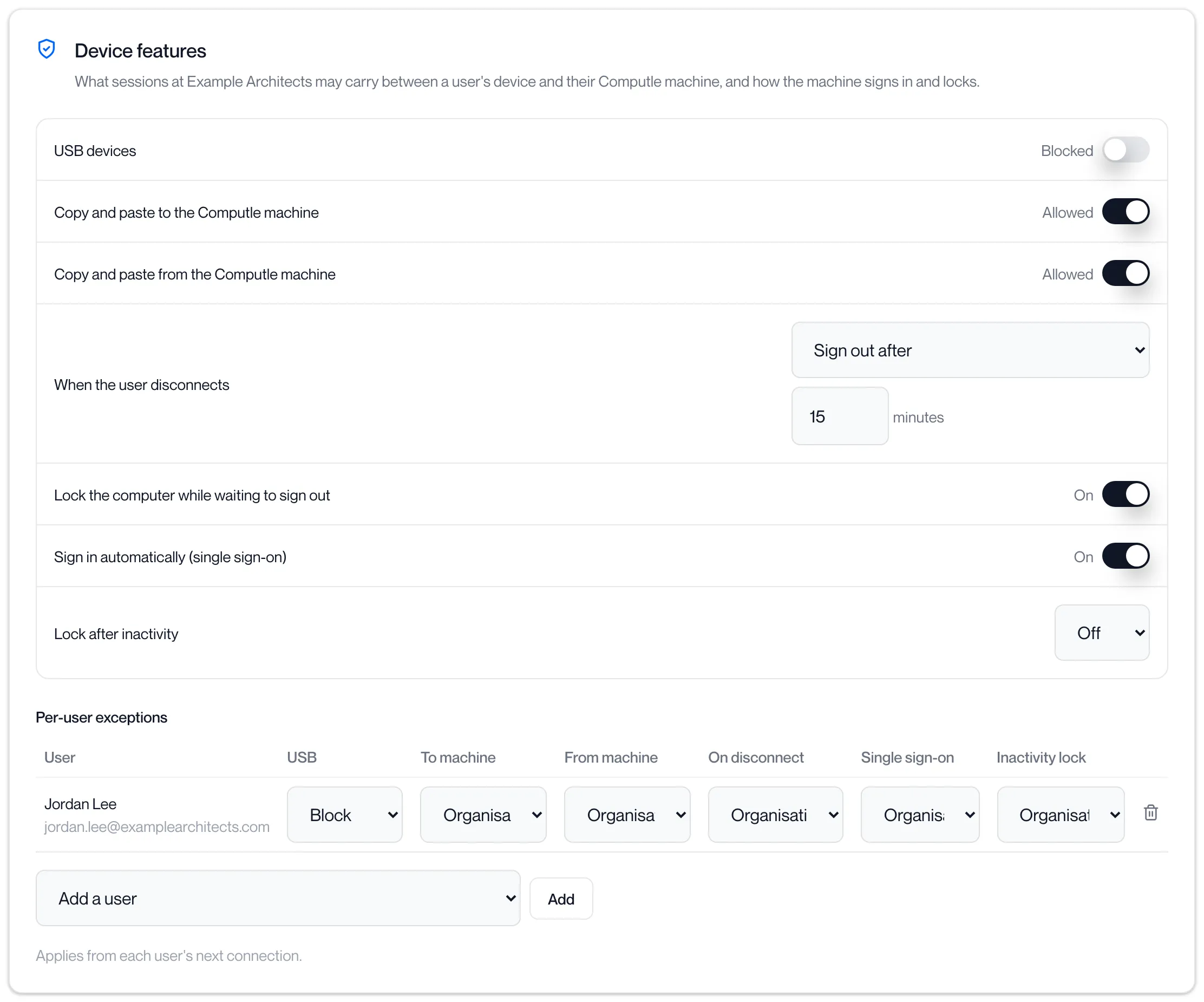
Click the switch to change a setting. The word next to it reads Allowed or Blocked.
Disconnect and lock
Section titled “Disconnect and lock”| Setting | Options | Default |
|---|---|---|
| When the user disconnects | Do nothing: the desktop stays as it is. Lock the computer: the workstation locks when the session leaves. Sign out after N minutes: the user is signed out of Windows N minutes after the session leaves, where N is a whole number from 1 to 1440. | Do nothing |
| Lock the computer while waiting to sign out | Shown only with Sign out after. On: the workstation locks at disconnect and signs out when the time is up. Off: the desktop stays unlocked until the sign-out. | On |
| Sign in automatically (single sign-on) | On: a user who signs in to the client with Microsoft is signed in to Windows without a password, when single sign-on is connected for your organisation; see Sign-in methods. Off: the user sees the Windows sign-in screen. | On |
| Lock after inactivity | Off, or After N minutes with no input from the user’s device, where N is a whole number from 1 to 1440. Switching to After starts at 15 minutes. | Off |
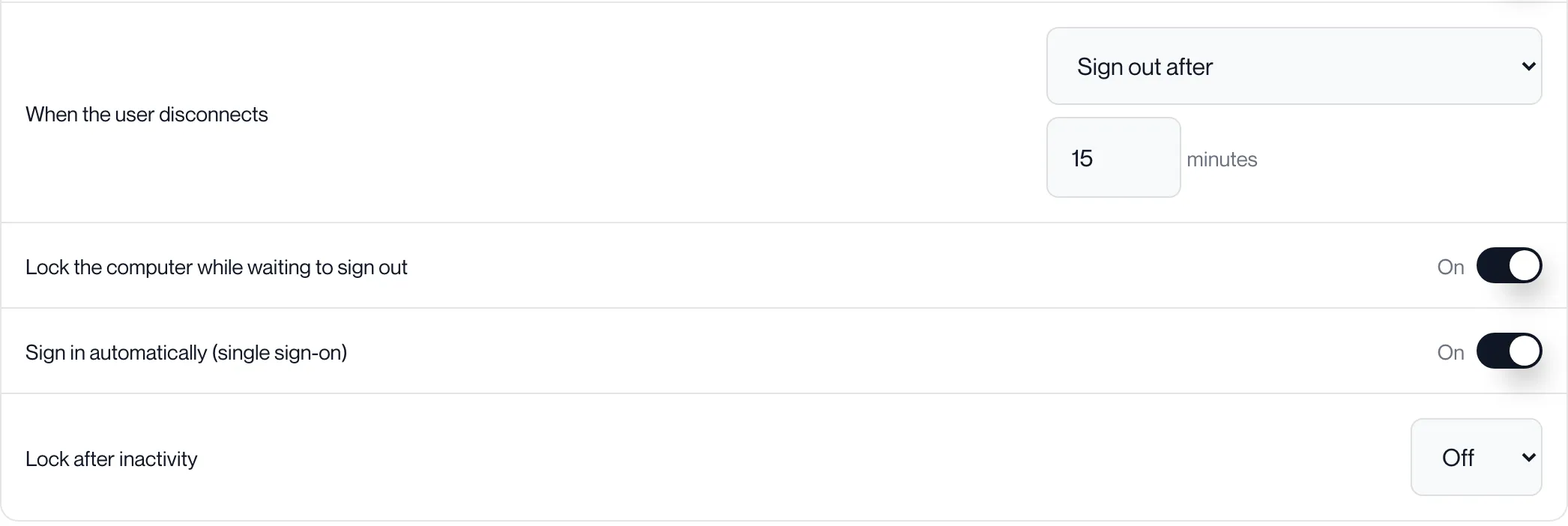
Minutes are typed into the box next to the option and saved when you press Enter or click elsewhere. A value outside the range is refused with “Enter a whole number of minutes from 1 to 1440”.
Reconnecting within the sign-out time cancels the sign-out.
Change an organisation setting
Section titled “Change an organisation setting”-
Open Client settings. The Device features tab is already selected.
-
For USB devices or either copy and paste setting, click the switch.
The word beside it changes between Allowed and Blocked and the change is saved at once.
-
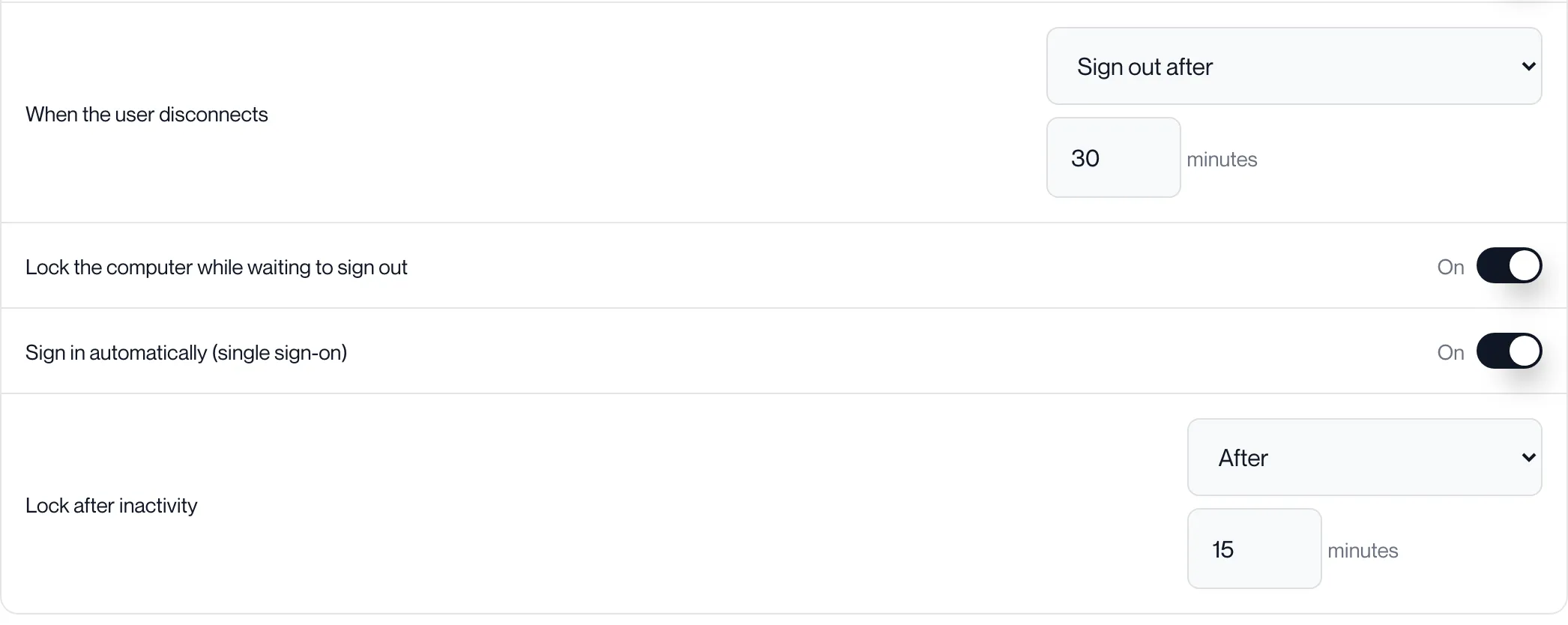
For When the user disconnects, choose Do nothing, Lock the computer or Sign out after.
With Sign out after, type the minutes in the box beside it and press Enter. The Lock the computer while waiting to sign out switch appears under it.
-
For Lock after inactivity, choose Off or After and type the minutes.
Switching to After starts at 15 minutes.
-
Ask affected users to disconnect and connect again.
The new setting applies from each user’s next connection.
| Message | What to do |
|---|---|
| “Enter a whole number of minutes from 1 to 1440” | The minutes box holds a value outside the range or a decimal. Type a whole number between 1 and 1440. |
Per-user exceptions
Section titled “Per-user exceptions”Use an exception when one person needs a different setting: a user who must never share USB devices, or a shared machine that should sign out quickly.
-
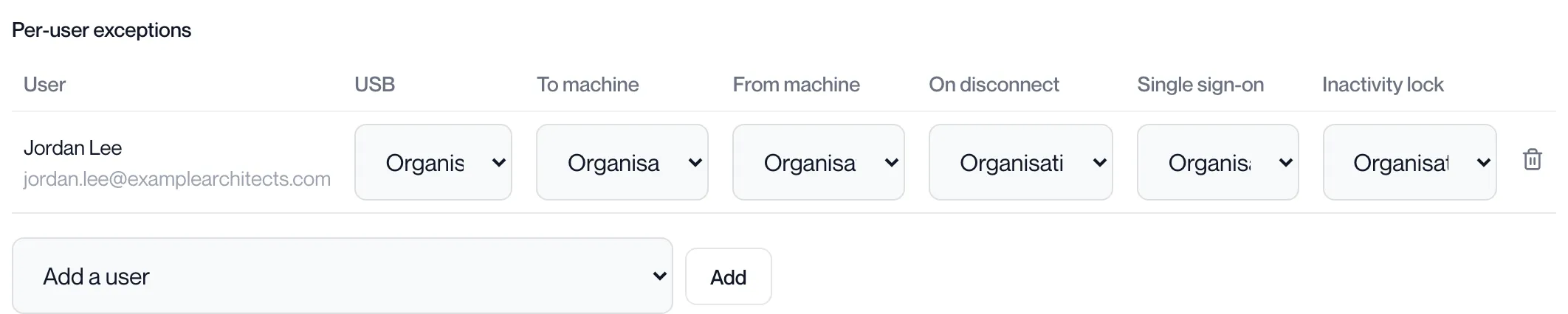
Under Per-user exceptions, choose the user from Add a user and click Add.
A row appears for them with every setting at Organisation default.
-
Change the settings that should differ.
Each change saves immediately.
| Column | Options |
|---|---|
| USB, To machine, From machine | Organisation default, Allow, Block |
| On disconnect | Organisation default, Do nothing, Lock the computer, Sign out after (with minutes and Lock the computer while waiting to sign out: Organisation default, On, Off) |
| Single sign-on | Organisation default, On, Off |
| Inactivity lock | Organisation default, Off, After (with minutes) |
A user can appear in the list once. The Add a user list offers only users who do not yet have an exception.
Remove an exception
Section titled “Remove an exception”-
Under Per-user exceptions, find the user’s row.

-
Click the bin icon at the end of the row.
The row disappears and the change is saved at once. There is no confirmation.
-
The user returns to the organisation settings from their next connection.
To give them a different exception later, add them again from Add a user.
Related pages
Section titled “Related pages”Questions
Section titled “Questions”I blocked USB devices but a user can still use one. Why?
Section titled “I blocked USB devices but a user can still use one. Why?”The change applies from the user’s next connection. Ask them to disconnect and connect again.
What is the difference between Lock the computer and Sign out after?
Section titled “What is the difference between Lock the computer and Sign out after?”Lock keeps the user’s programs running and asks for their credentials when they return. Sign out closes their programs after the chosen number of minutes, which frees the workstation for the next person. Lock the computer while waiting to sign out gives both: the screen locks straight away and the sign-out follows.
Does Lock after inactivity count activity on the workstation itself?
Section titled “Does Lock after inactivity count activity on the workstation itself?”No. It counts input from the user’s session. For a workstation nobody is connected to, use When the user disconnects.
Why do the per-user rows say Allow and Block rather than Allowed and Blocked?
Section titled “Why do the per-user rows say Allow and Block rather than Allowed and Blocked?”Per-user rows use Allow and Block, and Organisation default for “follow the organisation”. The organisation switches read Allowed and Blocked.