Users & Sign-in
Sign-in Methods
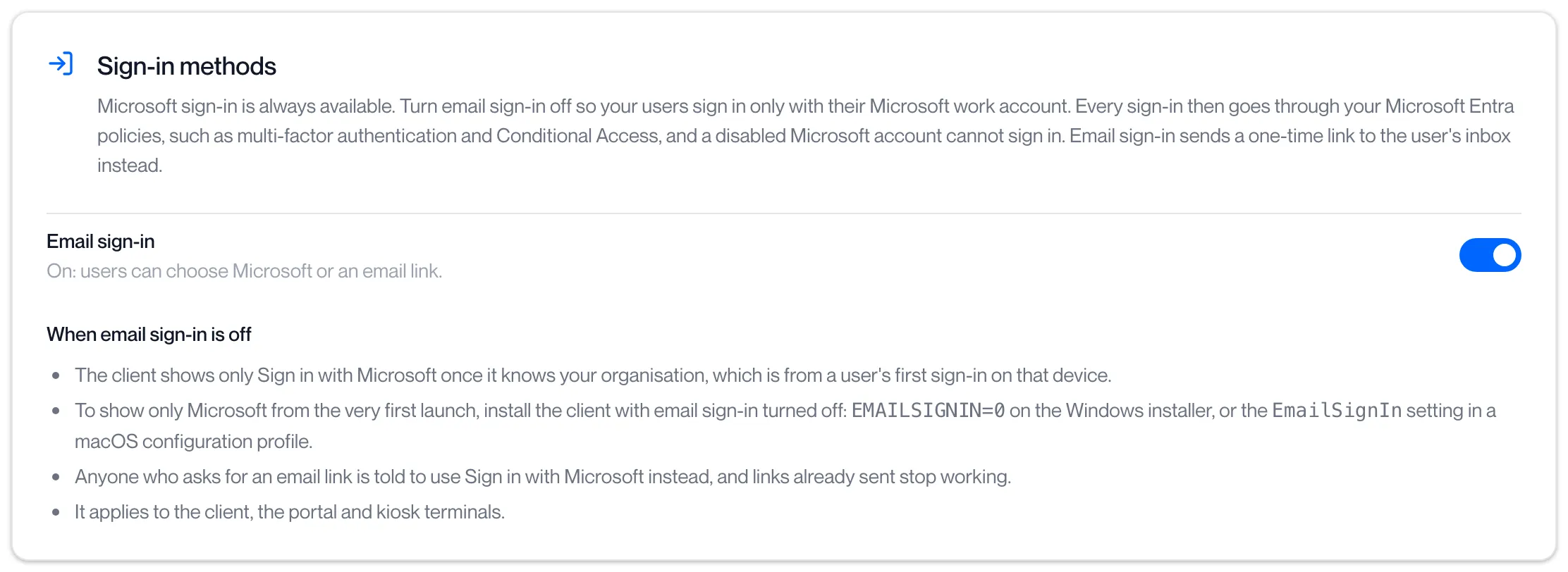
Sign-in methods is one switch for your whole organisation: whether a person can sign in with a one-time link sent to their inbox, or only with their Microsoft work account. It applies to the Remotle app, the Computle Portal and kiosk terminals.
Open Client settings under Machines in the portal sidebar, then the Sign-in tab. The page needs the Tenant Admin role. The same section is shown on the Users page under Single Sign-On when that tab is available to your organisation.
The two methods
Section titled “The two methods”| Method | What the user does | Can it be turned off? |
|---|---|---|
| Microsoft | Clicks Sign in with Microsoft and signs in with their work account. Every sign-in goes through your Microsoft Entra policies, such as multi-factor authentication and Conditional Access, and a disabled Microsoft account cannot sign in. | No. Microsoft sign-in is always available. |
| Enters their email address and clicks a one-time link sent to their inbox. | Yes, with the Email sign-in switch. |
The switch’s caption tells you the current state: “On: users can choose Microsoft or an email link.” or “Off: users sign in with Microsoft only.”
Turn email sign-in off
Section titled “Turn email sign-in off”Before you start, check that everyone who signs in has a Microsoft account in your organisation. Once email sign-in is off, nobody can sign in any other way.
-
Sign in to the portal with your own Microsoft work account.
The switch stays greyed out until your organisation is linked to a Microsoft Entra tenant and your own session is a Microsoft sign-in. See When the switch is greyed out.
-
Open Client settings, then the Sign-in tab.
-
Click the Email sign-in switch.
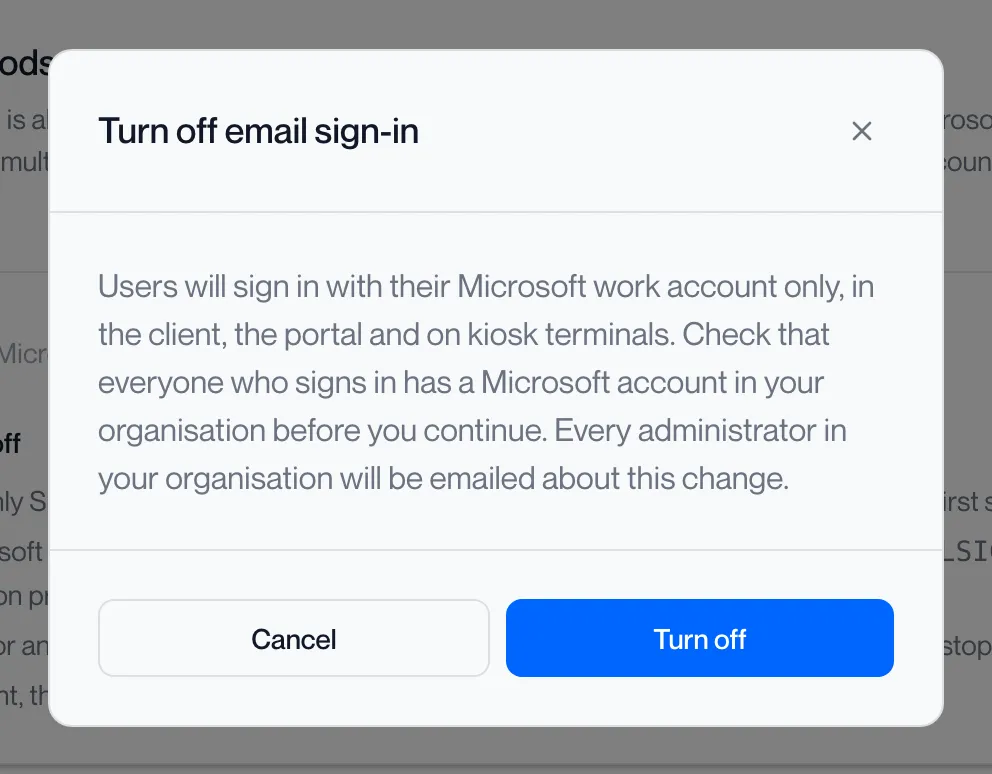
The dialog Turn off email sign-in reads: “Users will sign in with their Microsoft work account only, in the client, the portal and on kiosk terminals. Check that everyone who signs in has a Microsoft account in your organisation before you continue. Every administrator in your organisation will be emailed about this change.”
-
Click Turn off.
The portal shows “Email sign-in turned off” and emails every administrator in your organisation.
What changes when email sign-in is off
Section titled “What changes when email sign-in is off”- The Remotle app shows only Sign in with Microsoft once it knows your organisation, which is from a user’s first sign-in on that device.
- To show only Microsoft from the very first launch, install the app with email sign-in turned off:
EMAILSIGNIN=0on the Windows installer, or theEmailSignInsetting in a macOS configuration profile. See Deploying the client. - Anyone who asks for an email link is told “Your organisation signs in with Microsoft. Choose Sign in with Microsoft to continue.” Links already sent stop working.
- Invitations from the Users page still go out by email, and the person signs in with Microsoft from the link.
Turn email sign-in on
Section titled “Turn email sign-in on”Click the switch. The dialog Turn on email sign-in reads: “Users will be able to sign in with their Microsoft work account or with a one-time link sent to their inbox. Every administrator in your organisation will be emailed about this change.” Click Turn on. The portal shows “Email sign-in turned on”.
When the switch is greyed out
Section titled “When the switch is greyed out”Email sign-in can go off only when one administrator is sure to still get in afterwards. The notice under the switch says which condition is not met yet.
| Notice | What to do |
|---|---|
| “Your organisation is not linked to a Microsoft Entra tenant yet. Sign in to the portal with a Microsoft work account from your organisation first, or set up Single Sign-On.” | Sign out and sign in to the portal with a Microsoft work account from your organisation. Click the “Sign out and sign in with Microsoft” link in the notice, or the “Single Sign-On” link when that tab is available to you. |
| “You are signed in with an email link. Sign in to the portal with your Microsoft work account, then turn email sign-in off.” | Click “Sign out and sign in with Microsoft” in the notice, then come back to this tab. |
| Message | What to do |
|---|---|
| “Could not load sign-in settings” | Reload the page. If it continues, see Getting Help. |
| “Could not save sign-in settings” | The change was not made. Check the notice under the switch and try again. |
Related pages
Section titled “Related pages”Questions
Section titled “Questions”We use multi-factor authentication in Microsoft Entra. Does it apply to Computle sign-ins?
Section titled “We use multi-factor authentication in Microsoft Entra. Does it apply to Computle sign-ins?”With email sign-in off, yes: every sign-in goes through Microsoft, so your Entra policies apply. With email sign-in on, a person who chooses the email link does not pass through Microsoft.
Does turning email sign-in off sign anyone out?
Section titled “Does turning email sign-in off sign anyone out?”Links already sent stop working. Anyone who asks for a new link is told to use Sign in with Microsoft.
Can I turn email sign-in off for some users only?
Section titled “Can I turn email sign-in off for some users only?”No. The switch applies to the whole organisation.