Sign In and Connect
Connecting and the In use by you status. Open
Using the App
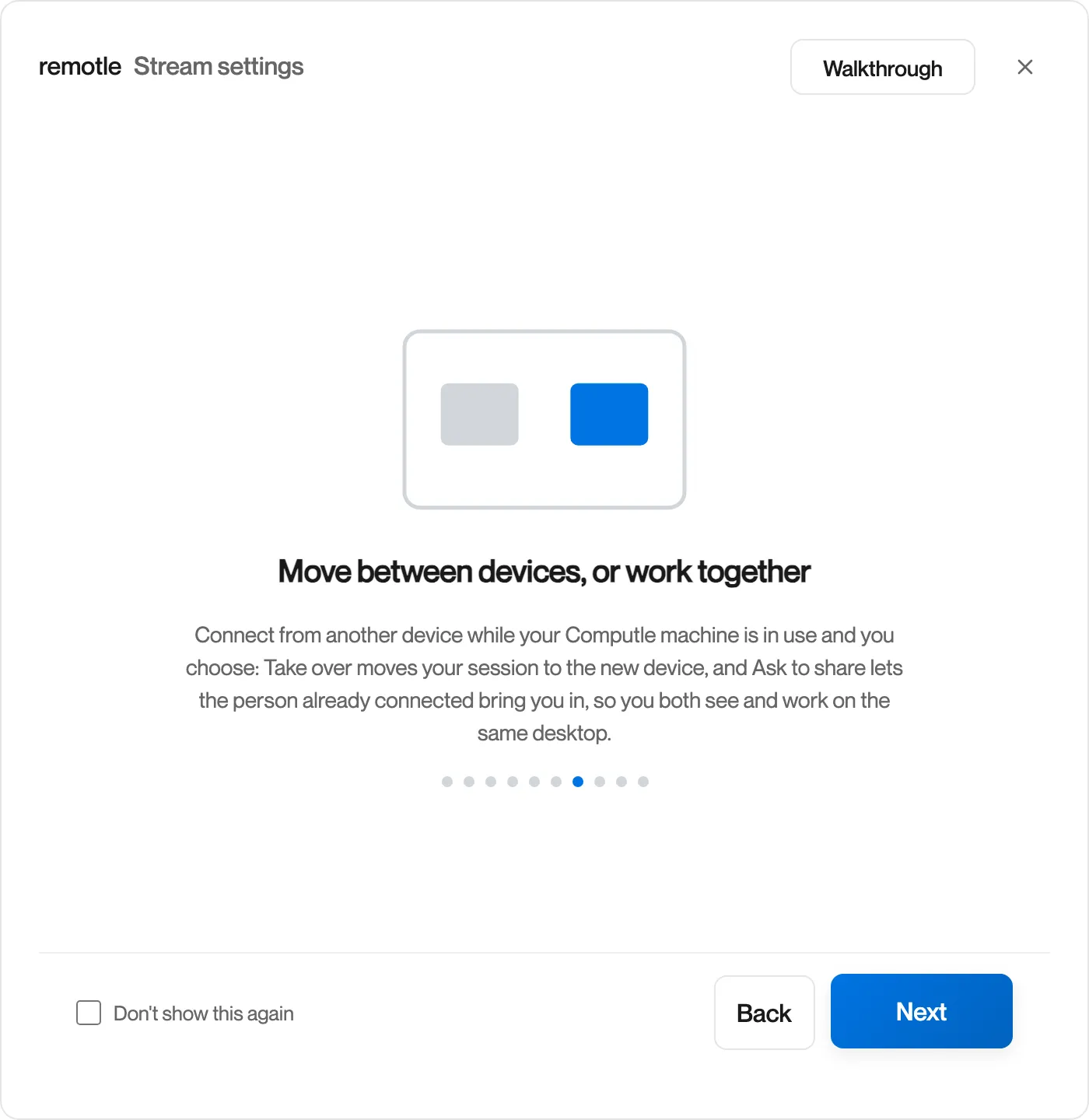
One device controls your workstation at a time. When a second device connects, you choose whether it takes over the session or joins it. Taking over moves your work to the device in front of you. Sharing lets two people see and work on the same desktop. Taking over is the default, so a device left connected at the office never keeps you out of your own workstation for long.
If your workstation is already in use on another device, Remotle shows “This machine is in use on device”, naming the device.
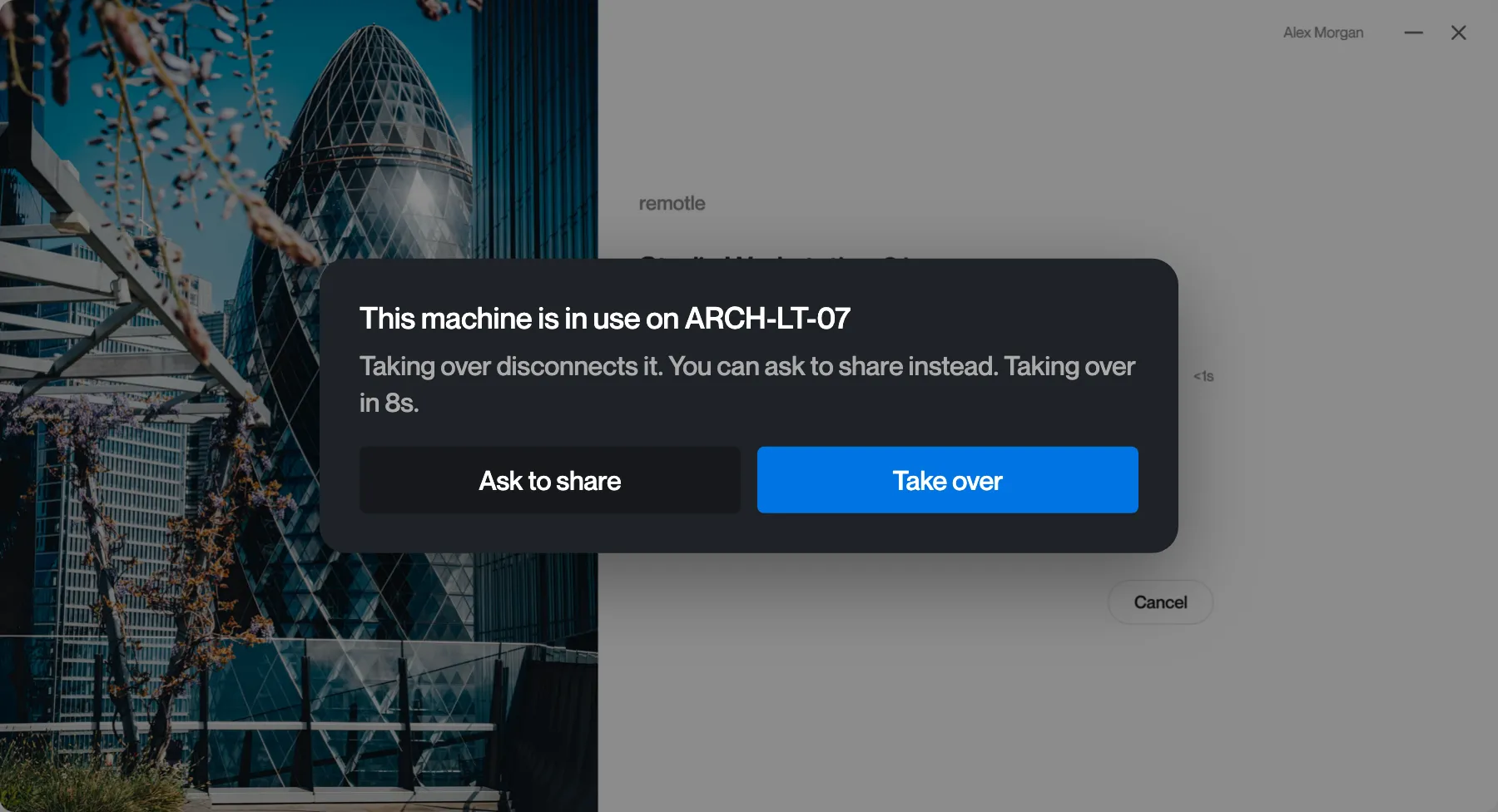
| Choice | What happens |
|---|---|
| Take over | Moves the session to this device and disconnects the other one. Your desktop carries on as it was: open windows stay open. |
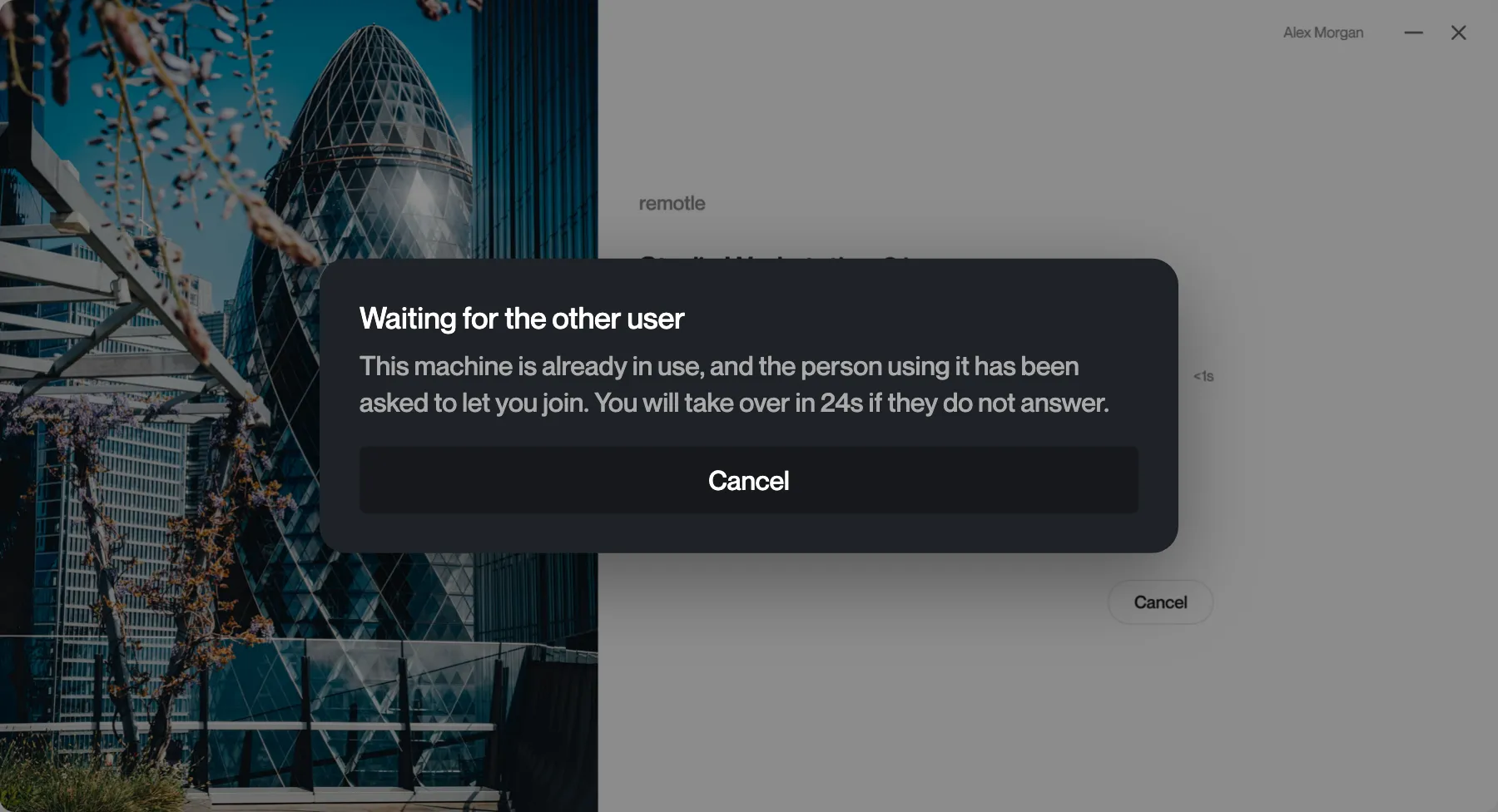
| Ask to share | Asks the person already connected to let you join. Remotle waits while they answer. |
| No choice | Remotle takes over after a 10-second countdown. |
Taking over is the right choice when the other device is yours: a laptop you left connected at home, or an iPad on the sofa. Ask to share when someone else is working on the workstation and you want to join them.
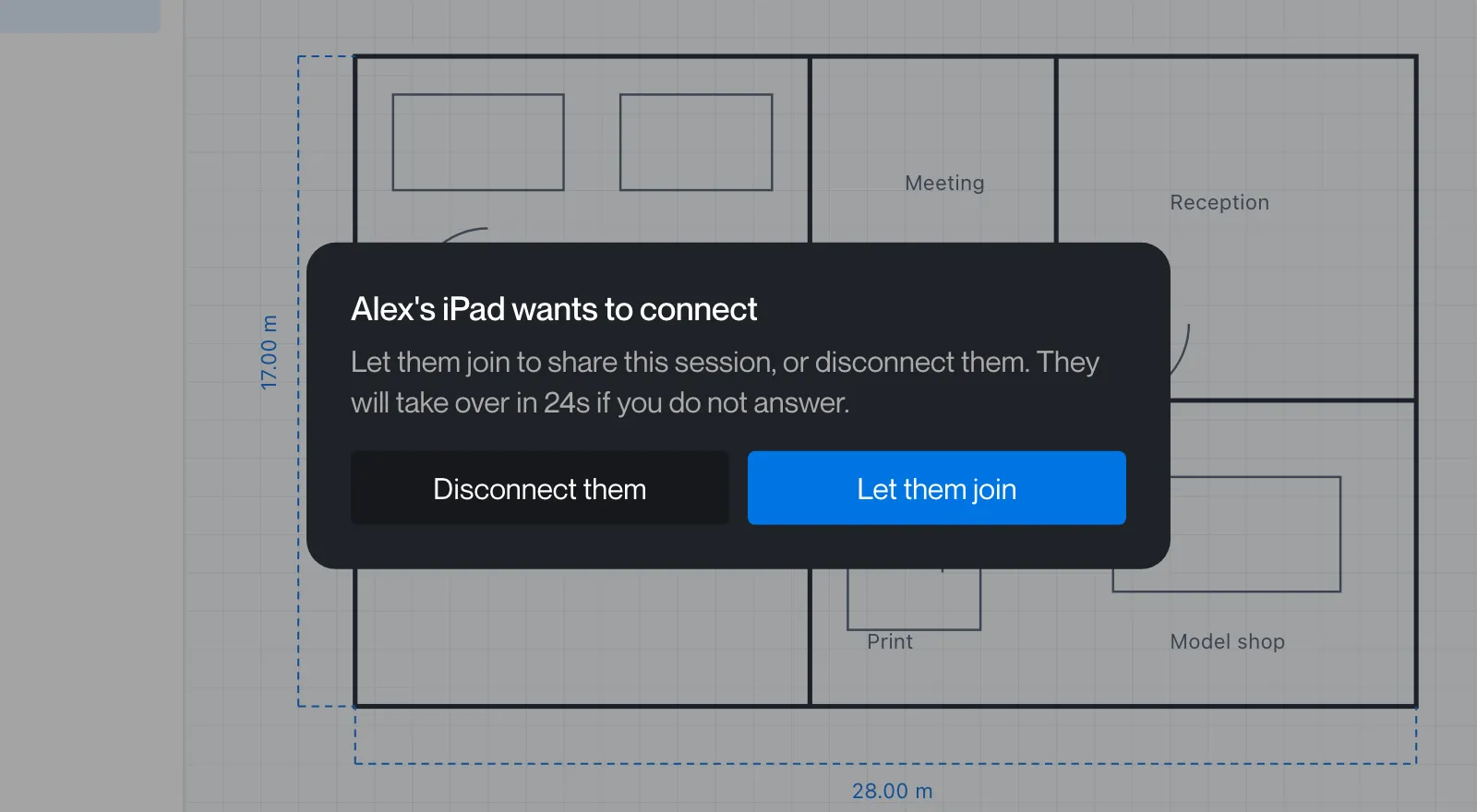
If you are connected and someone asks to share, Remotle shows “name wants to connect”, with “Let them join to share this session, or disconnect them. They will take over in 30s if you do not answer.”
While you wait for an answer after Ask to share, your device shows “Waiting for the other user” with a Cancel button.
| Choice | What happens |
|---|---|
| Let them join | You both see and work on the same desktop. |
| Disconnect them | They cannot join, and see Couldn’t join. |
| No answer | They take over after 30 seconds, and your device sees Session moved to another device. |
While a session is shared, a pill at the top of the screen shows how many devices are connected, for example “2 devices connected”. Everyone sees the same desktop and can move the pointer and type.
| What | Which device’s is used |
|---|---|
| Camera and microphone | The device that controls the session |
| USB devices | The device that controls the session |
| Screen layout | The device that controls the session |
| Message | Meaning | What to do |
|---|---|---|
| Couldn’t join | The person using the workstation chose not to let you join. | Ask them, or connect later. |
| Session moved to another device | Another device took over this session. | If it was you on another device, carry on there. If not, connect again and take over. |
| Machine busy | Another device is already waiting to join. | Try again shortly. |
| Session ended | The workstation ended this session. | Connect again. |
These messages appear on your workstation’s card in Your machines, so you can read them after the session has gone.
No. Taking over moves the session; your desktop and its open windows carry on exactly as they were. The other device is disconnected.
Yes. In a shared session both devices control the same desktop. Agree who is working, as you would when sharing a screen in a meeting.
Yes. Connect from home and choose Take over, or wait 10 seconds and Remotle takes over for you. The office device shows Session moved to another device.