Site-to-site VPN
Site-to-site VPN
A site-to-site VPN is an IPsec tunnel between your office firewall and the Computle gateway that serves your organisation. Once it is up, workstations reach servers, printers and domain controllers in your office by their private addresses, and devices in your office reach workstations the same way. Nobody installs anything on a workstation or a PC.
This page is for the IT administrator who manages the office firewall. You enter your firewall’s details in the Computle Portal, copy Computle’s details into your firewall, and the gateway brings the tunnel up.
How it is provisioned
Section titled “How it is provisioned”Computle switches the Site-to-site VPN page on for your account. It then appears under Network in the portal sidebar for tenant administrators.
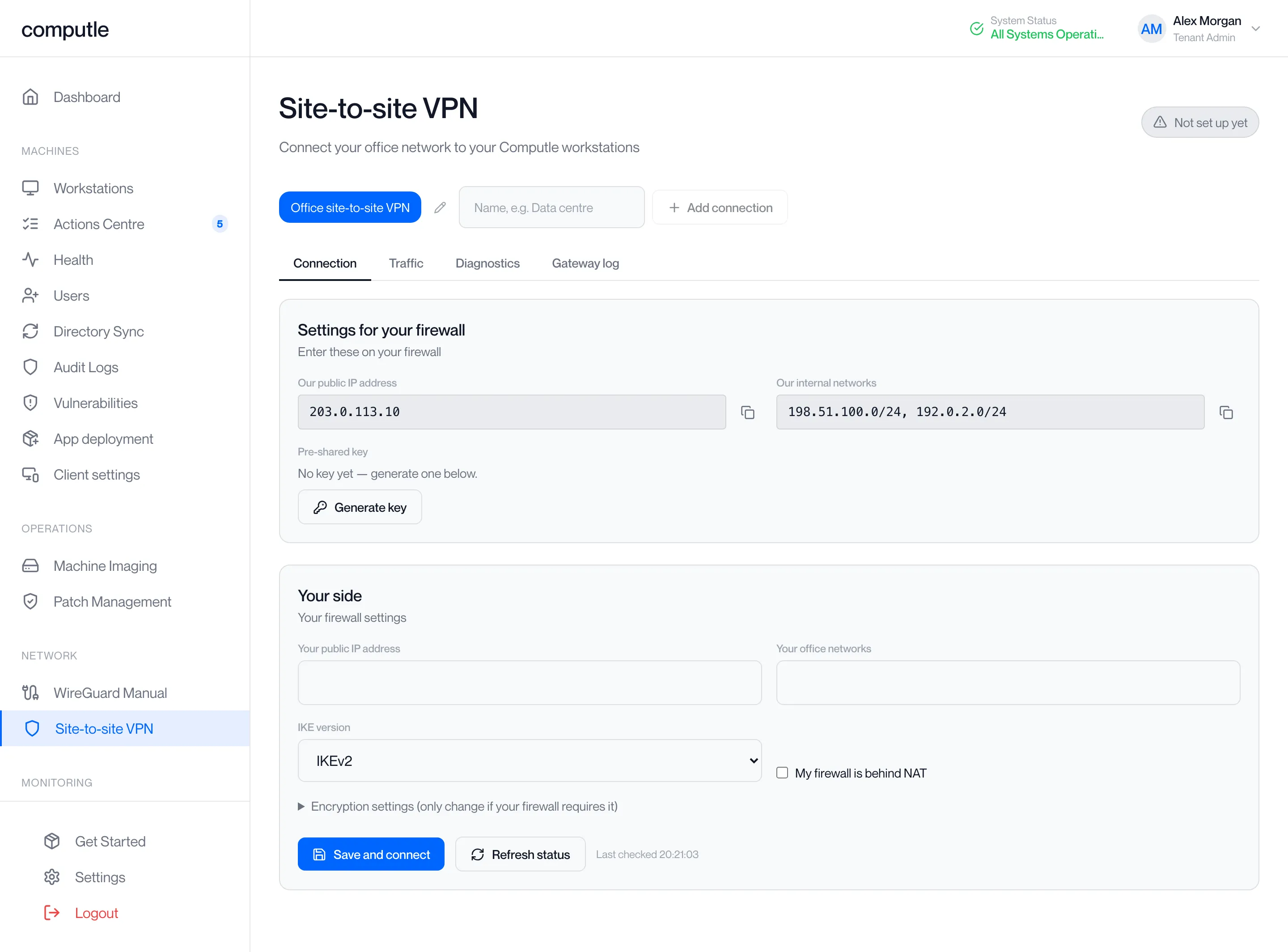
The first time a tenant administrator opens the page, the portal creates your first connection, named Office site-to-site VPN, with Computle’s side already filled in. There is no request to make for that first connection.
If the page shows No site-to-site VPN configured with “Contact support to have a VPN provisioned”, your account has no gateway assigned yet. Contact your account manager.
Connecting, in brief
Section titled “Connecting, in brief”-
Open Network, Site-to-site VPN in the Computle Portal.
The status badge at the top right reads Not set up yet until your side is saved.
-
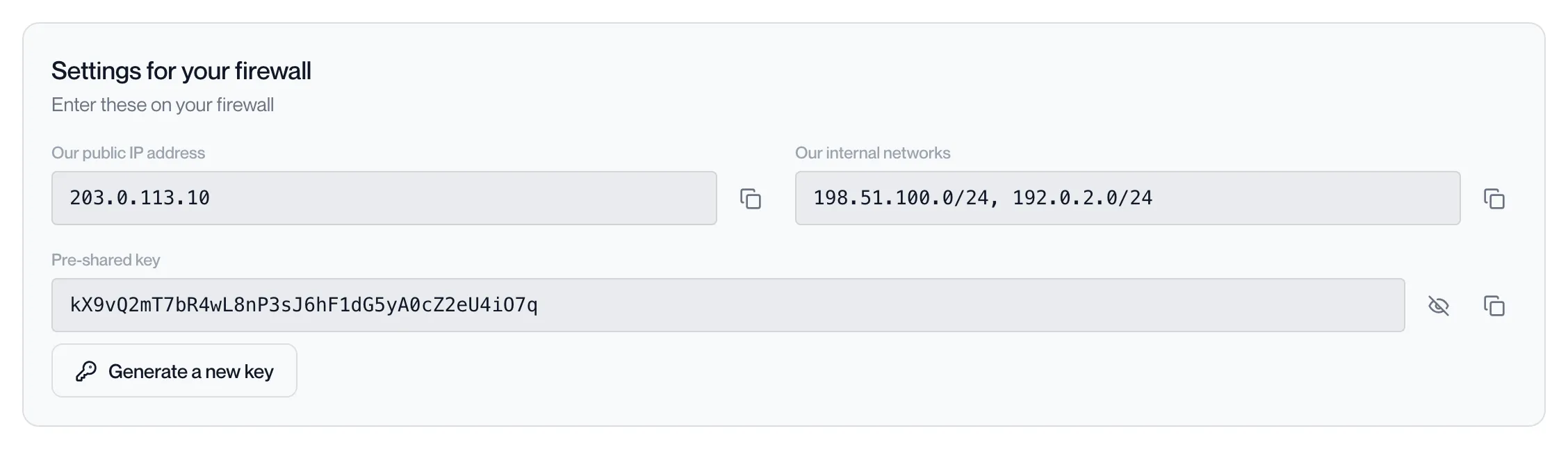
Read Settings for your firewall.
Our public IP address and Our internal networks are the values your firewall needs for the remote peer and the remote networks. Click Generate key to create the pre-shared key, then the eye icon to reveal it and the copy icon to copy it. See Configure your firewall.
-
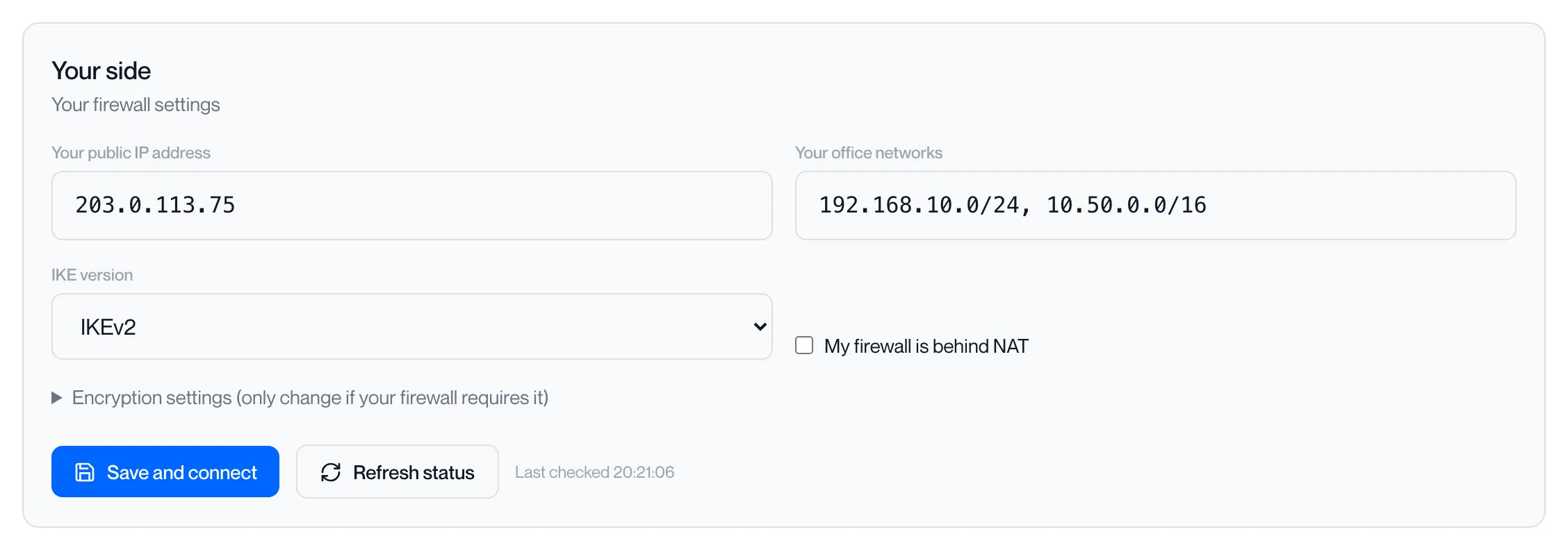
Fill in Your side and click Save and connect.
Your public IP address, your office networks, the IKE version and whether your firewall is behind NAT. Open Encryption settings only if your firewall needs a particular proposal.
-
Wait for the gateway to apply the change.
The page shows Applying your changes to the gateway until the gateway has taken your settings. The gateway then starts the connection to your firewall.
-
Enter Computle’s values on your firewall.
Remote peer: our public IP address. Remote networks: our internal networks. Pre-shared key: the key you generated. IKE version and proposals to match what you saved.
-
Check the status badge reads Connected.
Click Refresh status if you do not want to wait for the next automatic refresh. The badge shows the time the tunnel has been up next to Connected.

-
Run a connection test.
On the Diagnostics tab, test a server in your office by ping or by a service port. See Connection tests.
The Site-to-site VPN pages
Section titled “The Site-to-site VPN pages”How it works
Section titled “How it works”- You save your firewall’s details in the portal. The portal stores them and marks the connection as pending.
- An agent beside your gateway polls the portal every 30 seconds. It reads the pending settings and writes them to the gateway. Nothing reaches the gateway from outside Computle.
- The gateway initiates the IKE negotiation to your firewall from our public IP address. Your firewall does not need to initiate.
- Every 30 seconds the agent reports the tunnel state, traffic counters, any test you have asked for, and the gateway’s negotiation log back to the portal. The page refreshes every 15 seconds while it is open.
The pre-shared key is stored sealed. It is unsealed only for the gateway agent and when you click the reveal icon, and each reveal is logged.