Users & Sign-in
Connect Microsoft 365
This page is for the Microsoft Entra ID administrator of an organisation that signs in to Computle with Microsoft 365 work accounts. Computle uses two multi-tenant enterprise applications in your directory: one for sign-in, one for Directory Sync.
Sign-in
Section titled “Sign-in”Users sign in to the Computle Portal and the Computle (Remotle) client with their Microsoft work account. The first sign-in from your organisation asks for consent to the Computle OAuth 2.0 (Portal Login) application.
| Permission | Type | Description |
|---|---|---|
email | Delegated | View the user’s email address |
openid | Delegated | Sign the user in |
profile | Delegated | View the user’s basic profile |
User.Read | Delegated | Sign in and read the user’s profile |
-
Open the Computle Portal or the client and click Login with Microsoft.
-
Enter your work email and password, and complete any multi-factor prompt.
-
If Microsoft asks for consent, tick “Consent on behalf of your organisation” and click Accept.
If your tenant requires admin approval for new applications, Microsoft shows an approval request instead. Approve it, then sign in again. See Review admin consent requests on Microsoft Learn.
-
Wait for Computle to approve your organisation.
A new organisation is checked by Computle before its users can sign in. This takes up to two business hours.
Directory Sync
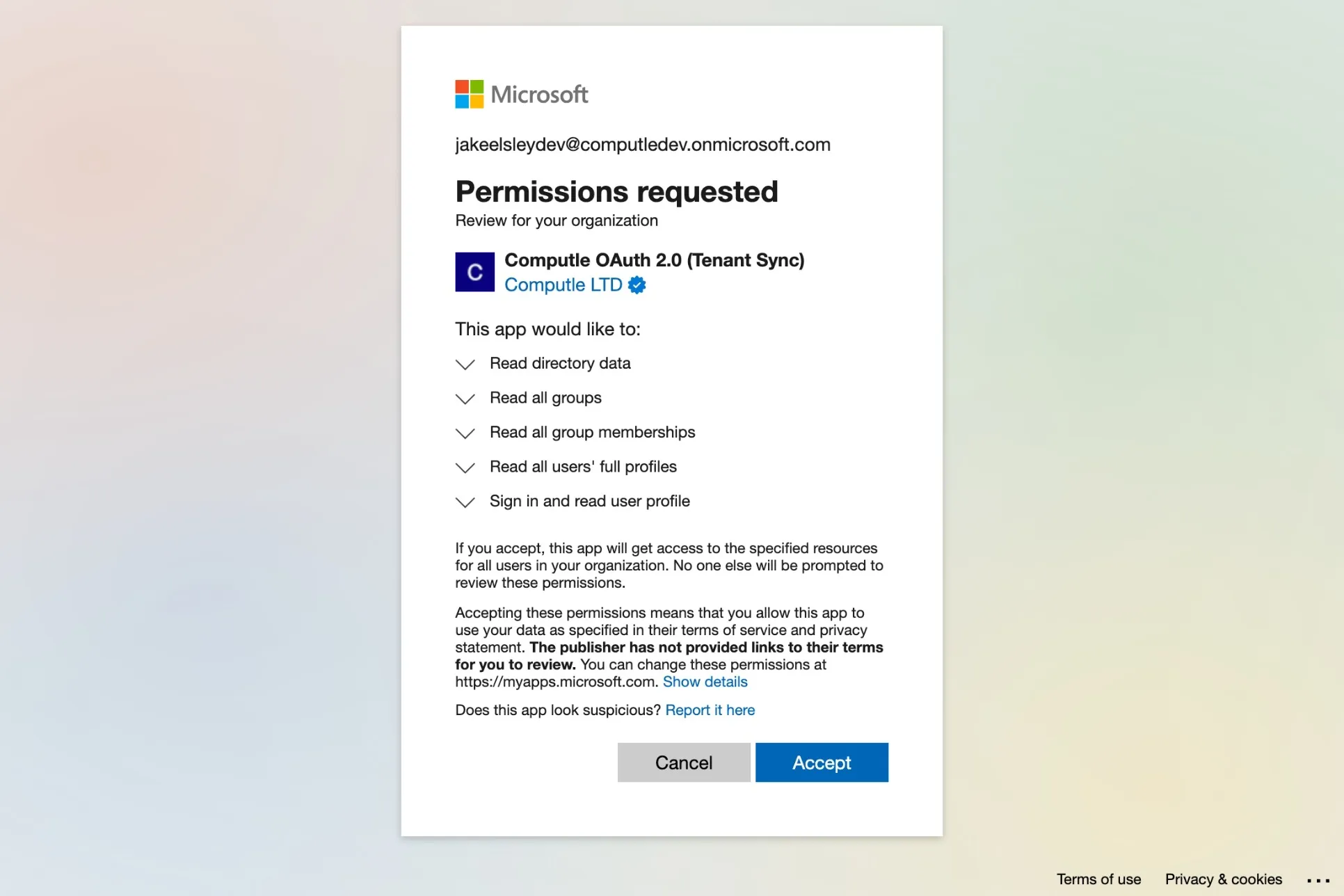
Section titled “Directory Sync”Directory Sync copies users and security groups from Entra ID into Computle, so you can assign workstations to them. It uses a separate application, Computle OAuth 2.0 (Tenant Sync), with application permissions on Microsoft Graph:
| Permission | Type | Description |
|---|---|---|
Directory.Read.All | Application | Read directory data |
Group.Read.All | Application | Read all groups |
GroupMember.Read.All | Application | Read all group memberships |
User.Read.All | Application | Read all users’ full profiles |
-
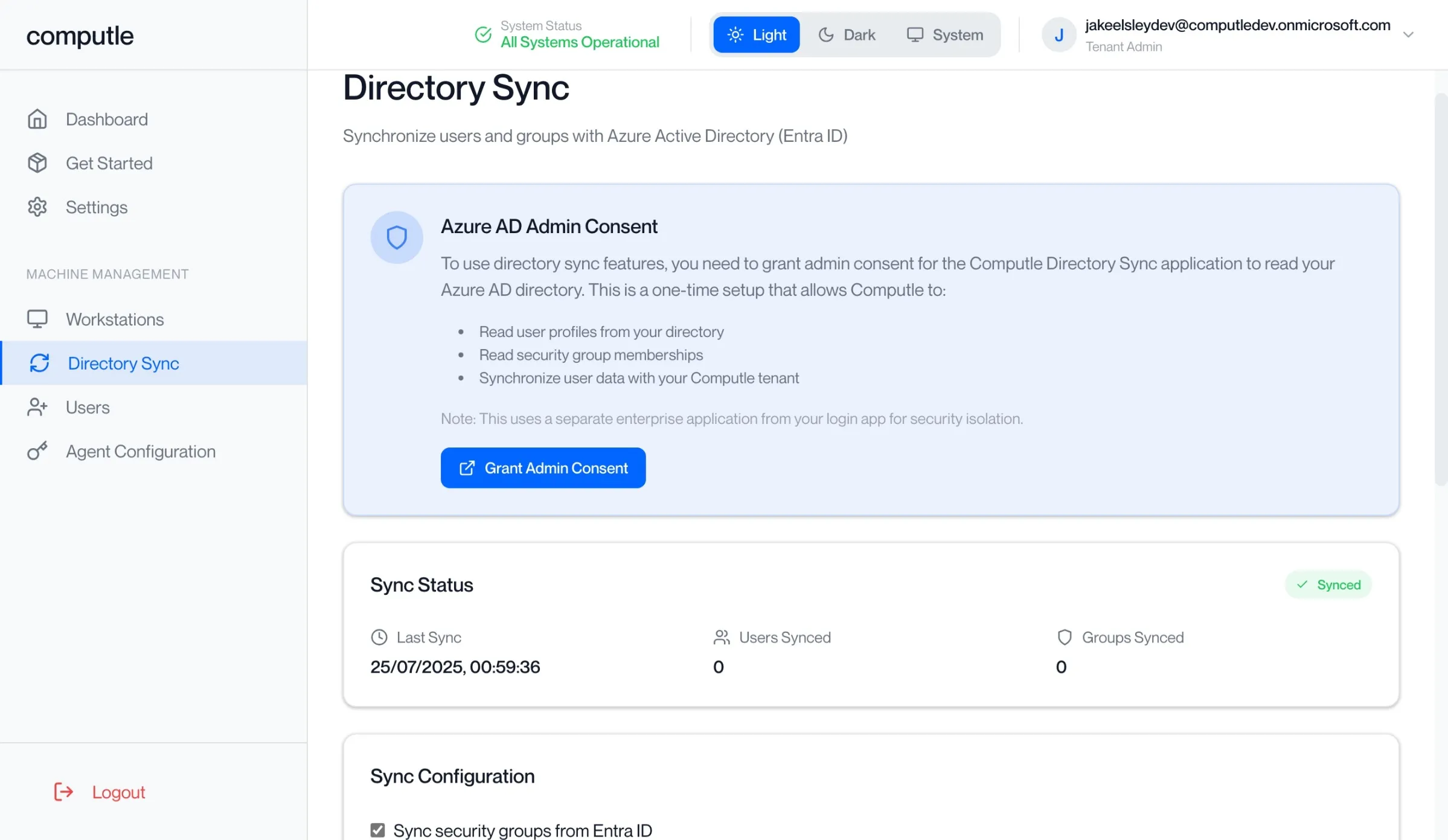
In the Computle Portal, open Directory Sync in the sidebar.
You need the Tenant Admin role.
-
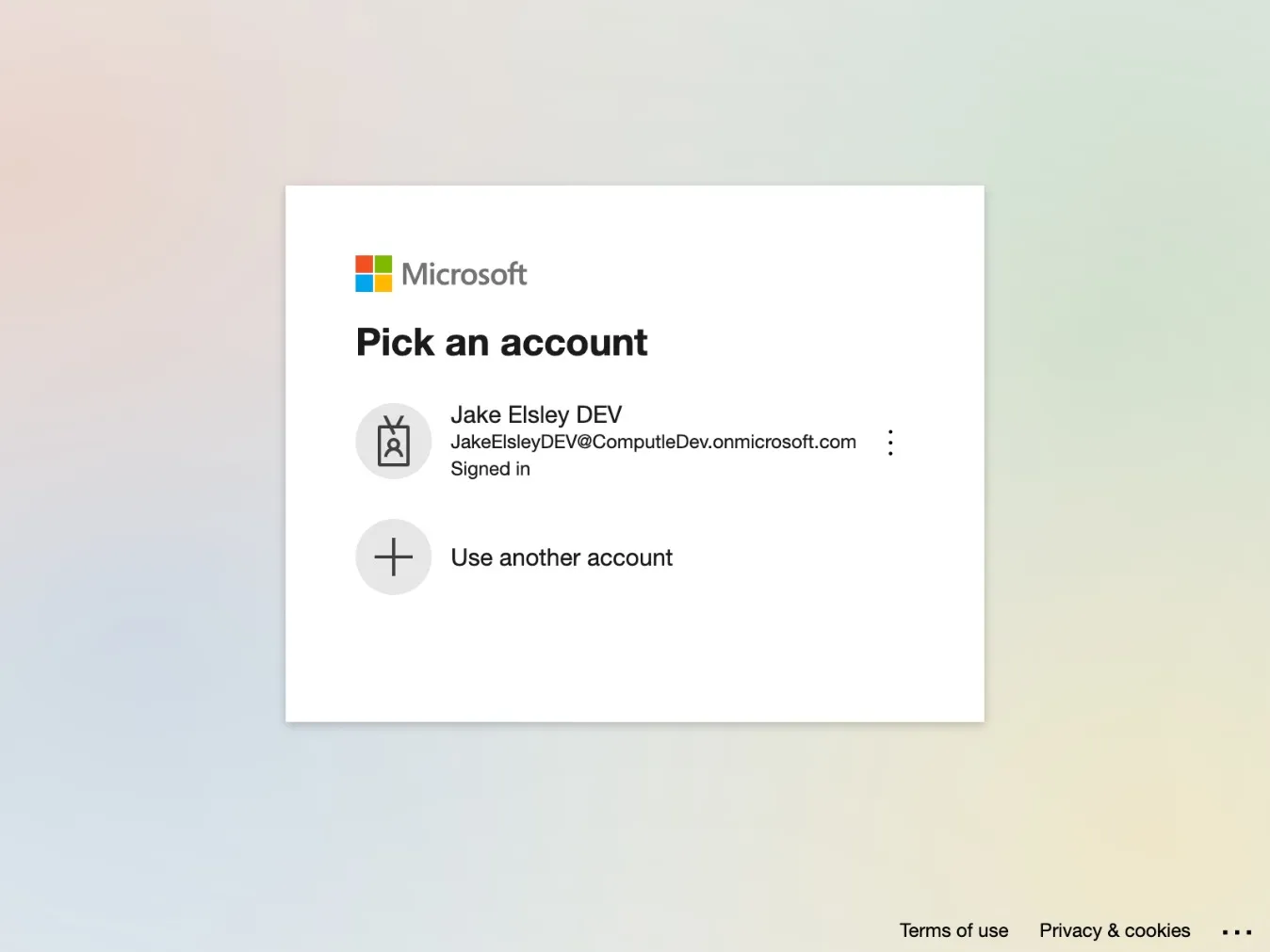
Click Grant Admin Consent and sign in as an Entra ID administrator.
The button is shown only while consent is missing.
-
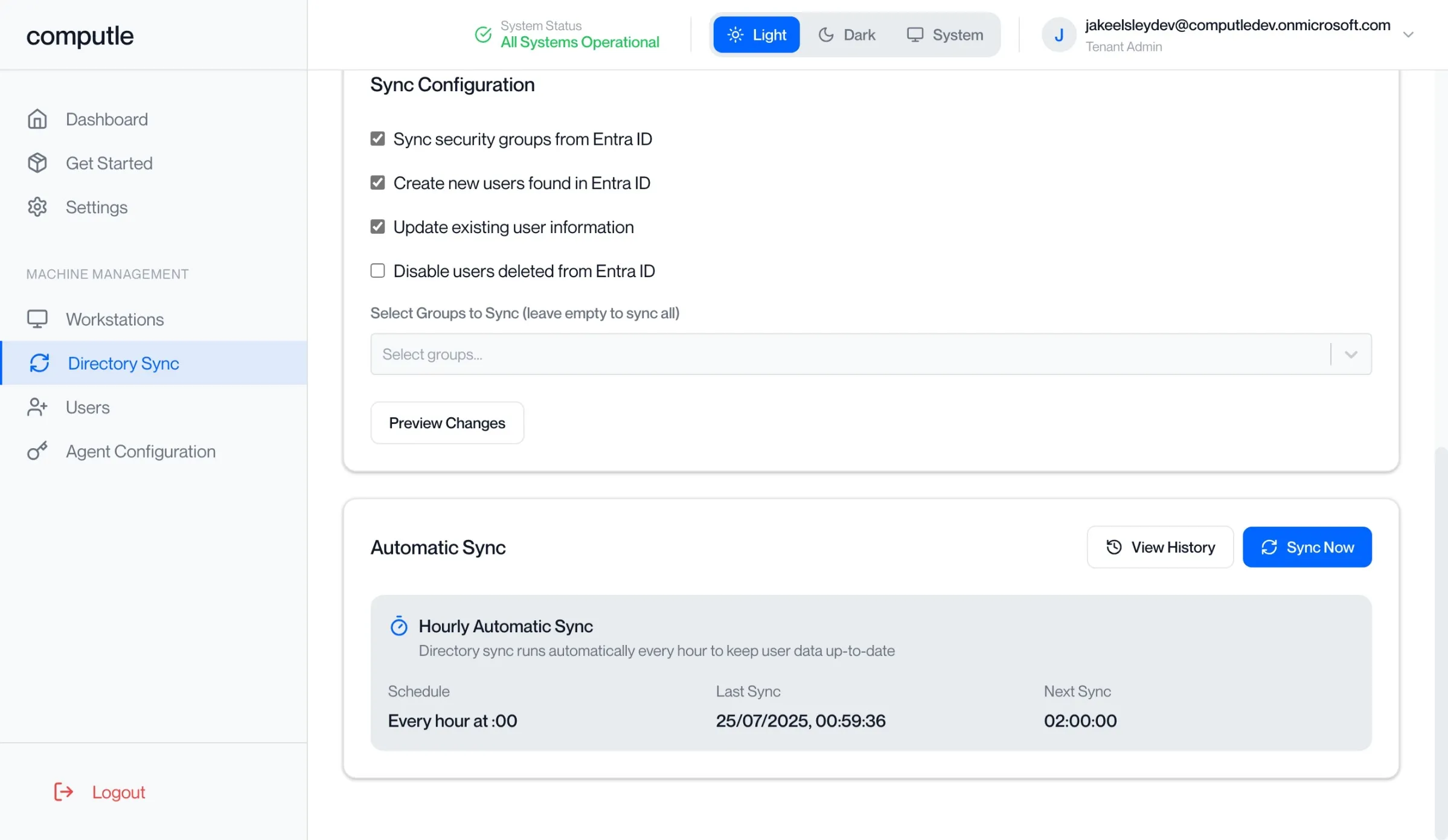
Choose what the sync does.
Options: sync security groups, create new users, update existing users, disable users deleted from Entra ID, and delete users not in Entra ID (permanent).
-
Click Sync Now.
After the first run the sync repeats every hour, on the hour. Sync History on the same page shows each run. The settings and the history are explained under Directory Sync.
-
Open Users to check the synced accounts.
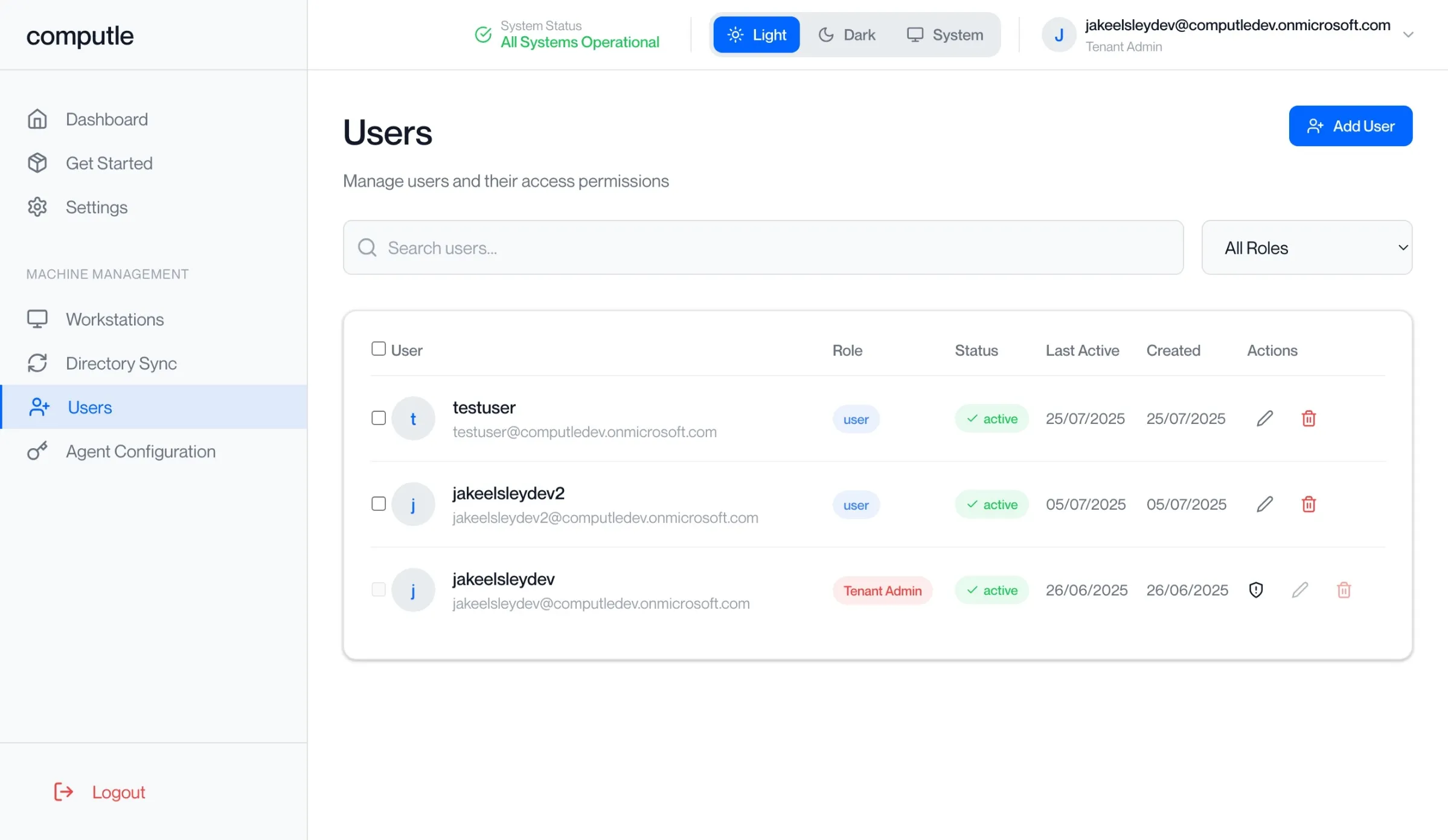
Users from Entra ID are now available in Computle for workstation assignment.
Single sign-on to the workstation
Section titled “Single sign-on to the workstation”Signing the user into the Windows desktop automatically uses a third application, connected from the Users > Single Sign-On tab of the Computle Portal. It is optional; see Single Sign-On.