App Settings
Diagnostics
Diagnostics turns up logging on your workstations or on your users’ clients for a fixed period, then turns it back down by itself. Use it when Computle support asks for debug logs for a problem they are working on with you.
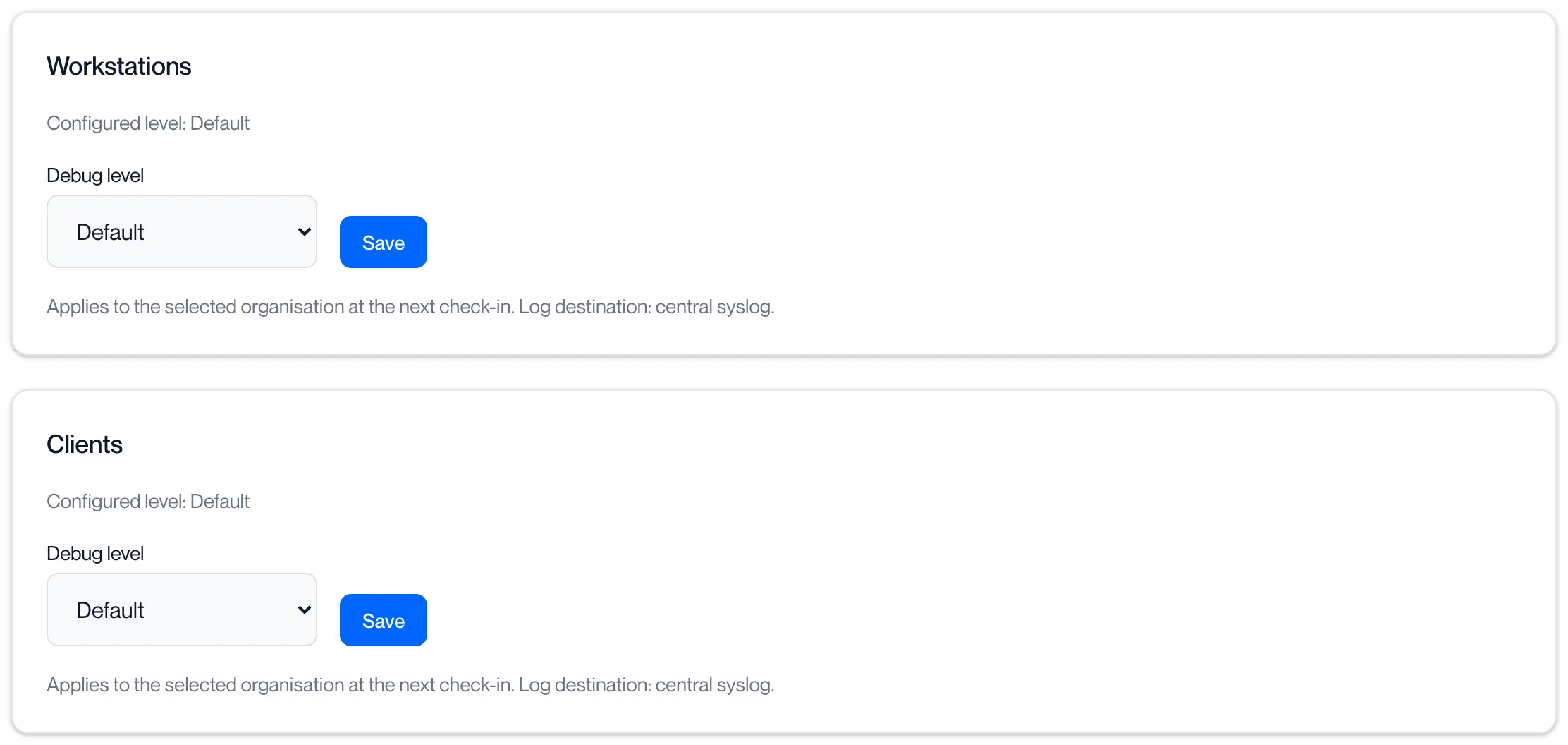
Open Client settings in the sidebar and click the Diagnostics tab. There are two cards: Workstations and Clients.
Set a debug level
Section titled “Set a debug level”-
Choose the Debug level.
Level Meaning Default Normal logging. Debug Detailed logging. Verbose (per-frame) The most detailed logging, including an entry for every frame of a session. -
Choose the Duration.
5 minutes, 15 minutes, 1 hour, 4 hours or 24 hours. The level returns to Default when the time is up. Duration is not shown for Default.
-
Click Save.
The card then reads “Configured level: Debug · Expires …”. “Applies to the selected organisation at the next check-in. Log destination: central syslog.”
The logs go to Computle’s central log service, where support reads them. Nothing is sent to you.
Related pages
Section titled “Related pages”Questions
Section titled “Questions”Do I need to turn it off afterwards?
Section titled “Do I need to turn it off afterwards?”No. The level returns to Default when the duration expires.
Does Verbose slow the session down?
Section titled “Does Verbose slow the session down?”Verbose writes an entry for every frame. Choose the shortest duration that covers the problem.