App Settings
Menu tab
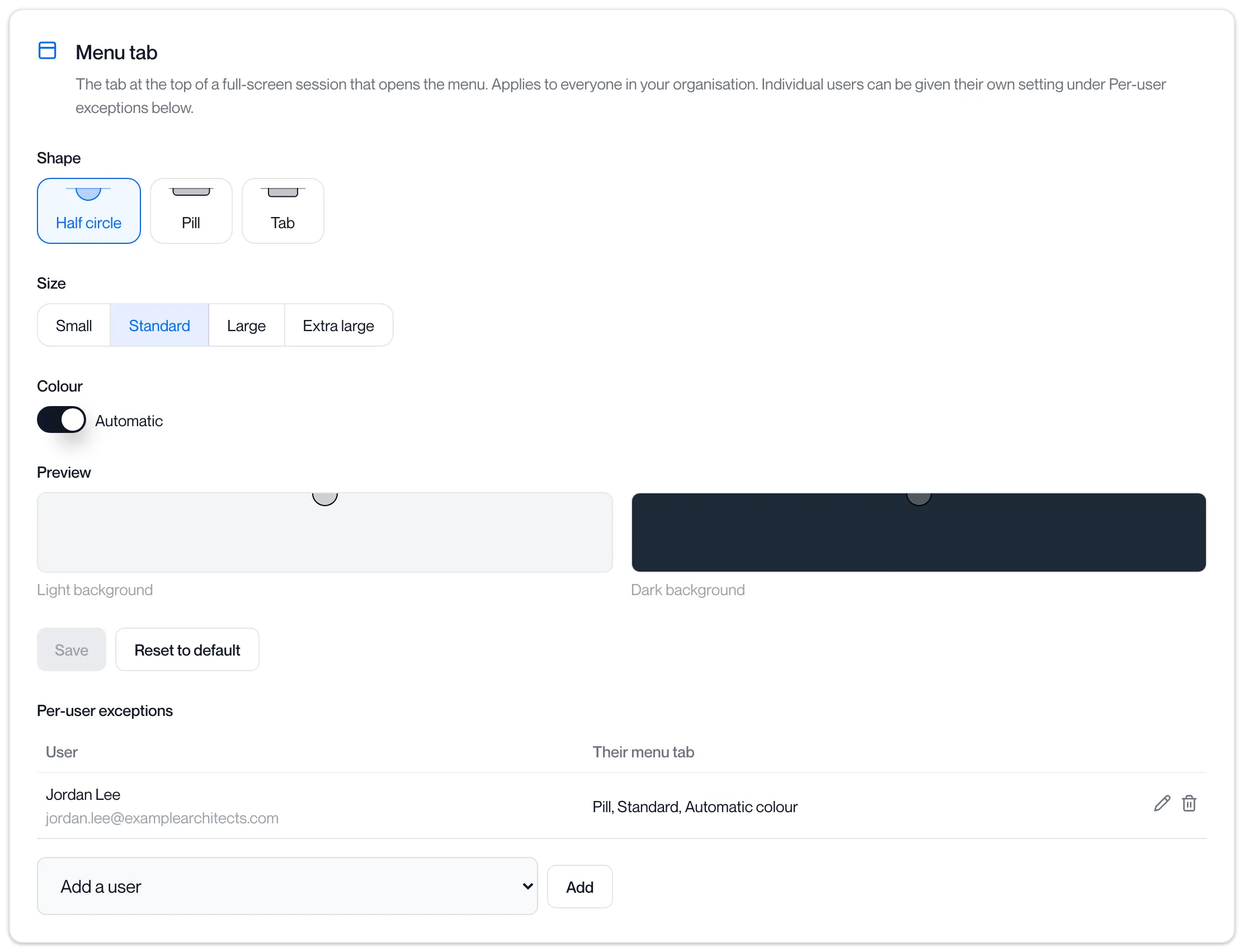
In a full-screen session the client shows a small tab at the top edge of the screen. The user clicks it to open the session menu. The Menu tab settings choose its shape, size and colour for everyone in your organisation, and let you give individual users their own setting.
Open Client settings in the sidebar and click the Menu tab tab. The card reads “The tab at the top of a full-screen session that opens the menu. Applies to everyone in your organisation. Individual users can be given their own setting under Per-user exceptions below.”
Organisation setting
Section titled “Organisation setting”| Setting | Options | Default |
|---|---|---|
| Shape | Half circle, Pill, Tab | Half circle |
| Size | Small, Standard, Large, Extra large | Standard |
| Colour | Automatic, or a colour of your choice | Automatic |
Automatic draws the tab in a translucent grey that shows on both light and dark desktops. Turn Automatic off to pick a colour with the colour well, or type it as #RRGGBB into the box beside it. A half-typed value is refused with “Enter a colour as #RRGGBB.” and Save stays disabled until it is complete.
The Preview shows the tab on a light background and on a dark background as you change the settings.
Click Save. The portal reports “Menu tab saved”. Reset to default returns the organisation to Half circle, Standard and Automatic, and reports “Menu tab reset to default”.
Per-user exceptions
Section titled “Per-user exceptions”-
Under Per-user exceptions, choose the user from Add a user and click Add.
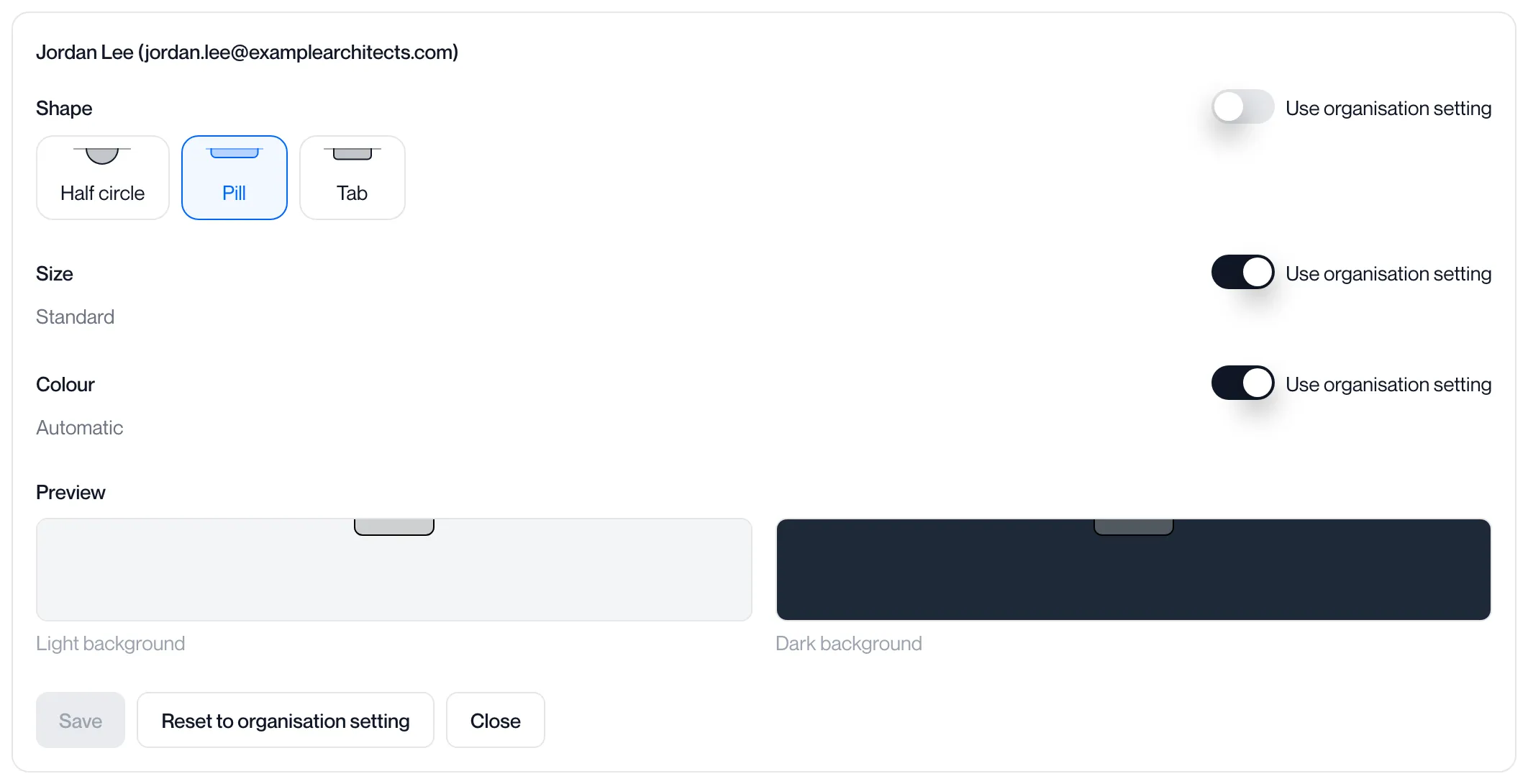
An editor opens for them. Each of Shape, Size and Colour has a switch labelled “Use organisation setting”. It is on to begin with and the organisation’s value is shown beside it.
-
Turn off “Use organisation setting” on each value that should differ, and choose it.
The Preview shows the result for this user.
-
Click Save.
The user appears in the table with their menu tab summarised, for example “Pill, Standard, Automatic colour”.
| Button | What it does |
|---|---|
| Save | Saves the exception. Reports “Menu tab saved”. |
| Reset to organisation setting | Removes the exception and reports “Menu tab reset to organisation setting”. |
| Close | Closes the editor without saving. |
In the table, the pencil opens the editor again and the bin removes the exception. A user can appear in the list once.
Related pages
Section titled “Related pages”Questions
Section titled “Questions”What colour is Automatic?
Section titled “What colour is Automatic?”A translucent grey: darker on a light desktop and lighter on a dark one, so the tab shows on either.
Can a user change their own menu tab?
Section titled “Can a user change their own menu tab?”Not from the portal. Only an administrator can set an exception for them.