Workstations
Patch Management
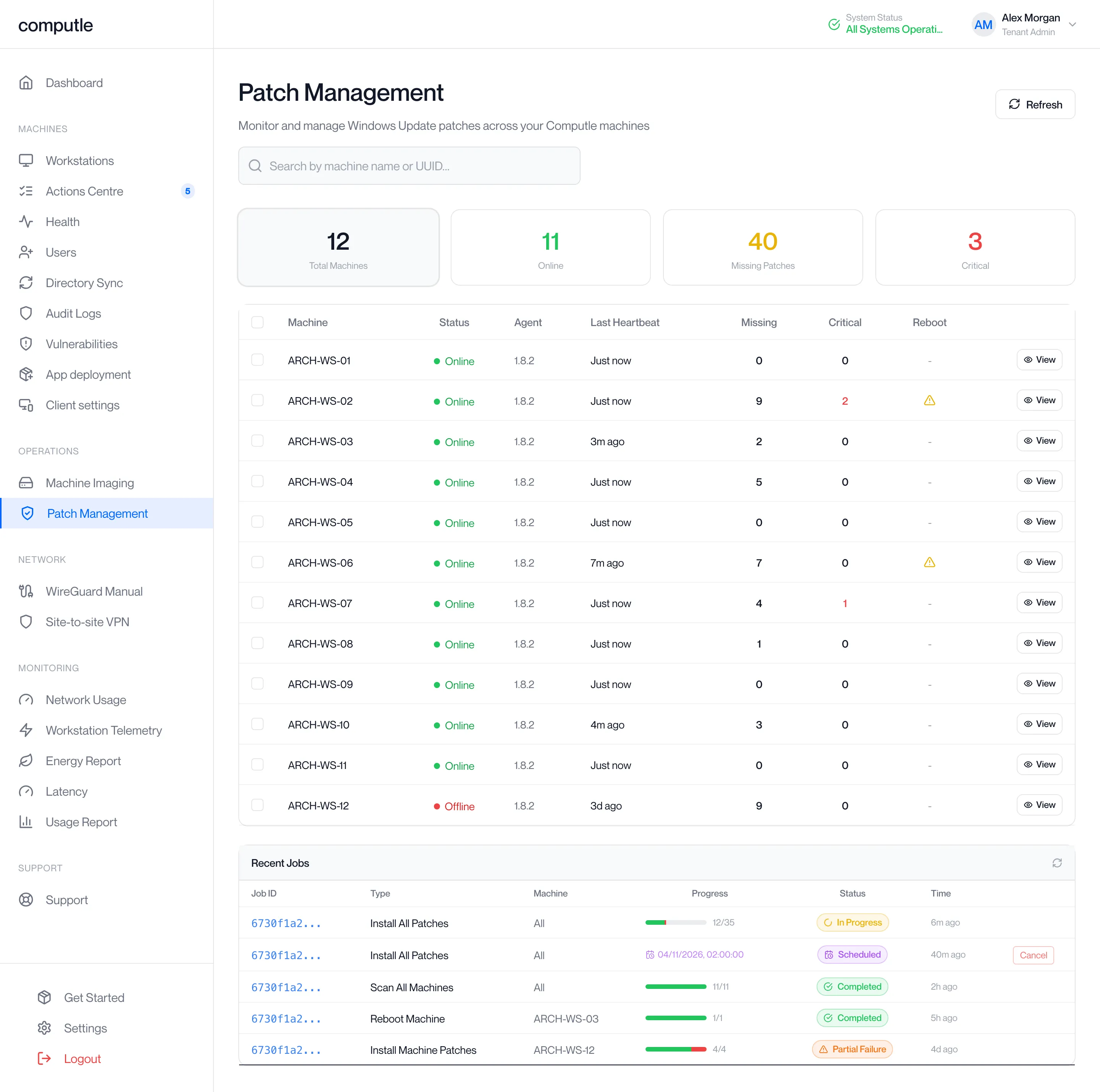
Patch Management shows the Windows updates each workstation is missing and lets you install them, now or at a scheduled time, and reboot workstations afterwards. Every workstation runs a patch agent that reports to the portal and carries out the work.
Open Patch Management under Operations in the portal sidebar. The entry appears only when Patch Management is enabled for your organisation, and the page needs the Tenant Admin role.
The page
Section titled “The page”The page refreshes itself every 30 seconds; jobs every 10 seconds. Click Refresh at the top right to reload everything now.
Counts
Section titled “Counts”Four tiles sit above the table. Click one to filter the table to those workstations.
| Tile | Shows | Filter |
|---|---|---|
| Total Machines | Workstations with a patch agent. | All workstations. |
| Online | Workstations whose agent has reported in the last 2 minutes. | Online workstations. |
| Missing Patches | Patches missing across the organisation. | Workstations missing at least one patch. |
| Critical | Missing patches rated Critical. | Workstations missing at least one Critical patch. |
The table
Section titled “The table”| Column | What it shows |
|---|---|
| Machine | The workstation’s name. |
| Status | Online or Offline. Offline means the agent has not reported for 2 minutes. |
| Agent | The patch agent version. |
| Last Heartbeat | When the agent last reported, as “Just now”, “5m ago”, “3h ago” or “2d ago”. |
| Missing | Patches missing at the last scan. ”-” until the workstation has been scanned. |
| Critical | Missing patches rated Critical, in red when above zero. |
| Reboot | A warning icon when the workstation needs a restart to finish installing. |
| View | Opens the workstation’s patch list under its row. |
Type in Search by machine name or UUID… to filter by name or agent version. Workstations sort by name.
When no workstation has an agent the table reads “No machines with patch agents detected”.
A workstation’s patches
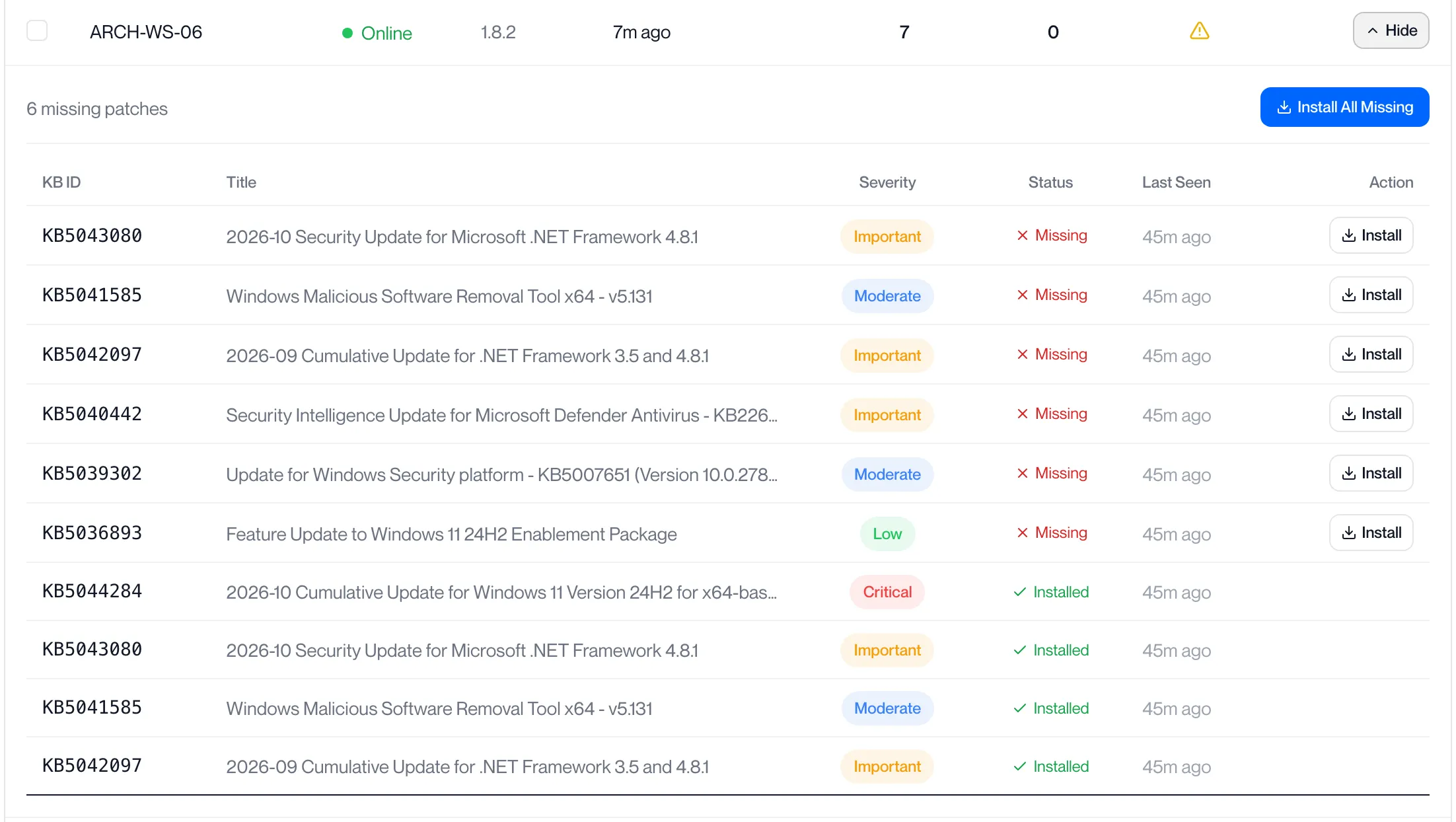
Section titled “A workstation’s patches”Click View on a row. The list shows each patch the last scan found.
| Column | What it shows |
|---|---|
| KB ID | The Windows update number. |
| Title | The update’s title. |
| Severity | Critical, Important, Moderate or Low. |
| Status | Installed or Missing. |
| Last Seen | When a scan last reported this patch. |
| Action | Install on a Missing patch. |
Above the list, “N missing patches” and Install All Missing appear when the workstation is missing any. A workstation that has never been scanned reads “No patch data yet. Run a scan to populate.”
Scan workstations
Section titled “Scan workstations”-
Tick the workstations, or tick the box in the table heading to select every row shown.
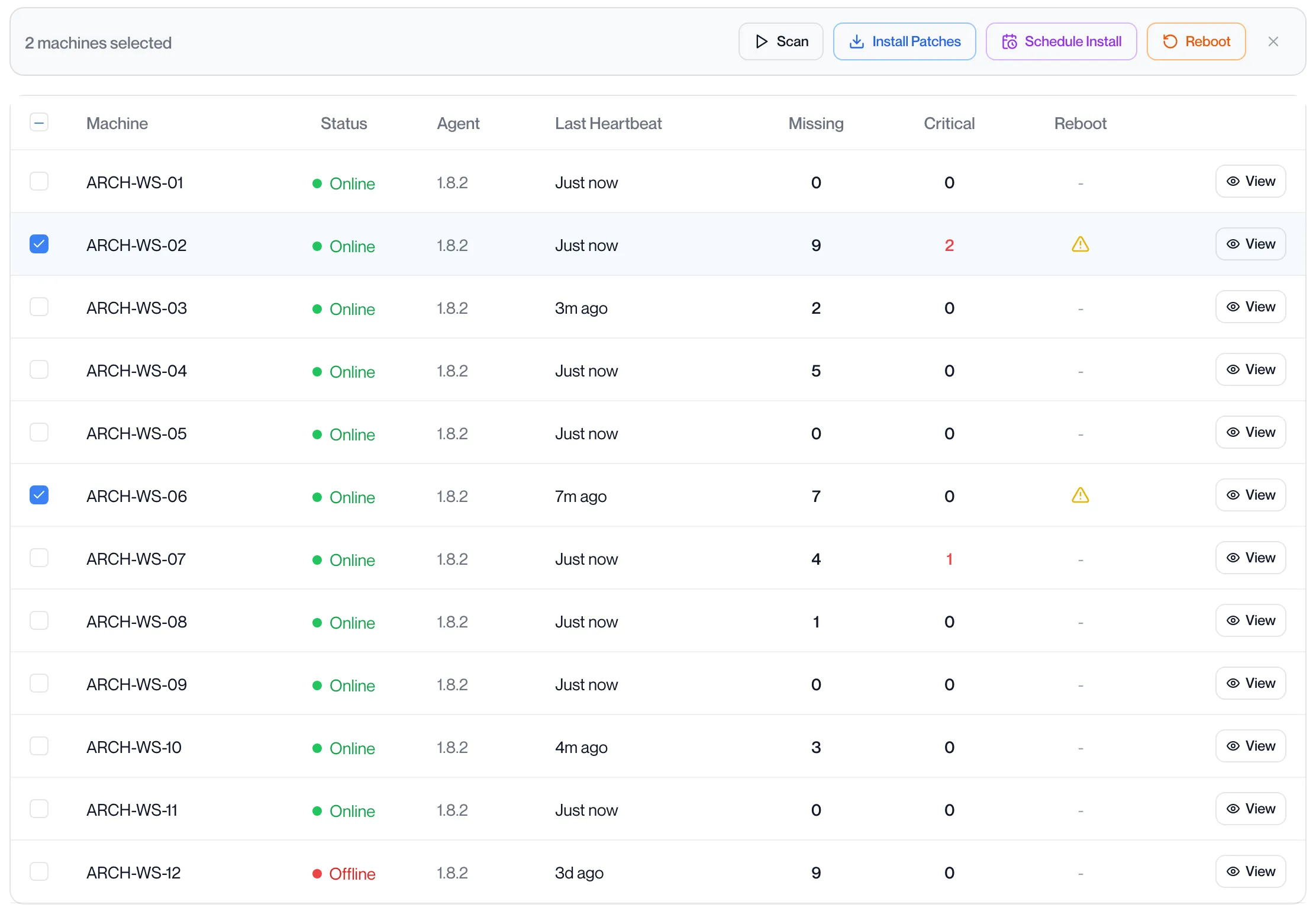
An action bar appears with “N machines selected”. If some are offline it adds “(N online)”.

-
Click Scan.
The portal confirms “Scan queued — Job …” and opens the job. Offline workstations are skipped; if none of the selection is online it says “No online machines selected”.
-
Wait for the job to complete.
The Missing and Critical columns update when the scan reports.
Selecting more than one workstation scans every online workstation in the organisation. The ticked rows only decide whether one workstation or the whole organisation is scanned.
Install patches
Section titled “Install patches”-
Tick the workstations and click Install Patches.
A confirmation bar reads “Install all missing patches on N machines”.

-
Tick Reboot after install to restart each workstation once its patches are in.
The button changes to “Confirm & Reboot”. A separate reboot job is created when the install job finishes, for every workstation that installed at least one patch.
-
Click Confirm.
The portal confirms “N install task(s) queued”, with “(reboot scheduled)” when you ticked the box, and opens the job. One task is created per missing patch per workstation. If nothing is missing the job is dropped and the portal reports “No missing patches found”.
Selecting more than one workstation installs on every workstation in the organisation that has missing patches. The ticked rows only decide whether one workstation or the whole organisation is covered.
Install patches on one workstation
Section titled “Install patches on one workstation”-
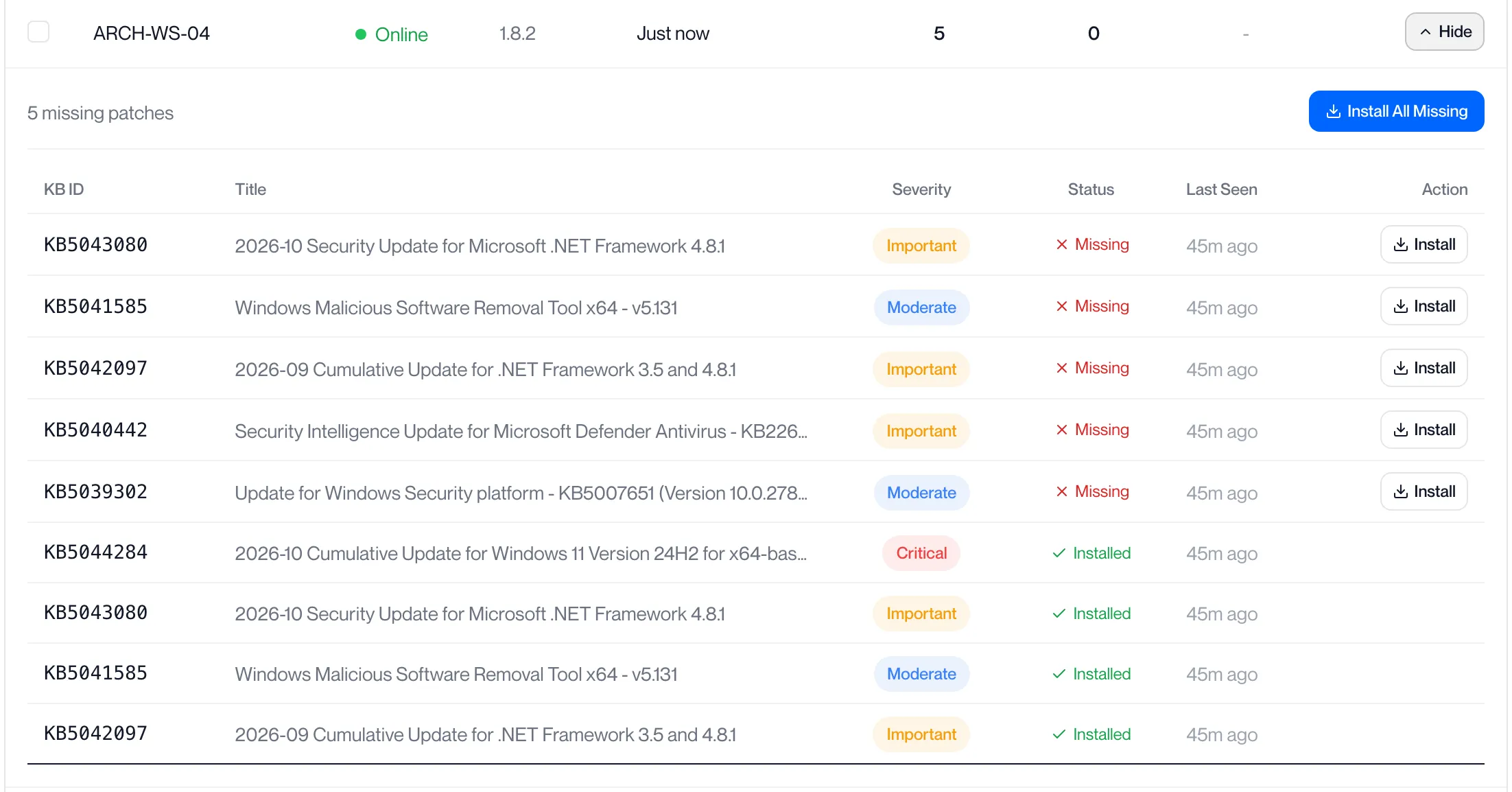
Click View on the workstation’s row.
Its patch list opens under the row.
-
Click Install All Missing above the list, or Install on one patch.
The same confirmation bar appears in both cases, reading “Install all missing patches on 1 machine”.
-
Tick Reboot after install if the workstation should restart afterwards, then click Confirm.
The portal confirms “N install task(s) queued” and opens the job. Only this workstation is covered.
Schedule an install
Section titled “Schedule an install”-
Tick the workstations and click Schedule Install in the action bar.
You can also tick Schedule on the confirmation bar after clicking Install Patches.

-
Pick a date and time at least 5 minutes ahead.
-
Click Schedule.
The portal confirms “Install scheduled for …” with the date and time. The job shows as Scheduled in Recent Jobs with its time. The tasks are created when the time arrives, so patches that appear in a later scan are included.
Cancel a scheduled install
Section titled “Cancel a scheduled install”-
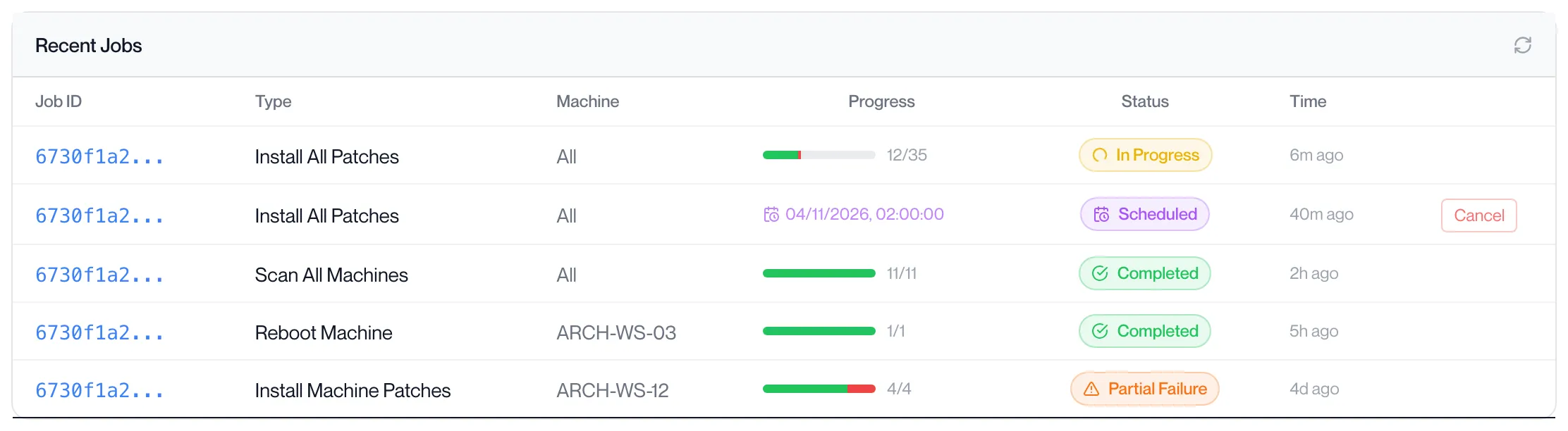
Find the job in Recent Jobs.
It shows the status Scheduled and its time.
-
Click Cancel on its row.
The portal confirms “Scheduled job cancelled” and the status changes to Cancelled. Only scheduled jobs can be cancelled; a job that has started runs to completion.
Reboot workstations
Section titled “Reboot workstations”A reboot from this page restarts the workstation through its patch agent, for example to finish installing updates. Anyone signed in to the workstation is signed out when it restarts.
-
Tick the workstations that need a restart.
The Reboot column shows a warning icon on each one that is waiting for a restart.
-
Click Reboot in the action bar.
The browser asks “Reboot 2 machine(s) now?”. Click OK.
-
Wait for the job.
The portal confirms “Reboot queued — Job …” for one workstation or “N reboot(s) queued” for several. Each online workstation restarts 5 seconds after its agent picks up the task; the restart notice on the workstation reads “Computle Patch Agent - reboot for patching”. Offline workstations are skipped.
-
Check the Reboot column.
The warning icon clears once the workstation’s agent reports again after the restart. Open programs are not forced closed, so a workstation with unsaved work can refuse the restart; the task is marked failed after 15 minutes.
Recent Jobs at the foot of the page lists the last five jobs with their type, workstation (“All” for organisation-wide jobs), progress as completed-plus-failed over total tasks, status and age. Click a row to open the job.
| Status | Meaning |
|---|---|
| Scheduled | Waiting for its scheduled time. |
| Pending | Tasks created, none started. |
| In Progress | At least one task running. |
| Completed | Every task finished. |
| Partial Failure | Some tasks failed. |
| Failed | Every task failed. |
| Cancelled | A scheduled job you cancelled. |
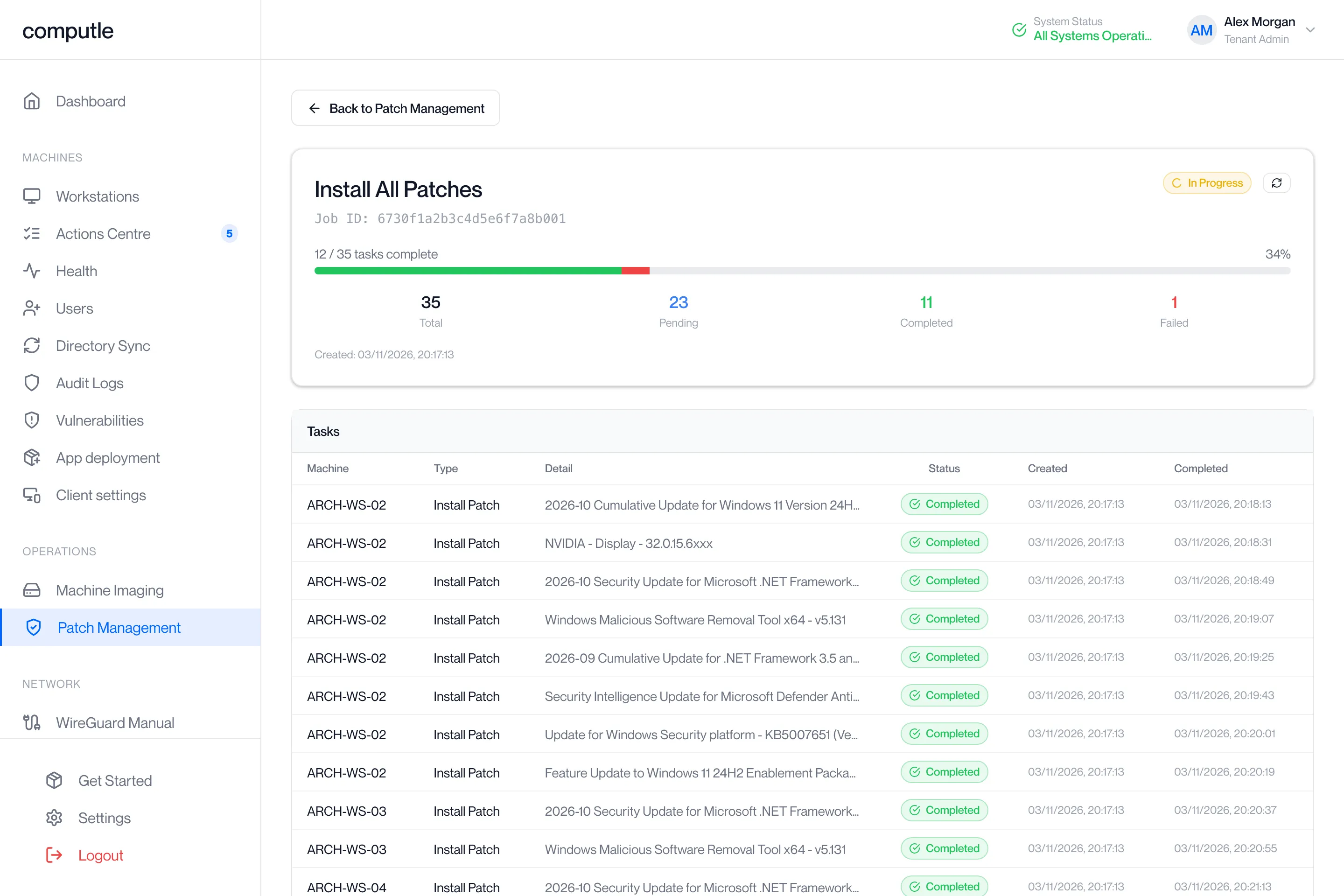
The job page shows the type, job ID, workstation, a progress bar in green for completed and red for failed tasks, counts of Total, Pending, Completed and Failed, the created and completed times, and a table of every task with its workstation, type (Scan, Install Patch or Reboot), the patch it concerns, status and times. An active job refreshes every 5 seconds. Click Back to Patch Management to return.
Job types are Scan All Machines, Install All Patches, Install Machine Patches, Scan Machine, Install Patch and Reboot Machine.
Related pages
Section titled “Related pages”Questions
Section titled “Questions”A workstation shows Offline but it is switched on. Why?
Section titled “A workstation shows Offline but it is switched on. Why?”Offline means the patch agent on it has not reported for 2 minutes. The agent reports once a minute while it runs. Check the workstation is running and has network access; if it stays Offline, contact your account manager.
Missing and Critical show ”-”. Why?
Section titled “Missing and Critical show ”-”. Why?”The workstation has not been scanned yet. Select it and click Scan, or wait for the daily scan.
I ticked three workstations and clicked Install Patches, but the job covered more. Why?
Section titled “I ticked three workstations and clicked Install Patches, but the job covered more. Why?”An install or scan for more than one workstation runs across the whole organisation. To limit it to one workstation, select that workstation alone, or open its patch list and use Install All Missing.
The Reboot column shows a warning. What do I do?
Section titled “The Reboot column shows a warning. What do I do?”The workstation needs a restart to finish installing patches. Select it and click Reboot, or tick Reboot after install on the next install.
A scan or install has been In Progress for a long time. Will it finish?
Section titled “A scan or install has been In Progress for a long time. Will it finish?”A scan task is marked failed after 10 minutes, a patch install after 2 hours and a reboot after 15 minutes, and the job’s counts update. Check the task table on the job page for the one that timed out.
Why did the scheduled install do nothing?
Section titled “Why did the scheduled install do nothing?”It runs only when the time arrives and only for patches that are missing at that moment. If every patch had been installed by then, the job completes with no tasks.