In-Session Messages
In-Session Messages: Performance Notices
These notices appear at the top of the picture when the workstation or this device is working without graphics hardware, or when Windows is limiting this device’s speed.
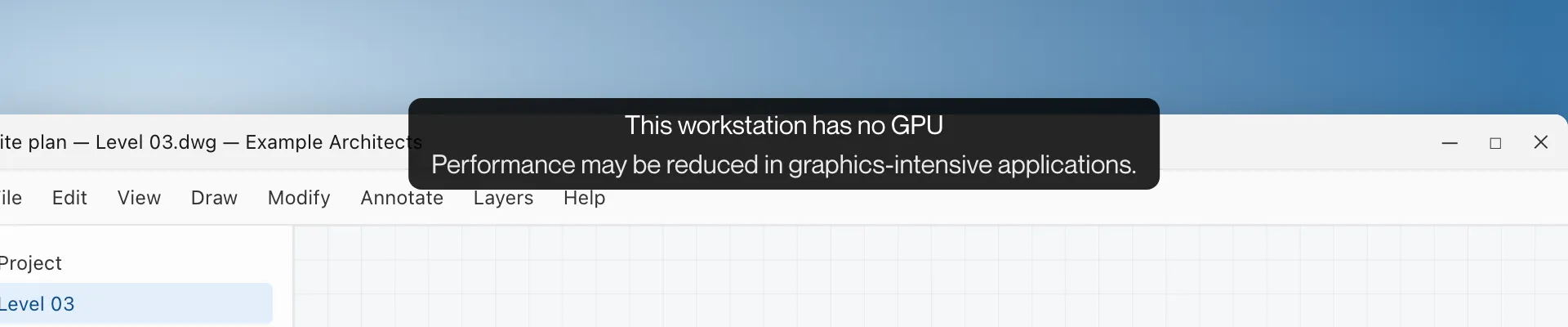
This workstation has no GPU
Section titled “This workstation has no GPU”What you see
“This workstation has no GPU” with “Performance may be reduced in graphics-intensive applications.”
What it means
The workstation has no supported graphics card, so it encodes the picture on its processor. This is the expected notice on such a workstation.
What to do
Nothing is needed. For the picture and encoding your workstation can give, see Host Requirements.
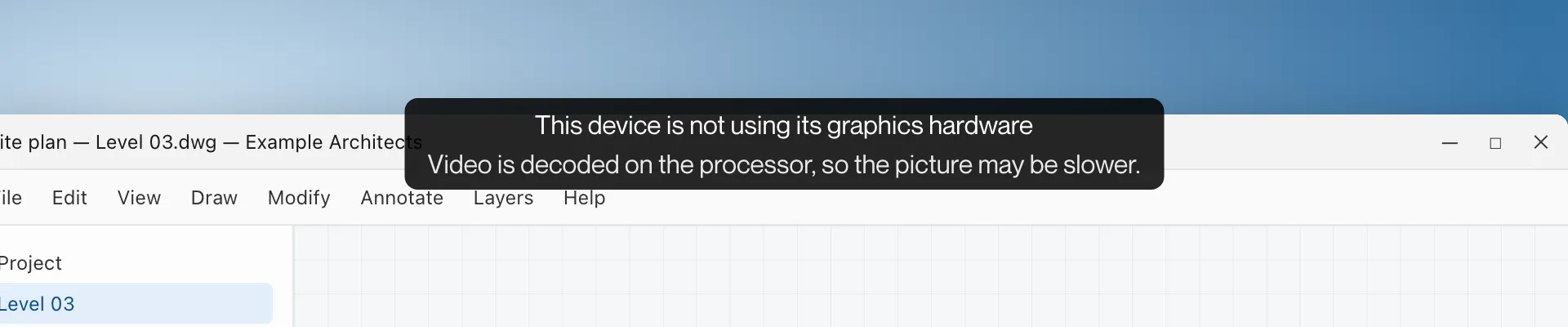
This device is not using its graphics hardware
Section titled “This device is not using its graphics hardware”What you see
“This device is not using its graphics hardware” with one of:
| Detail | What it means |
|---|---|
| “Video is decoded on the processor, so the picture may be slower.” | This device is decoding the video on its processor. |
| “The picture is drawn on the processor, so it may be slower.” | This device is drawing the decoded picture on its processor. |
| “Video is decoded and drawn on the processor, so the picture may be slower.” | Both. |
What it means
Remotle on this device is working without its graphics hardware for decoding, drawing or both. The session works, with a slower picture and more processor use.
What to do
- Update this device’s graphics drivers.
- Restart Computle (Remotle).
- If the notice returns, report it from the session menu so support can see which decoder and adapter this device used.
Energy Saver is on
Section titled “Energy Saver is on”What you see
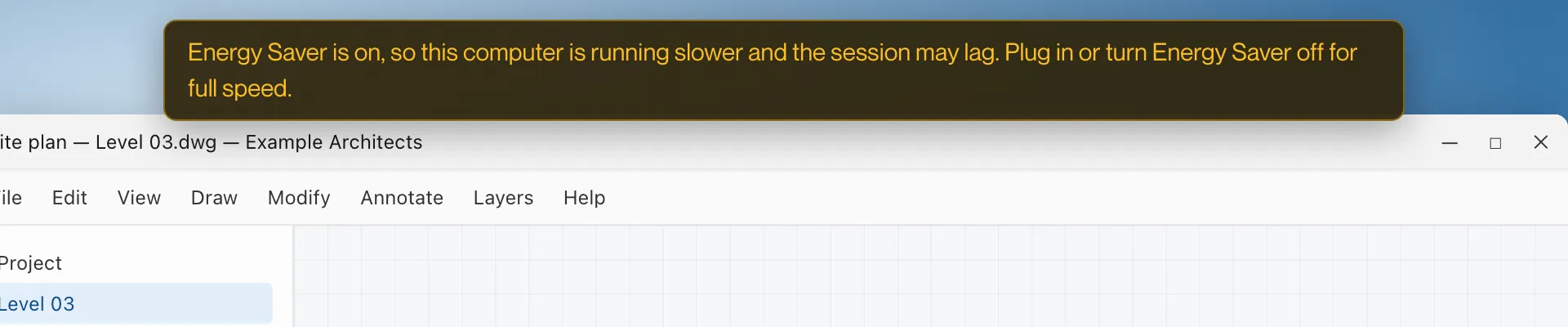
Windows: a banner reading “Energy Saver is on, so this computer is running slower and the session may lag. Plug in or turn Energy Saver off for full speed.”
What it means
Windows Energy Saver is on for this device, so Windows is limiting its speed.
What to do
- Plug the device in, or turn Energy Saver off in Windows Settings, System, Power & battery.
- The notice clears by itself when Energy Saver is off.