Billing & Reports
Audit Logs
The Audit Logs page is the record of administrative actions taken in the Computle Portal and of sign-ins to your organisation. Use it to answer who restarted a workstation, who ran a directory sync, or whether an account signed in at a given time.
Open Audit Logs in the portal sidebar. The page needs the Tenant Admin role, and only shows your own organisation.
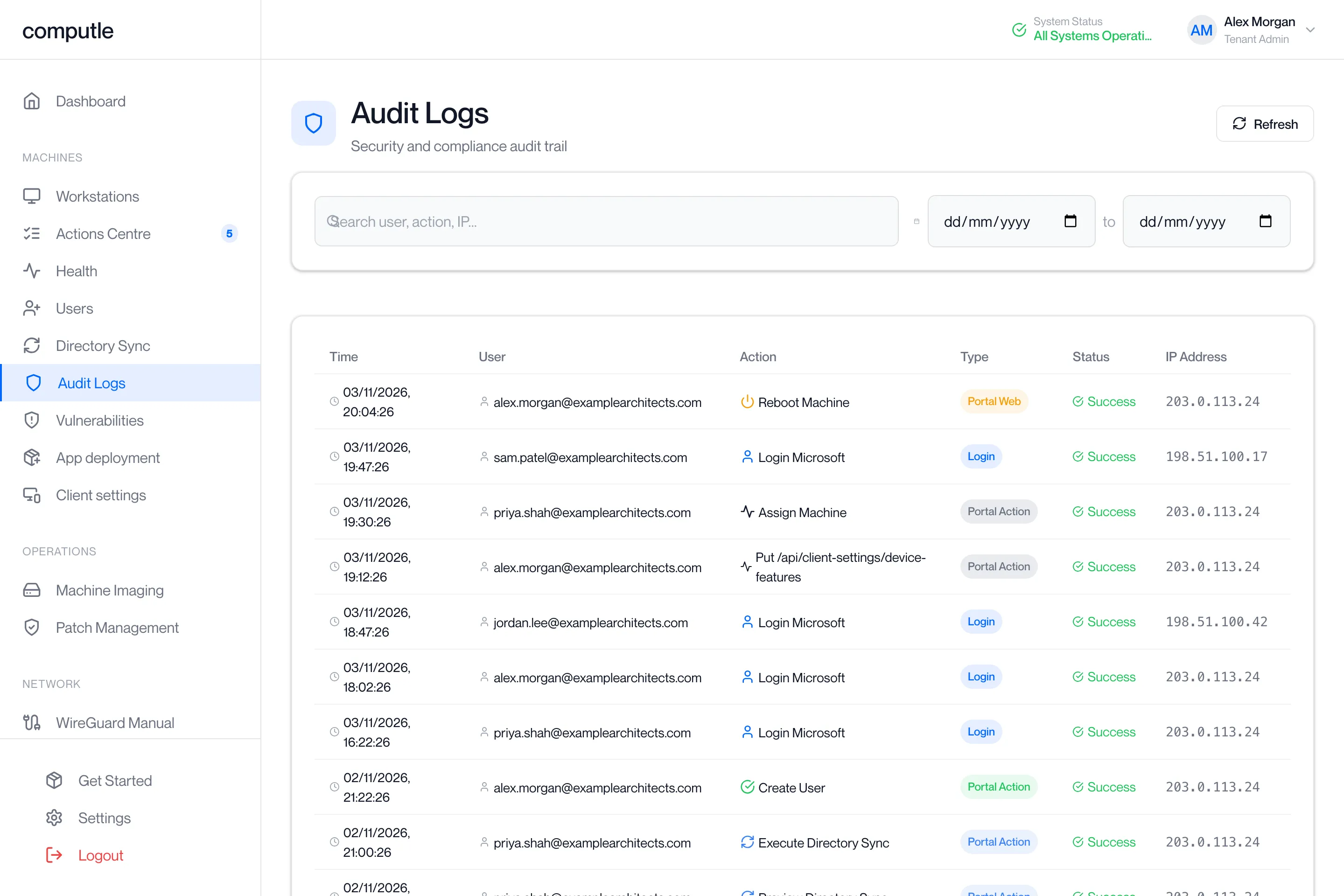
The columns
Section titled “The columns”| Column | What it shows |
|---|---|
| Time | When it happened, as day/month/year and hours:minutes:seconds. |
| User | The email address of the person who did it. “System” when no person was involved. |
| Action | What was done. See What is recorded. |
| Type | Login for sign-in events. For power actions, where the request came from: Portal Web, Computle Client or API/Unknown. Portal Action for everything else. |
| Status | Success or Failed. A failed entry is shown in red. |
| IP Address | The address the request came from. “N/A” when not recorded. |
Entries are newest first, 50 to a page. The footer reads “Showing 1 to 50 of 312 logs” with Previous and Next.
What is recorded
Section titled “What is recorded”Two sources are combined into one list.
Actions in the portal
Section titled “Actions in the portal”| Action as shown | What it was |
|---|---|
| Power On Machine, Reboot Machine, Shutdown Machine, Force Stop Machine | A power action on a workstation, from the portal or from the Computle Client. |
| Reset Admin Password | The local Administrator password on a workstation was reset. |
| Create User | A user was added. |
| Preview Directory Sync, Execute Directory Sync | A directory sync was previewed or run. See Directory Sync. |
| Entra-join.connect.start, Entra-join.disconnect, Entra-join.machine.join, Entra-join.machine.withdraw | The Microsoft Entra join connection was started or removed, or a workstation was joined or withdrawn. |
| Vulntracker.machine.remove, Vulntracker.finding.status | A workstation was removed from vulnerability tracking, or a finding’s status was changed. |
Other changes made through the portal are recorded with the request method and path, for example “Post /…”, with the same user, time, status and address.
Sign-ins
Section titled “Sign-ins”Every sign-in attempt to your organisation, whether with a Microsoft work account or an emailed sign-in link, is recorded with the email address, success or failure, and the address it came from. These entries have the type Login.
If the sign-in service cannot be reached when the page loads, the list shows portal actions only. Click Refresh to try again.
Search and filter
Section titled “Search and filter”| Control | What it does |
|---|---|
| Search user, action, IP… | Matches the user, action, IP address or workstation reference as you type. It searches the entries on the current page. |
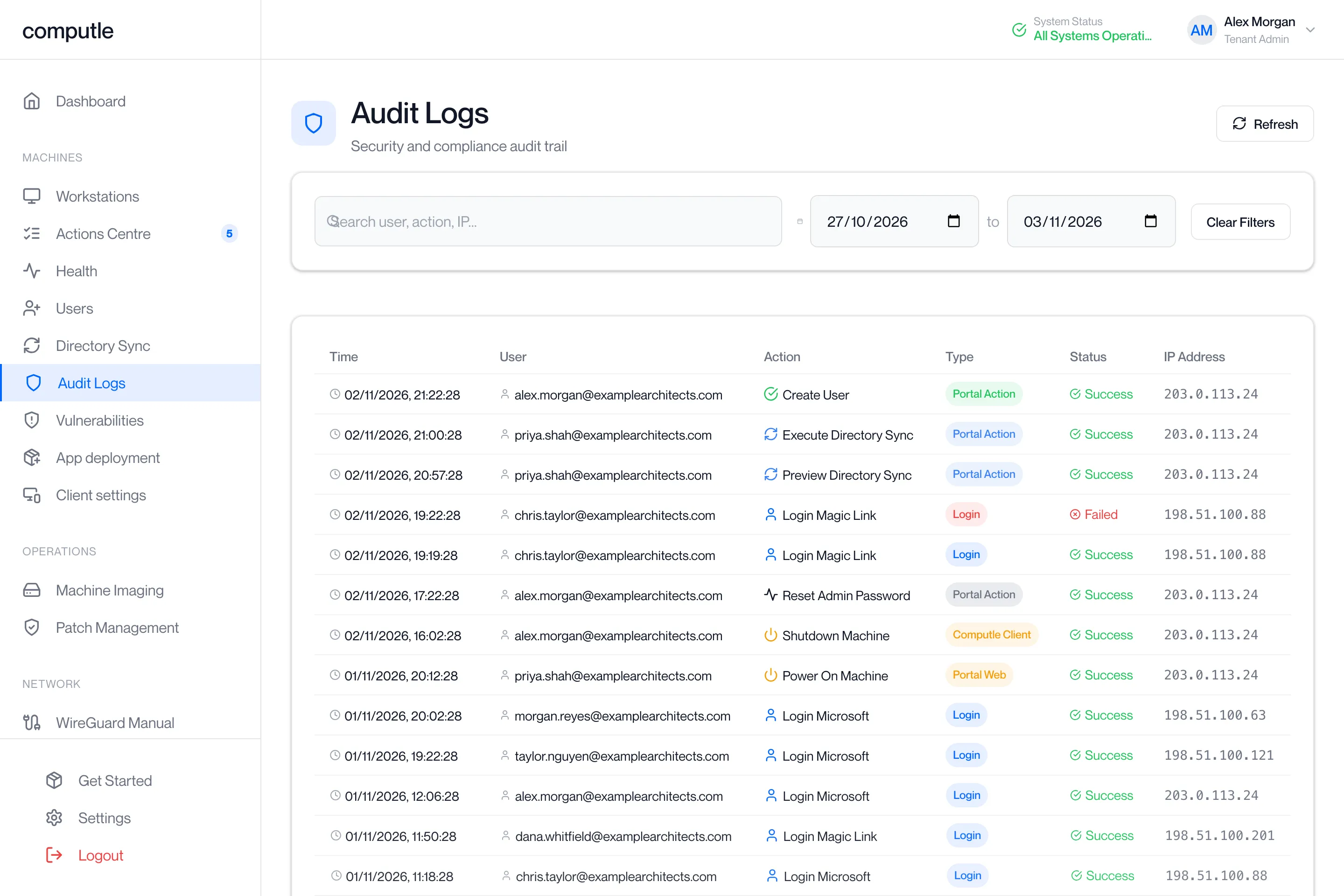
| Date range | Shows only entries between the two dates. Both dates are optional. |
| Clear Filters | Shown once a search or date is set. Clears everything and returns to page 1. |
| Refresh | Reloads the list. The portal shows “Audit logs refreshed”. |
“No audit logs found” means nothing matches, or nothing has been recorded yet.
Find who did something
Section titled “Find who did something”-
Set the date range.
Enter the start date and the end date in the two date boxes above the table. Either can be left empty. The table reloads from page 1.
-
Type in Search user, action, IP…
For example the workstation’s name, “Reboot”, or the person’s email address. The search narrows the entries on the current page as you type.
-
Page through the results with Next and Previous.
The footer reads “Showing 1 to 50 of N logs”. The search applies to each page you open.
-
Read the row.
The User column names who did it, Action what was done, Type where the request came from, and Status whether it succeeded.

-
Click Clear Filters to start again.
The portal returns to page 1 with every entry.
| Message | What to do |
|---|---|
| “Failed to load audit logs” | Click Refresh. If it repeats, contact your account manager. |
Related pages
Section titled “Related pages”Questions
Section titled “Questions”Can I download the log?
Section titled “Can I download the log?”The page has no download. To search a long period, set the date range and page through the results. For a copy of the log, contact your account manager.
How long are entries kept?
Section titled “How long are entries kept?”Ask your account manager.
Why is a workstation’s session not listed?
Section titled “Why is a workstation’s session not listed?”The log records administrative actions and sign-ins to the portal. Connections to a workstation are not audit entries.
A user says they did not sign in, but there is a Login entry
Section titled “A user says they did not sign in, but there is a Login entry”Check the Status and IP Address columns. A failed entry is an attempt that did not succeed. Make sure the user has two-factor authentication turned on in Settings.