Pens and Drawing Tablets
Pens work directly, with pressure and tilt. Open
Using the App
Share a USB device plugged into your Windows, Mac or Linux device with your workstation, so it works as if it were plugged in there. Drives, scanners, signature pads, pen tablets and 3D mice are supported.
While a device is shared it is detached from your own computer and attached to your workstation, where its normal driver takes over. When you stop sharing it, or the session ends, it returns to your computer.
| Device | Shared over USB |
|---|---|
| Drives and memory sticks | Yes |
| Scanners | Yes |
| Signature pads | Yes |
| Pen tablets | Yes. Pens also work directly, without sharing. See Pens and Drawing Tablets. |
| 3D mice | Yes |
| Smart card readers | Yes. On a Mac, see Devices macOS is using. |
| Webcams and headsets | No. Devices that stream audio or video in real time use Camera and Microphone instead. |
| Your keyboard and mouse | No. They stay on your computer, where they control the session. |
| USB hubs | No. The devices plugged into a hub can be shared; the hub itself stays. |
Plug the device in during a session.
A strip appears at the top of the screen: “device connected. Use it on the remote machine?”
Click Connect.
Click Always to share this device automatically from now on. Click Not now to keep it on your computer. On Windows, a strip left unanswered for 8 seconds is treated as Not now. On a Mac, Not now holds until you end the session.
A device shared over USB stops working on your own computer while it is shared. Remotle says so before sharing a device that is in use: “device will be disconnected from this computer while it is in use on the remote machine.”
Open the USB Devices menu.
| Platform | Where |
|---|---|
| Windows and Linux | The USB Devices menu in the menu bar at the top of the session. In full screen, move the pointer to the top of the screen to reveal it. |
| Mac | The USB Devices menu in the menu bar |
Every plugged-in device is listed by brand and model.
Click the device.
A tick shows it is shared. Click it again to stop sharing.
To share a device automatically every time, open Always share and tick it. Click Refresh Devices if a device is missing from the list.
The USB Devices menu lists each device, then Always share and Refresh Devices. Sharing needs the USB sharing service and driver that the installer adds; About Computle (Remotle) in the install folder shows whether they are running. See Check your version.
The USB Devices menu has a Redirect USB Devices switch at the top. With it off, no device is shared and the plug-in strip does not appear. Below it are the devices, then Allow USB Access for Devices in Use by macOS…, and Refresh Devices.
The first time you share a device, macOS asks you to allow a background helper in System Settings, Login Items. Until you allow it, Remotle uses a helper that cannot take devices macOS is holding.
Keyboards, smart card readers and some other devices are held by macOS. To share one, choose Allow USB Access for Devices in Use by macOS… from the USB Devices menu and approve it once in System Settings. If a device you chose is held by macOS and you have not approved this, the menu says “The selected devices are held by macOS and cannot be redirected”.
The USB Devices menu lists each device, then Always share and Refresh Devices. The package adds a helper that opens USB devices for sharing when you choose one.
These appear in the USB Devices menu at the top of the session in place of the device list.
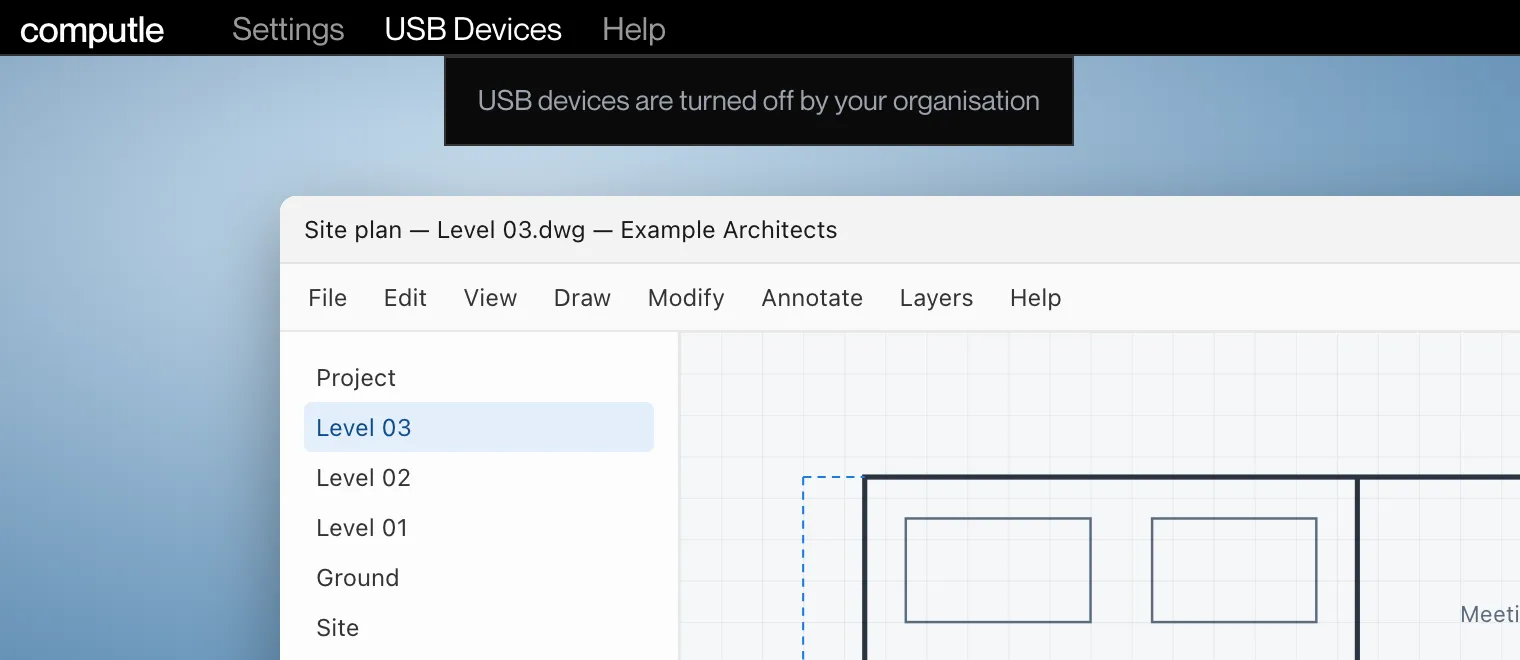
| Message | Meaning | What to do |
|---|---|---|
| Available while connected to a machine | USB sharing works during a session. | Connect to your workstation first. |
| Available from the next connection | USB sharing was turned on during this session. | Disconnect and connect again. |
| USB redirection is not enabled on this machine | USB sharing is turned off on the workstation. | Contact your administrator. |
| USB devices are turned off by your organisation | An administrator has blocked USB sharing in the Computle portal, for the whole organisation or for you. | Contact your administrator. |
| The selected devices are held by macOS and cannot be redirected | Mac only. macOS is using the device. | Choose Allow USB Access for Devices in Use by macOS… |
| The selected devices cannot be redirected | The workstation refused the device. | Try another device. |
| USB devices on this Mac are in use by another Computle session | Mac only. Another session on this Mac is sharing devices. | End the other session. |
| The Computle USB service stopped | The sharing service on this computer stopped. | Restart this computer. |
| The Computle USB service is not installed on this computer | The service is missing. | Reinstall Computle (Remotle). |
| The Computle USB service is not running | The service is stopped. | Restart this computer. |
| No USB devices to share | No shareable devices are plugged in. | Plug a device in, or click Refresh Devices. |
When you share a USB device, Remotle reports its make and model, its USB identifiers, a one-way code made from its serial number, whether sharing worked, the app and driver versions, your email address and your organisation to Computle. If sharing fails, a short extract of the USB log is included. Computle uses this to know which devices work and to follow up when one does not. See Privacy and Data.
They control the session from your computer and are never shared. Plug a second keyboard or mouse in and that one can be shared.
Cameras and headsets stream in real time and are not carried over USB. Use the Camera tab of the session menu instead, where your camera appears on the workstation as Computle Camera. See Sound, Camera and Microphone.
Yes. Click Always on the strip when you plug it in, or tick it under Always share in the USB Devices menu.
The device’s driver on the workstation needs to be installed, as it would for a device plugged in there. Install the maker’s driver on the workstation.
It returns to your computer. Save your work on the workstation before you disconnect, as you would before unplugging a drive.