In-Session Messages
In-Session Messages: The Connection
These messages appear over the picture when the connection to the workstation drops, the workstation restarts, or the picture stops arriving.
Reconnecting
Section titled “Reconnecting”What you see
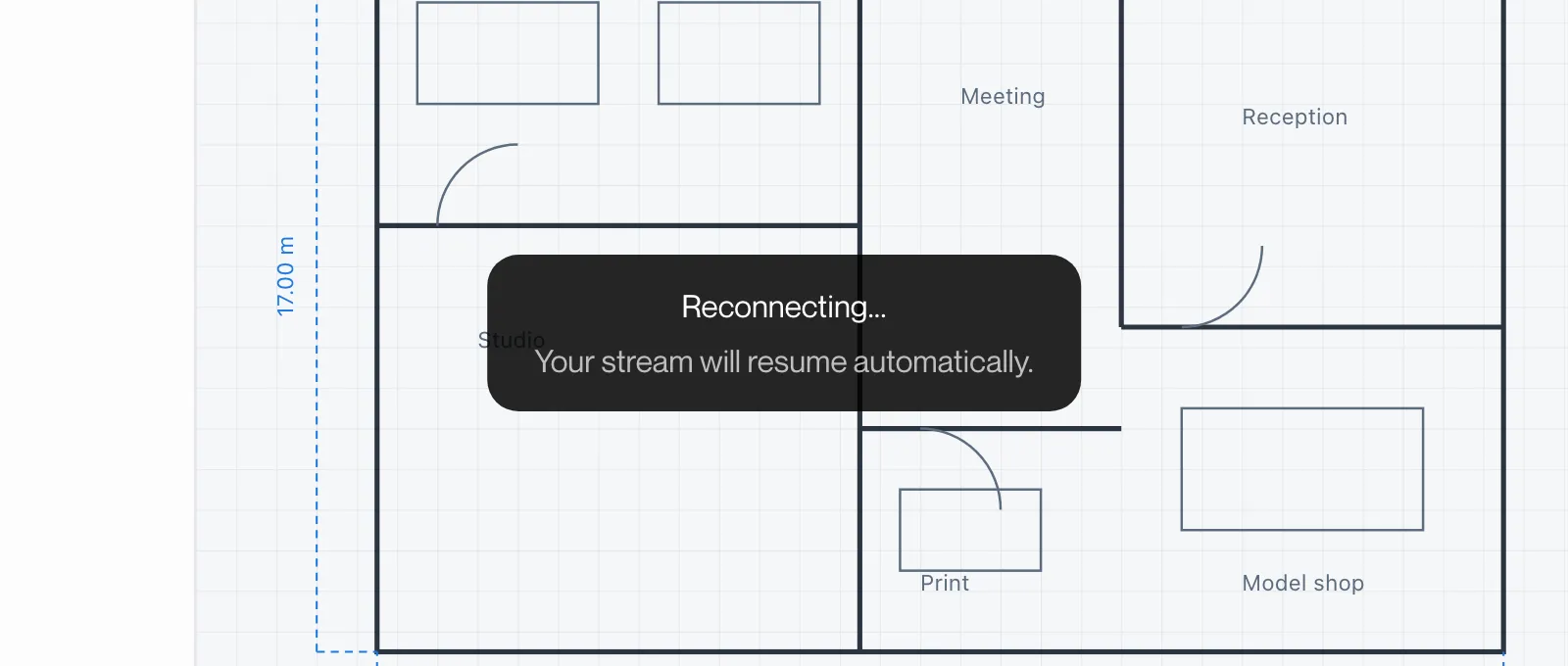
Windows: “Reconnecting…” with “Your stream will resume automatically.” in a box over the picture.
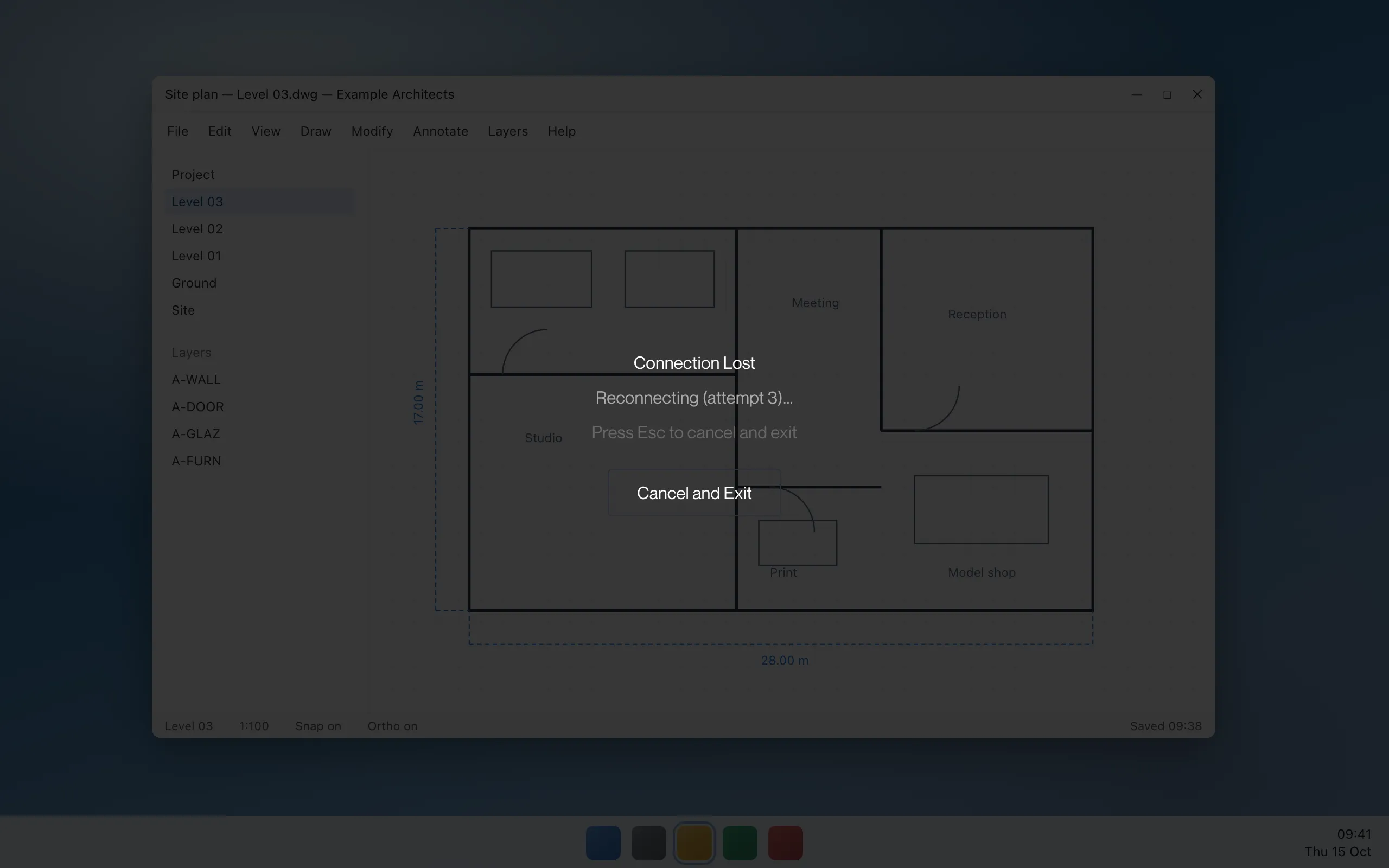
If the connection stays down, the picture dims and the title changes to “Connection Lost” with “Reconnecting (attempt N)…” and “Press Esc to cancel and exit”, and a Cancel and Exit button.
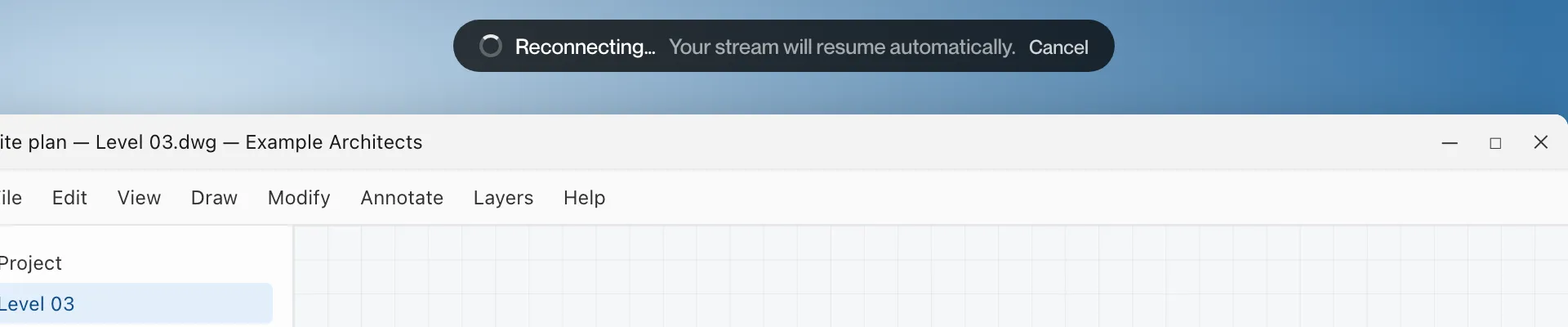
Mac and iPad: a pill at the top reading “Reconnecting…” with “Your stream will resume automatically.” and a Cancel button.
What it means
The connection to the workstation dropped and Remotle is re-establishing it. The session on the workstation is kept, so your applications stay as they were.
What to do
- Wait. The picture returns by itself when the connection is back.
- To stop waiting, click Cancel and Exit or press Esc. On Mac, click Cancel on the pill.
- If this happens often, press F3 during the session to see the connection figures (see Connection Figures) and report it from the session menu.
Your machine is restarting
Section titled “Your machine is restarting”What you see
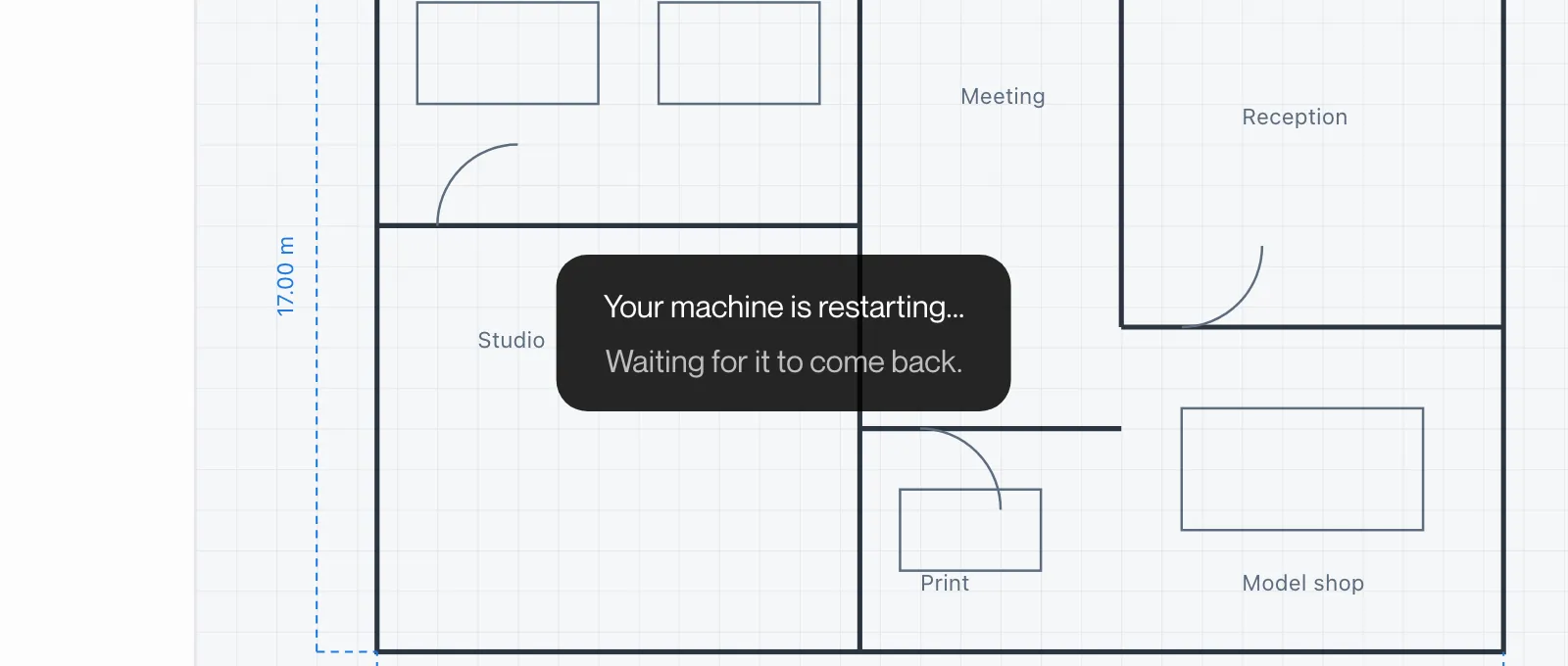
Windows: “Your machine is restarting…” with “Waiting for it to come back.” in a box over the picture.
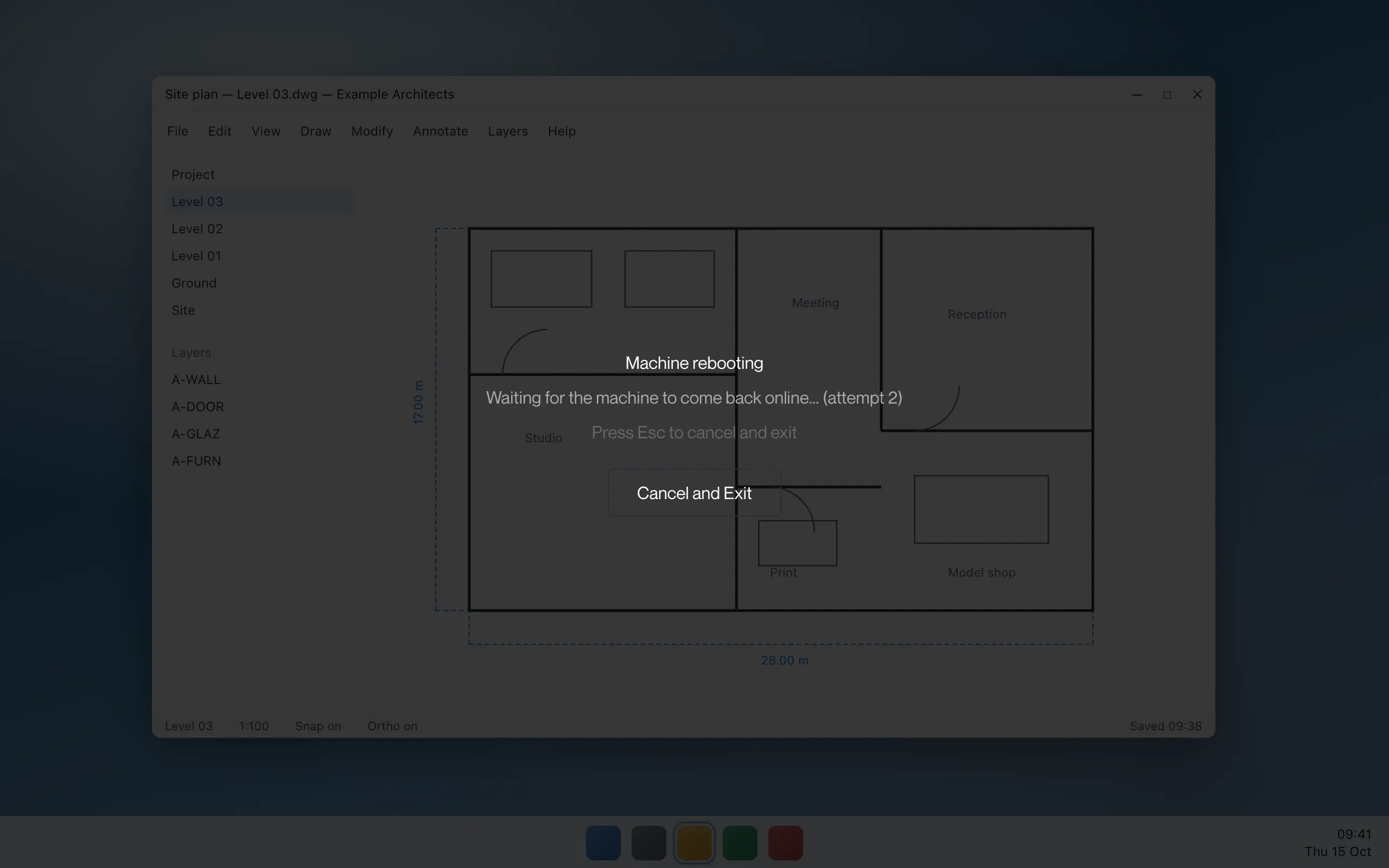
While Remotle reconnects, the picture dims and the title reads “Machine rebooting” with “Waiting for the machine to come back online… (attempt N)”.
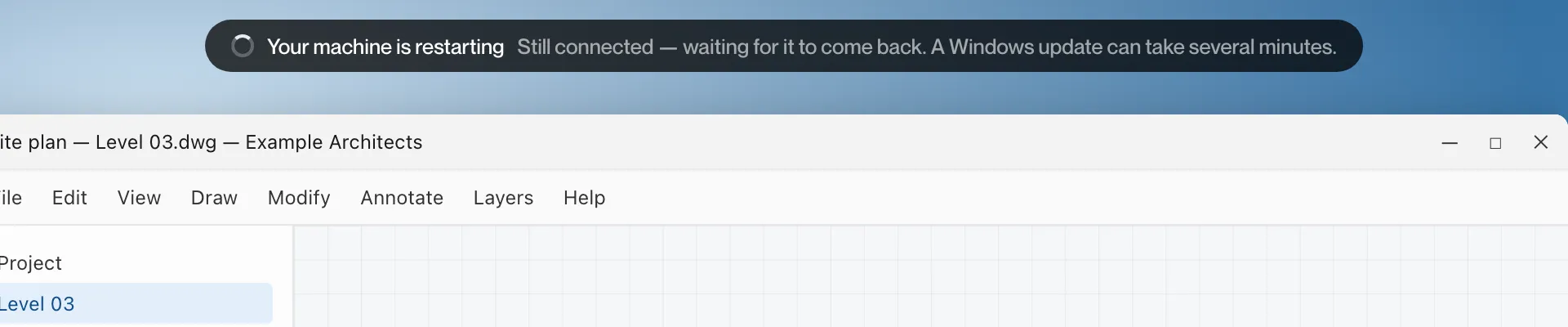
Mac and iPad: a pill reading “Your machine is restarting” with “Still connected — waiting for it to come back. A Windows update can take several minutes.”, then “Machine rebooting…” with “Waiting for the machine to come back online — this can take a minute.” while it reconnects, then “Waiting for your machine to come back…” and “Starting your desktop…” as the desktop returns.
What it means
The workstation told Remotle it is restarting, either because you restarted it or because Windows is installing an update. Remotle waits and reconnects, and signs you in again where Single Sign-On is in use.
What to do
- Wait. A Windows update can take several minutes.
- If the workstation does not come back, return to the machine list and check the card. “Powered off” offers Power on and connect.
Can’t reach the machine
Section titled “Can’t reach the machine”What you see
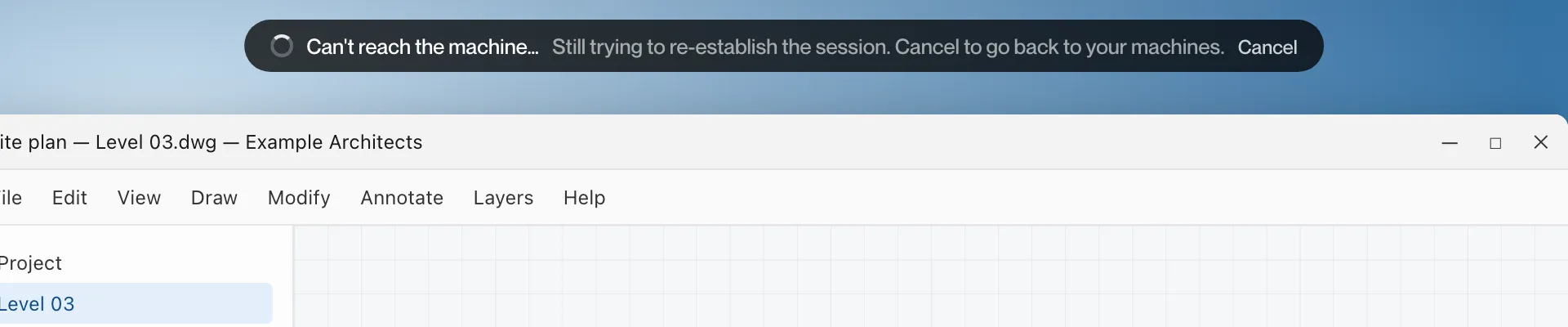
Mac and iPad: a pill reading “Can’t reach the machine…” with “Still trying to re-establish the session. Cancel to go back to your machines.” and a Cancel button.
What it means
The connection has been down for some time and the workstation has not answered. Remotle keeps trying.
What to do
- Wait, or click Cancel to return to your machines.
- Connect again from the machine list. If the connect screen shows a message, see Connection Messages.
Session ended
Section titled “Session ended”What you see
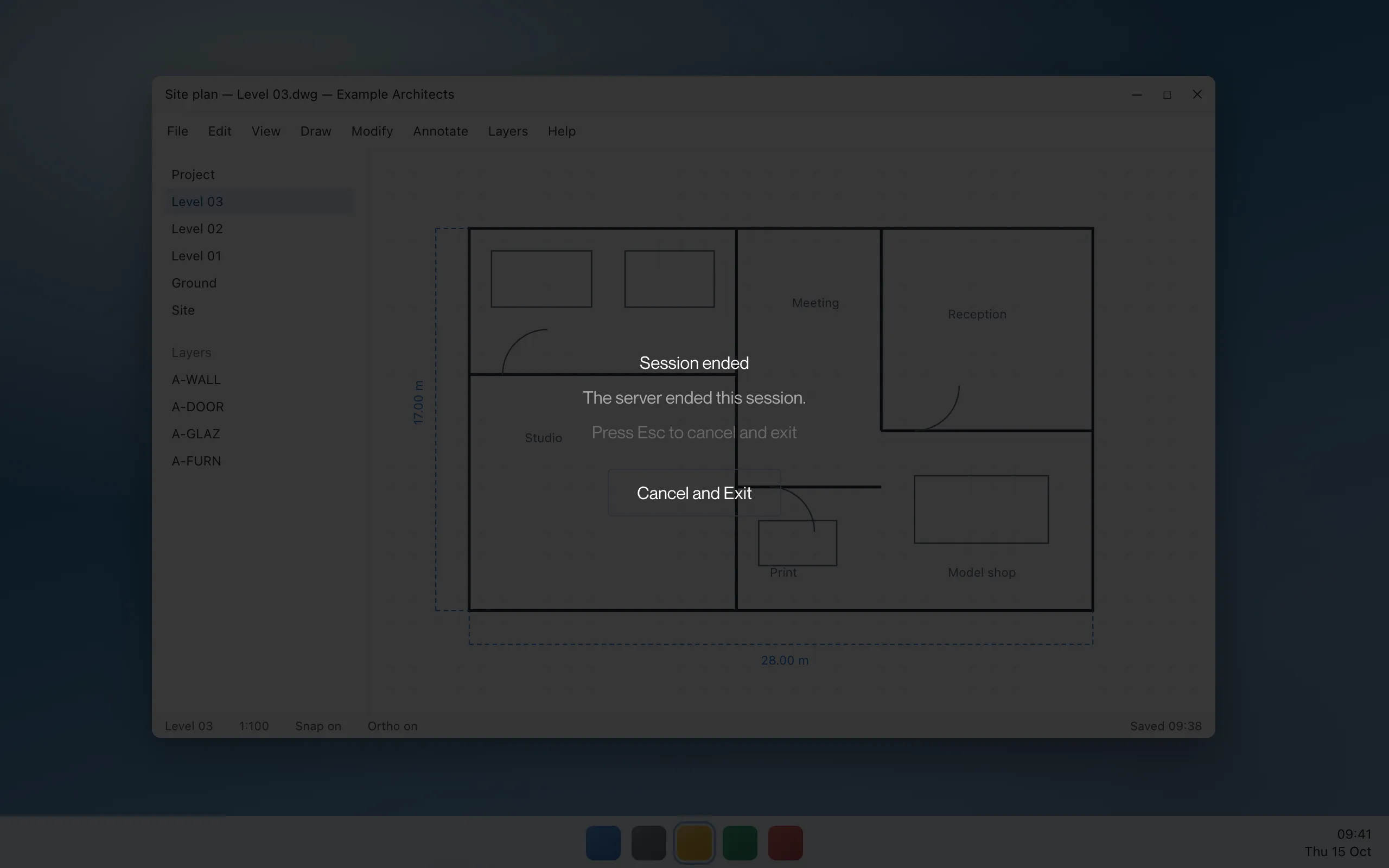
Windows: the picture dims and reads “Session ended” with “The server ended this session.”
What it means
The workstation or Computle closed the session. Remotle is not retrying. This happens, for example, when someone takes over the workstation from another device, or when the workstation’s licence ends.
What to do
- Click Cancel and Exit, return to the machine list and connect again if you need to.
- If the workstation’s licence ended, the machine list shows “This machine’s licence isn’t active”. See Connection Messages.
The screen has stopped updating
Section titled “The screen has stopped updating”What you see
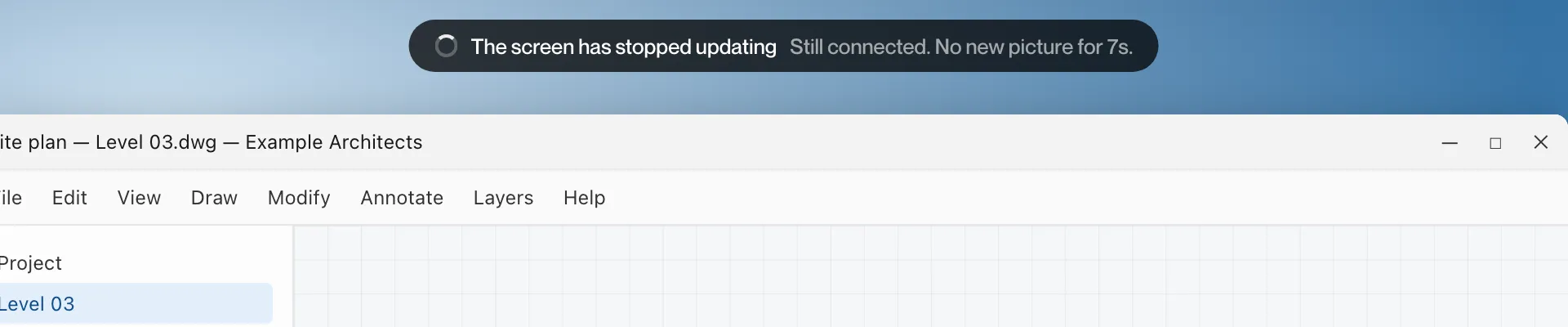
Mac and iPad: a pill reading “The screen has stopped updating” with “Still connected. No new picture for Ns.”
What it means
The connection is up, but no new picture has arrived from the workstation for the number of seconds shown.
What to do
- Wait a few seconds. The pill disappears when the picture resumes.
- If it continues for a minute or more, press F2 and open Report to send a report with the session logs. See Reporting a Problem.
Network delay
Section titled “Network delay”What you see
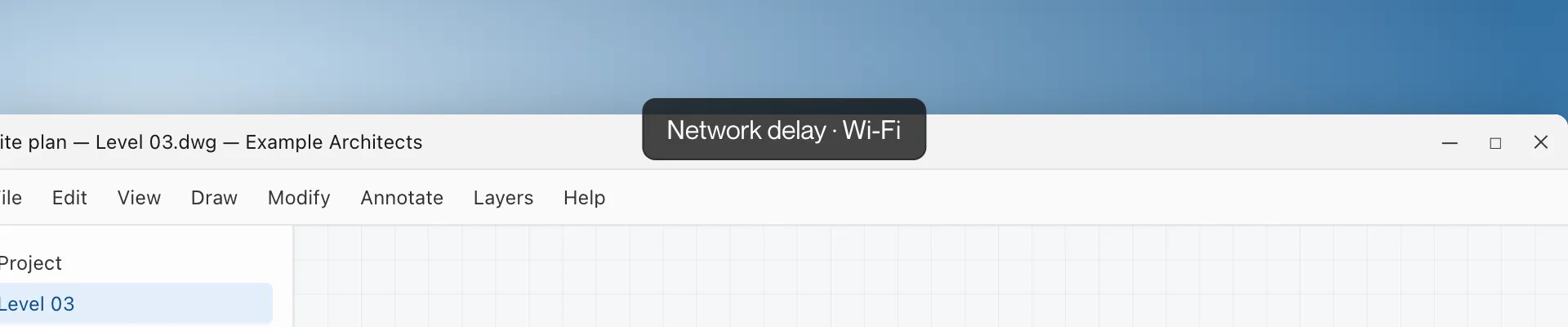
A pill at the top reading “Network delay”, with how this device is on the network after it, for example “Wi-Fi” or “Ethernet”.
What it means
Pictures are arriving later than usual. The session continues.
What to do
- Press F3 to see the latency and connection figures.
- On Wi-Fi, move closer to the access point or use a cable.