The Session Menu
Session Menu: Walkthrough
The first time you connect from a device, the menu opens on a short walkthrough instead of the Picture tab. It has ten steps on a computer and fewer on an iPad, where the USB and screens steps do not apply.
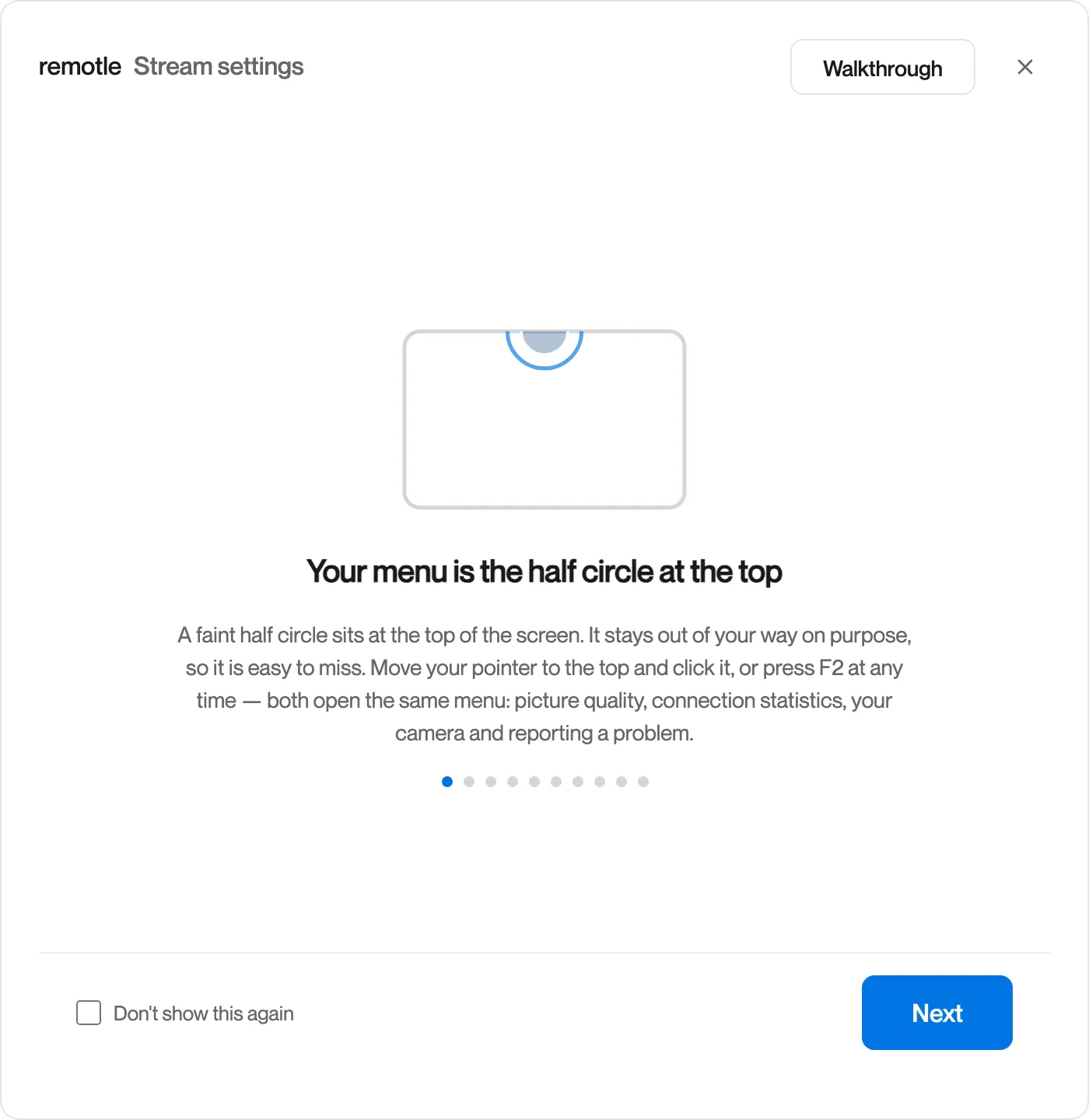
Each step has a picture, a heading and two or three sentences. Dots under the text show where you are.
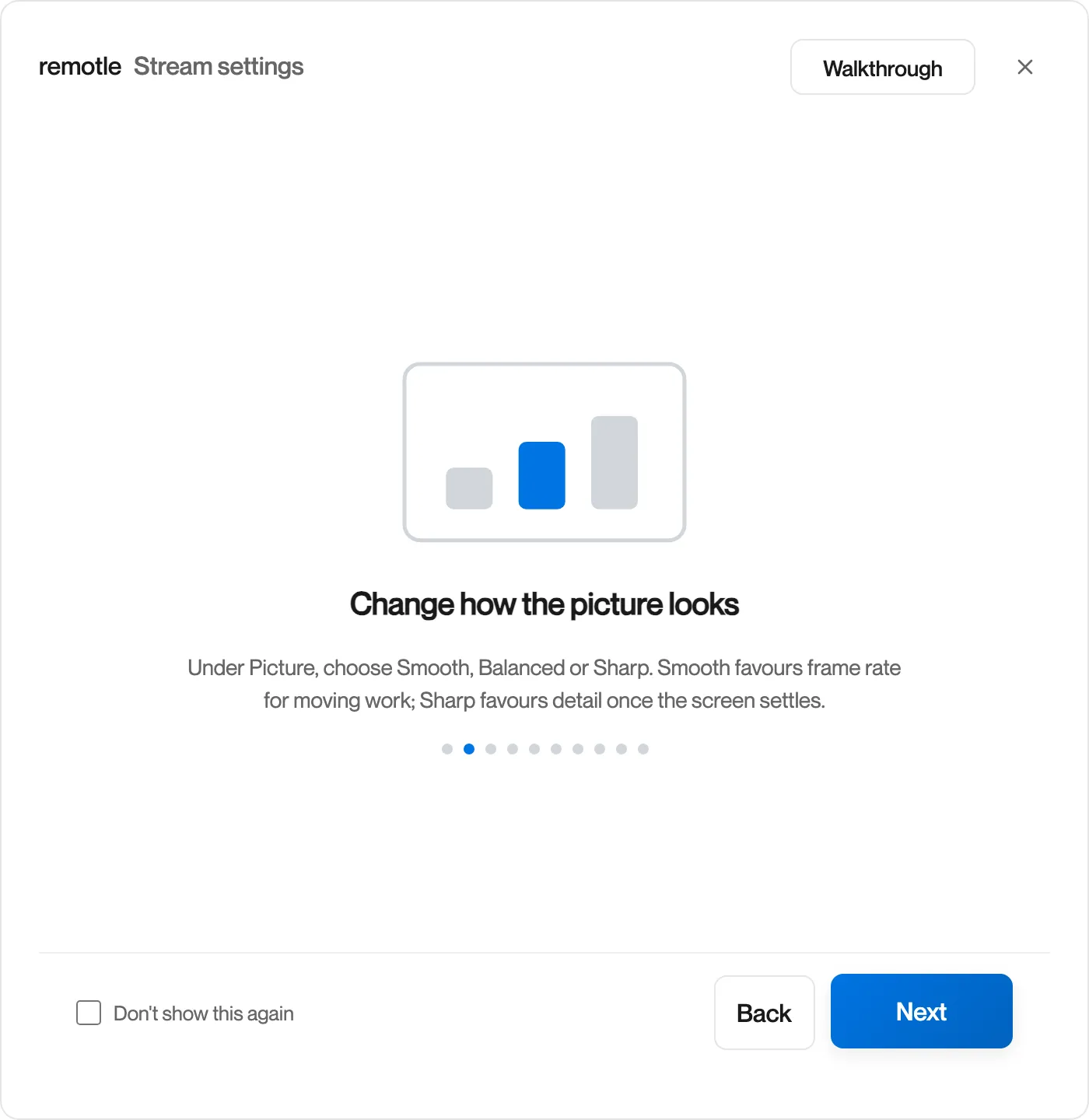
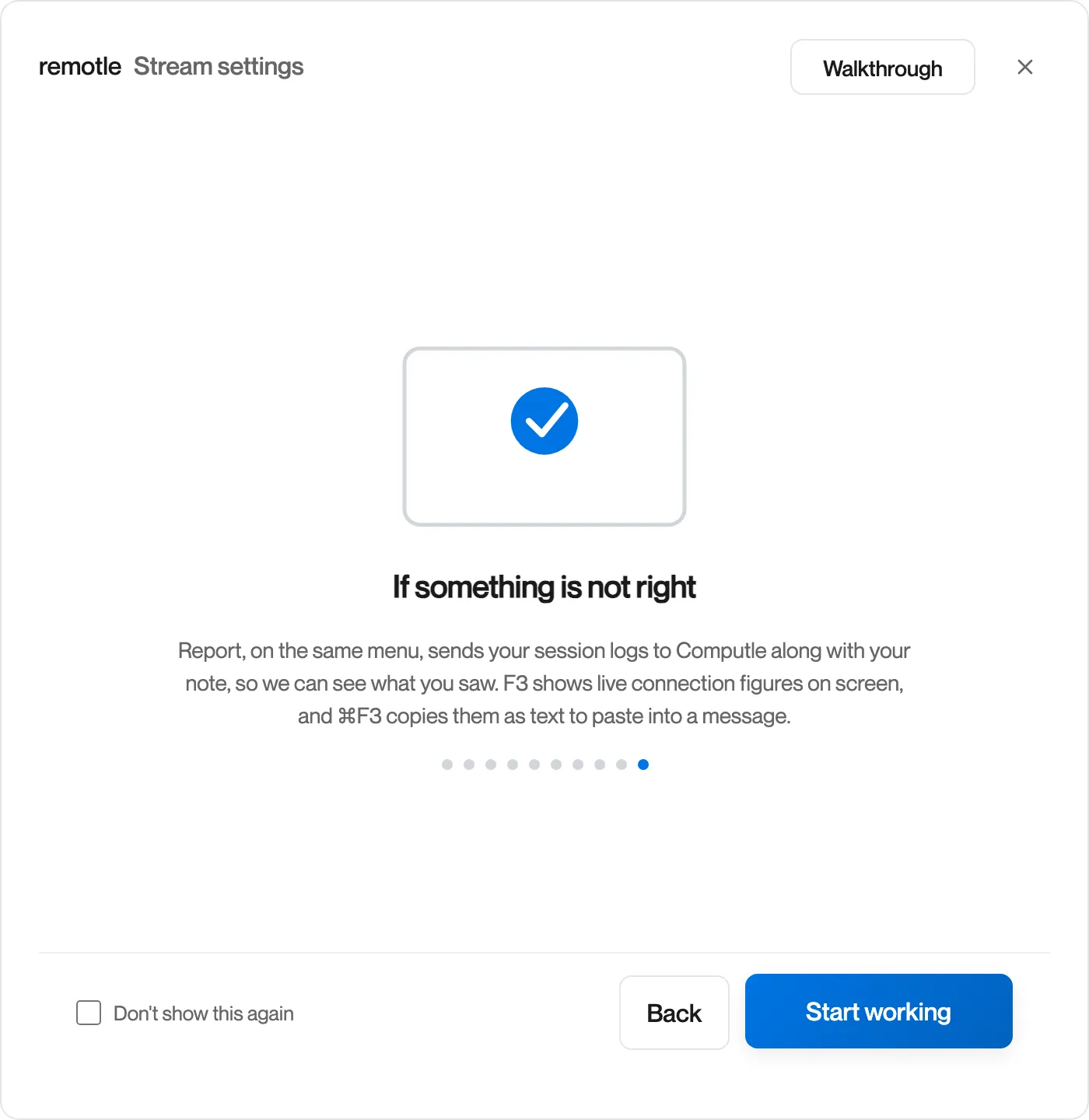
The last step ends with Start working.
| Step | Covers |
|---|---|
| Your menu is the half circle at the top | How to open the menu, by clicking the half circle or pressing F2 |
| Change how the picture looks | Smooth, Balanced and Sharp |
| Your camera and microphone follow your calls | Automatic camera start |
| Copy and paste between the two | Text, pictures and files |
| Use your USB devices | Sharing a device you plug in. Windows and Mac only. |
| Draw with a pen | Pens, drawing tablets and Apple Pencil |
| Move between devices, or work together | Take over and Ask to share |
| Spread across every screen | Use all screens. Windows and Mac only. |
| Also on iPad | The iPad app. Windows and Mac only. |
| If something is not right | Report, F3 and copying the connection figures |
Click Next and Back to move between steps and Start working to finish. Tick Don’t show this again to stop it opening on later sessions. To read it again, click Walkthrough at the top of the menu, or Show the walkthrough again on the About tab.
Questions
Section titled “Questions”The menu keeps opening on the walkthrough. How do I stop it?
Section titled “The menu keeps opening on the walkthrough. How do I stop it?”Tick Don’t show this again on any step, or click Start working on the last step. The walkthrough is marked as seen the moment it opens, so closing the menu part way through also stops it reopening.