The Session Menu
F2 and everything behind it. Open
Using the App
Remotle keeps a small number of keys for itself. Every other key, including the Windows key and Alt+Tab, goes to your workstation, so shortcuts in your applications work as they do at the desk.
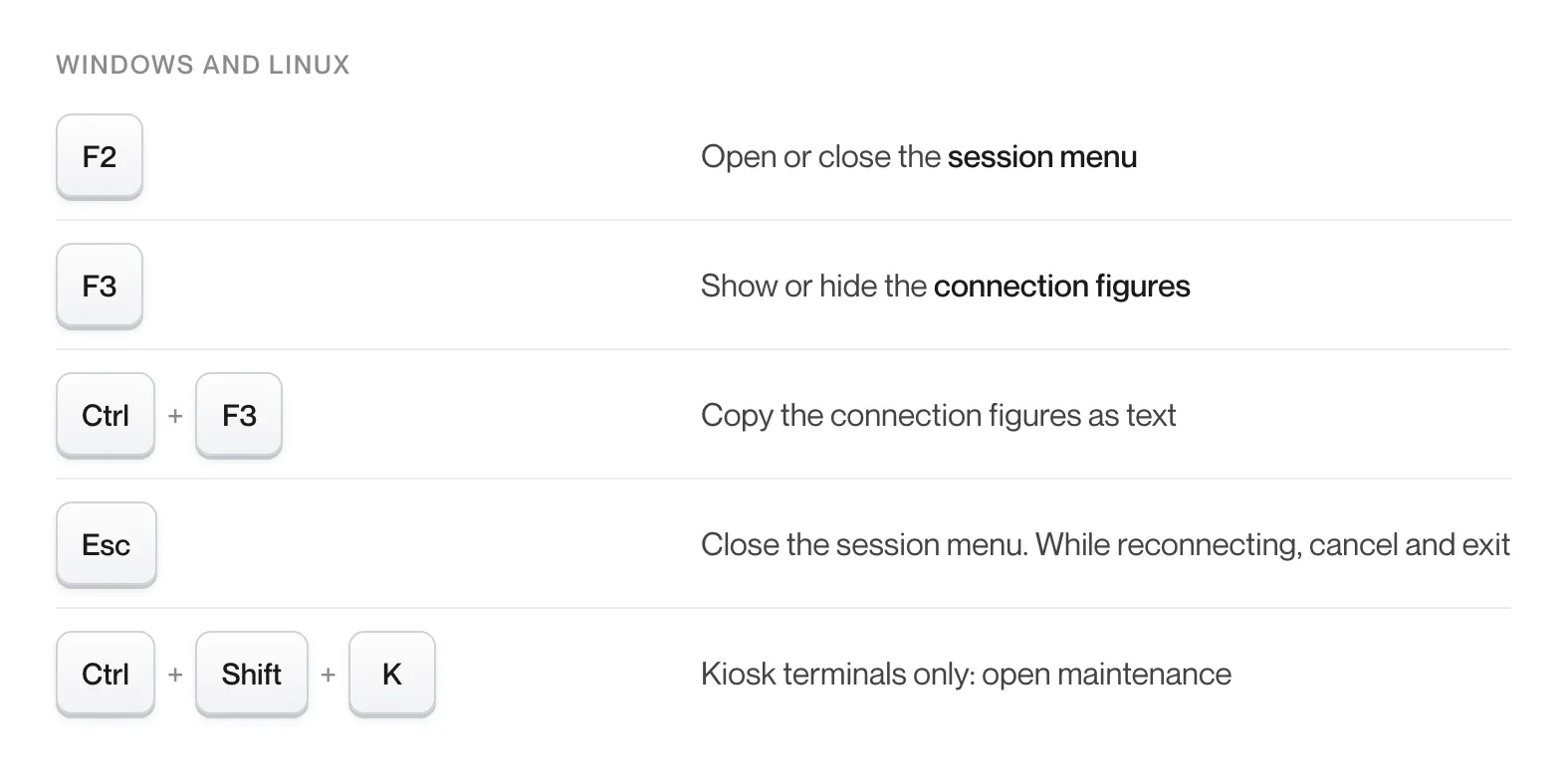
| Shortcut | Action |
|---|---|
| F2 | Open or close the session menu |
| F3 | Show or hide connection figures |
| Ctrl+F3 | Copy connection figures as text |
| Esc | Close the session menu. While Remotle is reconnecting, Esc cancels and exits. |
| Ctrl+Shift+K | Kiosk terminals only: open maintenance |
Everything else, including the Windows key and Alt+Tab, goes to your workstation.
The bar at the top of the session window has a Settings menu. In full screen, move the pointer to the top edge of the screen to reveal the bar.
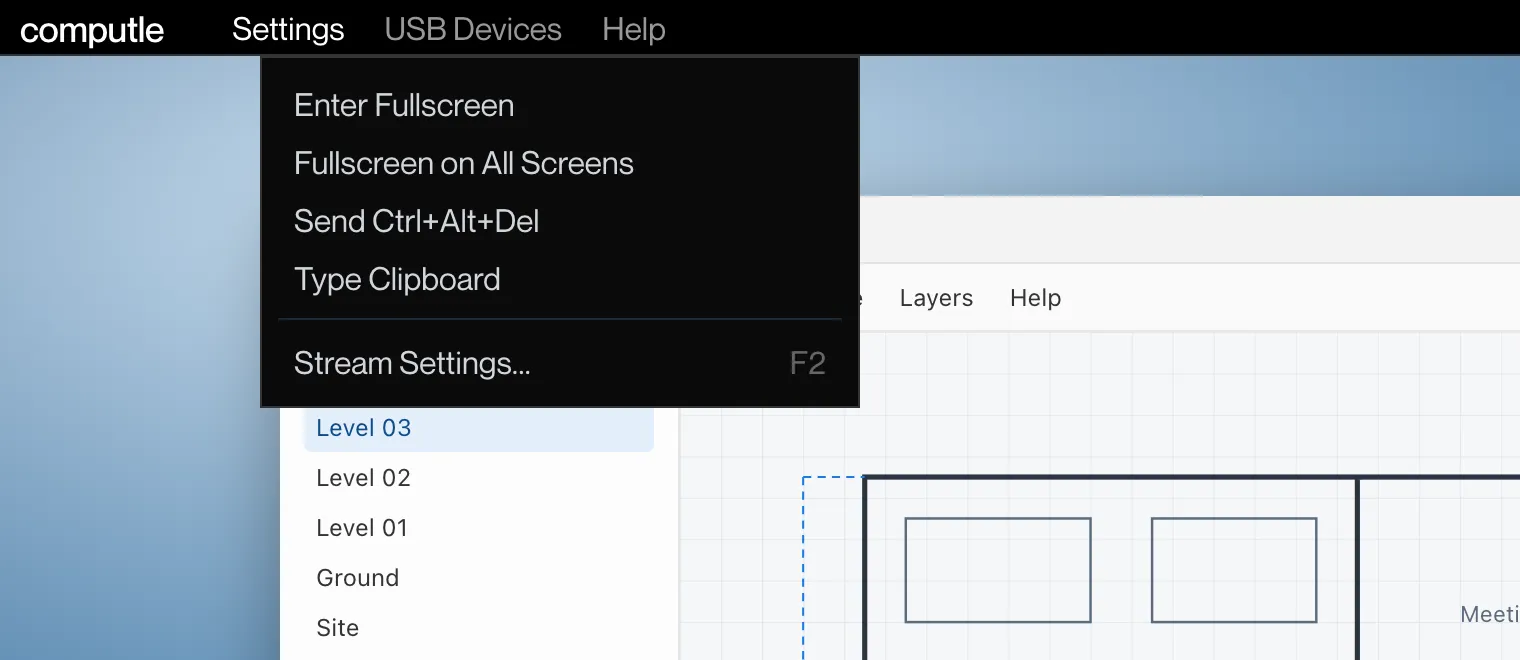
| Item | Action |
|---|---|
| Enter Fullscreen, Exit Fullscreen | Switch between a window and full screen |
| Fullscreen on All Screens | Use every screen of this PC. Greyed out when the PC has one screen. |
| Send Ctrl+Alt+Del | Sends Ctrl+Alt+Del to your workstation. Pressing the keys yourself is caught by Windows on your own PC. |
| Type Clipboard | Types the text you copied as keystrokes. See Typing into the sign-in screen. |
| Stream Settings… | Opens the session menu, the same as F2 |
The bar also has USB Devices (see USB Devices) and Help, with Check for Updates and About.
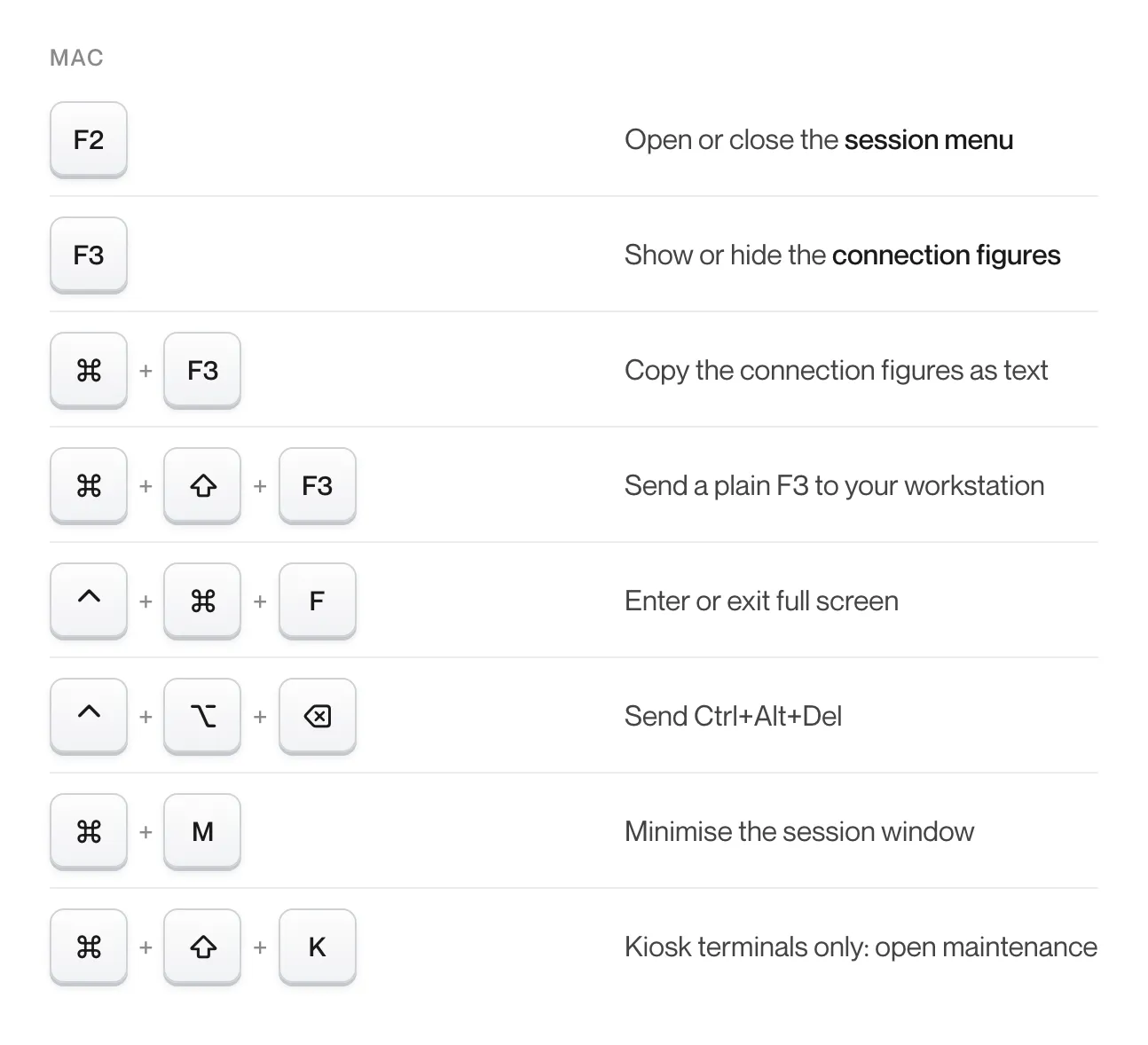
| Shortcut | Action |
|---|---|
| F2 | Open or close the session menu |
| F3 | Show or hide connection figures |
| Command+F3 | Copy connection figures as text, while they are showing |
| Command+Shift+F3 | Send a plain F3 to your workstation |
| Control+Command+F | Enter or exit full screen |
| Control+Option+Delete | Send Ctrl+Alt+Del |
| Command+M | Minimise the session window, including from full screen |
| Command+Shift+K | Kiosk terminals only: open maintenance |
| On your Mac | On your workstation |
|---|---|
| Command | Windows key |
| F13 | Print Screen |
Command acts as the Windows key, so Command+Tab reaches your workstation as Win+Tab once macOS allows it through.
| Item | Action |
|---|---|
| Enter Fullscreen, Exit Fullscreen | Switch between a window and full screen |
| Fullscreen on All Screens | Use every screen of this Mac |
| Minimise | Minimise the session window |
| Send Ctrl+Alt+Del | Sends Ctrl+Alt+Del to your workstation |
| Type Clipboard | Types the text you copied as keystrokes |
| Stream Settings… | Opens the session menu |
| Shortcut | Action |
|---|---|
| F2 | Open or close the session menu |
| F3 | Show or hide connection figures |
| Ctrl+F3 | Copy connection figures as text |
| Esc | Close the session menu. While Remotle is reconnecting, Esc cancels and exits. |
| Ctrl+Shift+K | Kiosk terminals only: open maintenance |
Send Ctrl+Alt+Del, Enter Fullscreen and Exit Fullscreen are on the Stream menu at the top of the session.
| Gesture | Action |
|---|---|
| Two-finger drag | Scroll |
| Two-finger tap | Right-click |
| Long press | Right-click, in Direct touch mode |
| Three-finger tap | Show or hide the keyboard |
| Three-finger swipe down | Open the menu |
The bar above the on-screen keyboard has Esc, Tab, Ctrl, Alt, Win, Shift, Del, Home, End, PgUp, PgDn, F1 to F12 and the arrow keys. Ctrl+Alt+Del and Type clipboard are on the menu pill. See iPad and iPhone.
Remotle sends the character you type, so a UK keyboard on your device types UK characters on a workstation set to US English. If your device and your workstation have different layouts and an application reads physical key positions, for example a game or a drawing tool with single-key shortcuts, turn on Send key positions instead of characters on the Local tab of the session menu. Remotle then sends the position of each key and your workstation’s layout decides the character.
The Windows sign-in screen does not accept pasted text. To enter a long password, copy it on your device and choose Type Clipboard from the Settings menu (the menu pill on an iPad). Remotle types it as keystrokes. See Copy and Paste.
Click into the session first so it has focus. Once the session has focus, Alt+Tab and the Windows key go to your workstation.
Choose Send Ctrl+Alt+Del from the Settings menu on Windows and Linux, press Control+Option+Delete or use the Settings menu on a Mac, or tap Ctrl+Alt+Del on the menu pill on an iPad.
On a Mac, Command+Shift+F3 sends a plain F3. F2 and F3 are kept by Remotle on every platform; use the application’s alternative shortcut or its menu.
macOS needs Input Monitoring and Accessibility access for Computle (Remotle) before it will hand system shortcuts to another app. See Mac Permissions.