Getting Help
Raising a Support Ticket
A support ticket is the conversation between your organisation and Computle about one fault or question. You raise it in the Computle Portal, everyone copied in is emailed on every reply, and the ticket stays in the portal to read back.
Open Support in the portal sidebar. It appears when support through the portal is enabled for your organisation.
Who can raise and see tickets
Section titled “Who can raise and see tickets”| Role | Can |
|---|---|
| Tenant Admin | See every ticket in the organisation, raise tickets about any workstation or user, copy people in, reply, mark resolved and re-open. |
| Ticket viewer | See only the tickets they raised or are copied on, raise a ticket about themselves, and reply. The portal shows them Support and nothing else. |
A Tenant Admin grants the Ticket viewer role on the Users page. Give it to a user who should raise their own tickets without seeing the rest of the portal.
Raise a ticket
Section titled “Raise a ticket”-
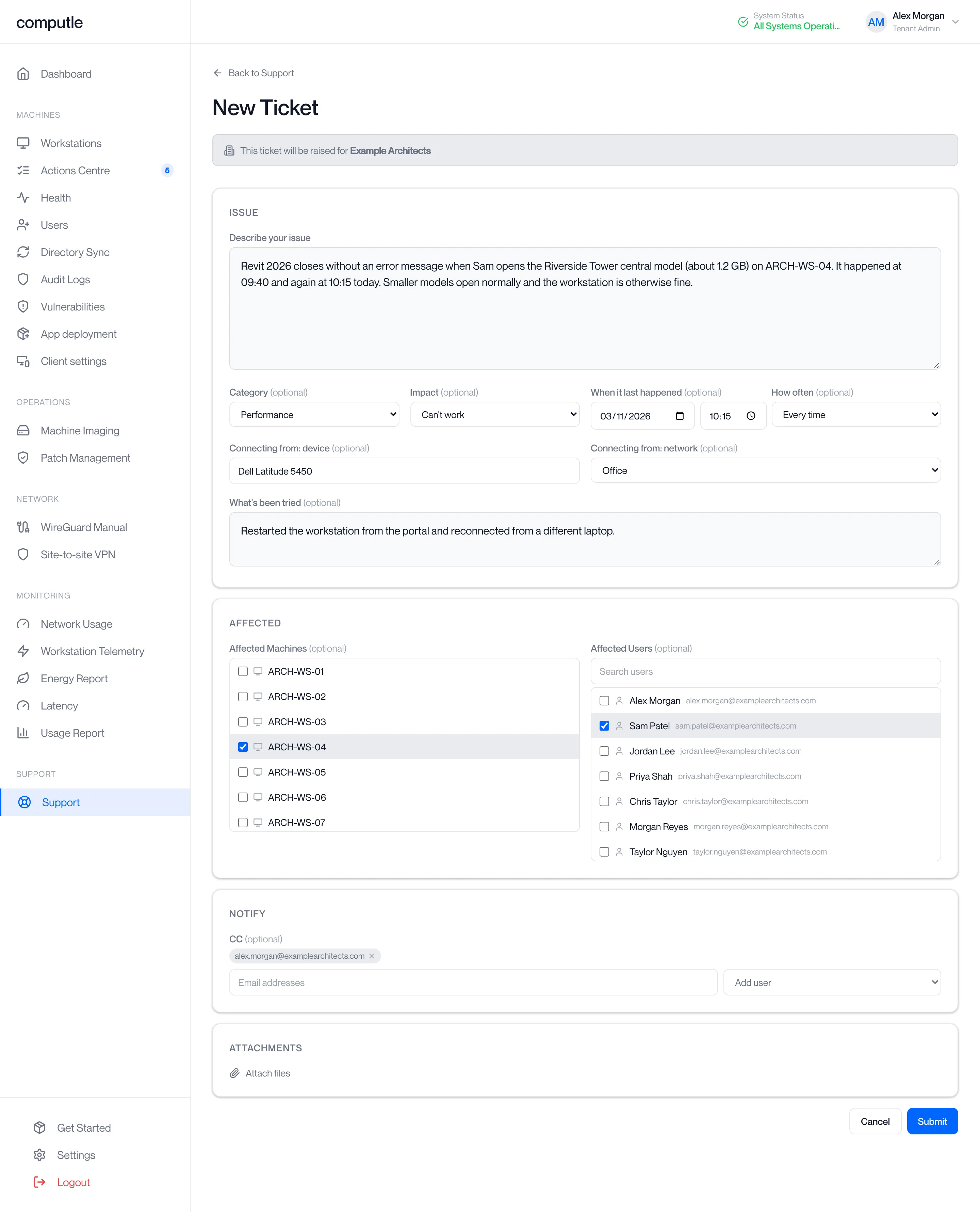
Click New Ticket.
The page opens with “This ticket will be raised for [your organisation]”.
-
Describe your issue.
This is the only required field. Put the exact message, the time and what the user was doing. The first line becomes the ticket’s subject unless you tick a workstation in step 4, so make it a summary.
-
Fill in the optional details.
Field Choices Category Connection, Performance, Display, USB, Audio, Sign-in, Billing, Other. The category is added to the subject as “[Connection]”. Impact Can’t work, Can work around it, Minor. “Can’t work” gives the ticket the highest priority and “Minor” the lowest. When it last happened A date and a time. How often Once, Sometimes, Every time. Connecting from: device and network Shown when the category is Connection or Performance. The device the user connects from, and Office, Home, Mobile hotspot or Other. What’s been tried Up to 4,000 characters. -
Tick the Affected Machines and Affected Users.
Tick every workstation and user involved. One ticked workstation becomes the subject; several become “[first] (+2 more)”. When the organisation has more than eight users, a Search users box filters the list. Disabled users are not listed. Ticket viewers do not see this section.
-
Add anyone to copy in under CC.
Type email addresses, separated by commas, semicolons or spaces, and press Enter, or pick a user from Add user. Up to 20 addresses. Every address receives the ticket emails and can reply by signing in as a Ticket viewer. Ticket viewers do not see this section.
-
Attach files.
Click Attach files. Up to 10 files, 20 MB each. Each file shows its name and size, and the bin removes it.
-
Click Submit.
The portal shows “Ticket created” and opens the ticket. You and everyone under CC receive an email with the subject “Ticket #[number] — [subject]” and a link to the ticket.
| Message | What to do |
|---|---|
| Submit is greyed out | Type something under Describe your issue. |
| “Failed to create ticket” | Check this device’s connection and click Submit again. Everything you typed is still on the page. |
The ticket list
Section titled “The ticket list”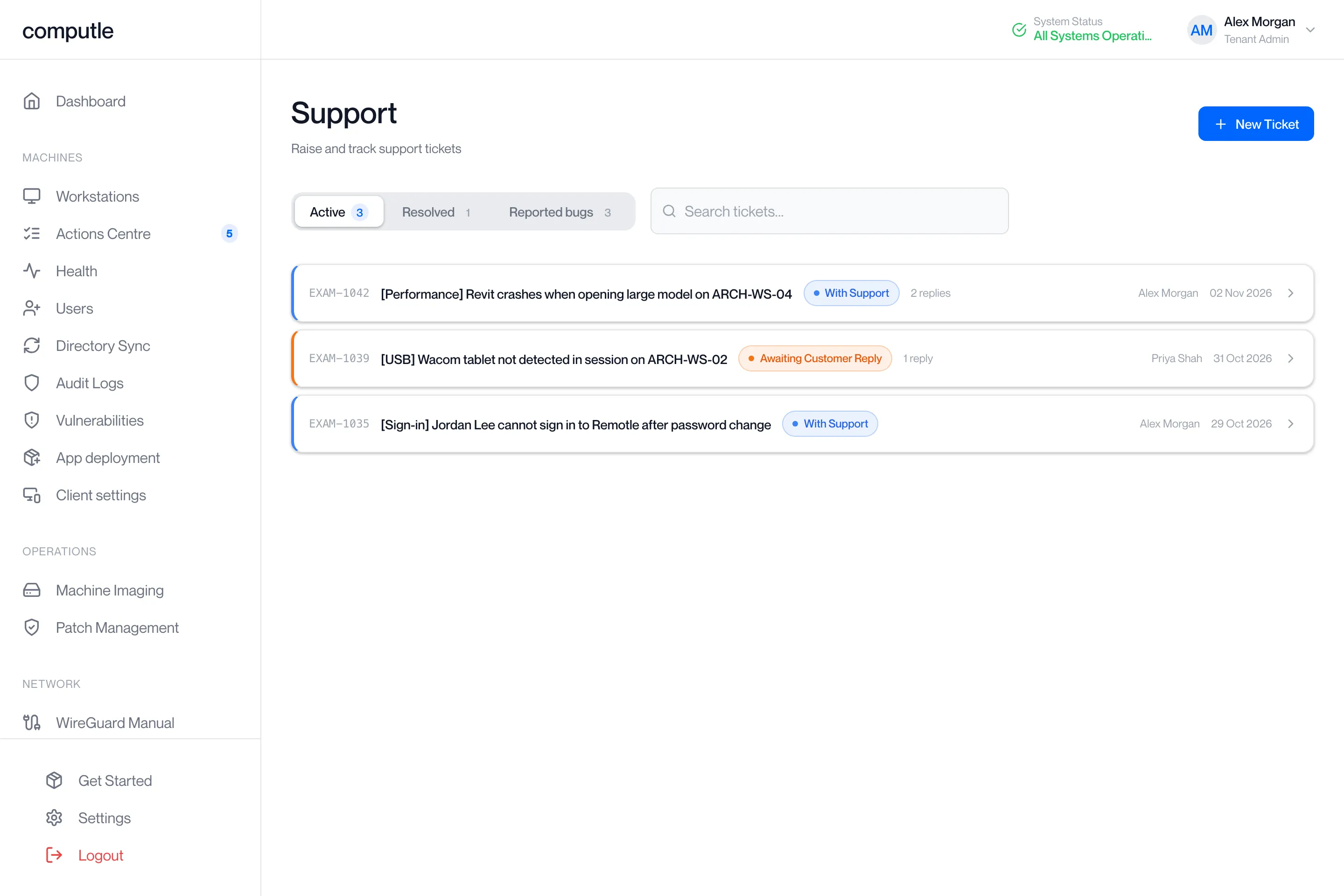
| Tab | What it shows |
|---|---|
| Active | Every ticket that is not resolved. The number is the count. “No tickets yet” before the first ticket, “No active tickets” when every ticket is resolved. |
| Resolved | Tickets marked resolved. “No resolved tickets” when there are none. |
| Reported bugs | Reports sent from Remotle. See Reporting a Bug. Shown to Tenant Admins when bug reports are enabled for your organisation. |
Search tickets… matches the subject or the ticket reference. Each row shows the reference, the subject, the status, how many replies it has, who raised it and the date. The list refreshes every 30 seconds.
The reference
Section titled “The reference”A ticket’s reference is up to four letters from your organisation’s name and a number, for example “ACME-42”. Emails about the ticket quote the number as “Ticket #42”. Quote either when you contact Computle another way.
Statuses
Section titled “Statuses”| Status | What it means |
|---|---|
| With Support | The last message is yours, or there are no replies yet. Computle has the next move. |
| Awaiting Customer Reply | The last message is from Computle. Read it and answer. |
| Resolved | The ticket was marked resolved. It moves to the Resolved tab. |
Read and reply
Section titled “Read and reply”Click a ticket to open it. The page refreshes every 15 seconds, so a reply from Computle appears without reloading.
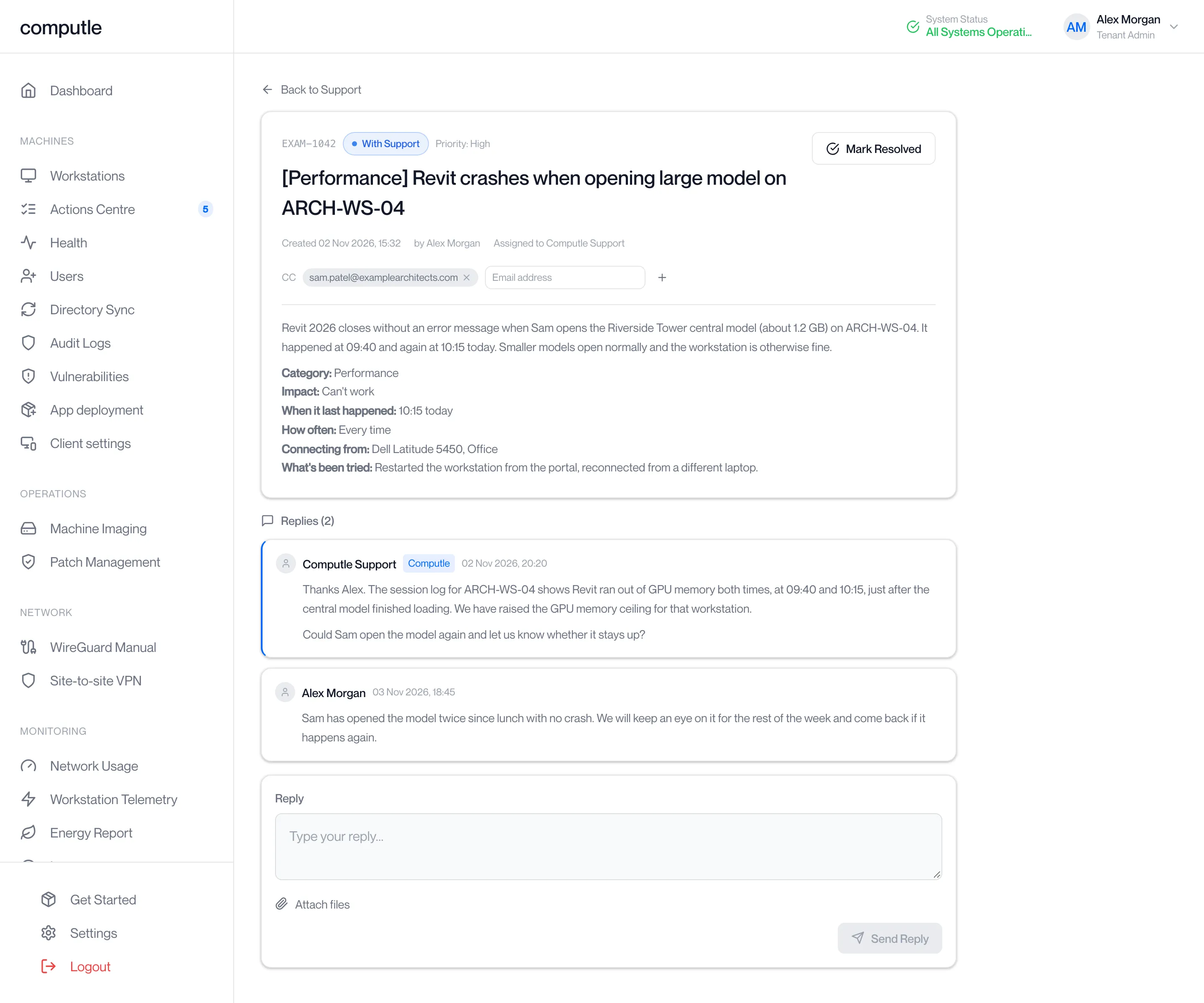
The header shows the reference, the status, the priority, the subject, “Created [date] by [name]” and, once Computle has picked it up, “Assigned to [name]”. Below it are the CC list, the issue as you wrote it, and any attachments: pictures as thumbnails that open in a new tab, other files as downloads.
Under “Replies” each message shows who wrote it and when. Replies from Computle carry a “Computle” badge.
-
Type under Reply.
-
Click Attach files to add screenshots or files.
Up to 10 files, 20 MB each.
-
Click Send Reply.
The portal shows “Reply sent”. The person who raised the ticket and everyone under CC receive “Ticket #[number] Updated — [subject]” by email with a link to the ticket. The email does not carry the reply text; the conversation lives in the portal.
| Message | What to do |
|---|---|
| “Failed to send reply” | Check this device’s connection and click Send Reply again. |
| “Ticket not found” | The link is to a ticket in another organisation, or one that no longer exists. Go back to Support and open it from the list. |
Change who is copied in
Section titled “Change who is copied in”A Tenant Admin can change the CC list on an open ticket. Changes apply from the next reply.
-
Open the ticket and find the CC line under the header.
Each address is shown as a chip with a cross.

-
To add someone, type the address in the Email address box and click the plus, or press Enter.
The chip appears. Several addresses can be typed at once, separated by commas, semicolons or spaces.
-
To remove someone, click the cross on their chip.
The chip disappears. If the change cannot be saved the portal says “Failed to update CC” and the list is unchanged.
Resolve and re-open
Section titled “Resolve and re-open”Computle also marks tickets resolved from its side when the work is finished.
Mark a ticket resolved
Section titled “Mark a ticket resolved”-
Open the ticket and click Mark Resolved in the header.
Only a Tenant Admin sees the button.

-
The portal shows “Ticket resolved”.
The ticket moves to the Resolved tab, and “This ticket has been resolved” appears in place of the Reply box. No email is sent for a resolve; for a ticket Computle raised for a recovered workstation, use Resolve & Send Confirmation instead (see below).
Re-open a ticket
Section titled “Re-open a ticket”-
Open the Resolved tab and click the ticket.
-
Click Re-open Ticket under “This ticket has been resolved”.
The portal shows “Ticket re-opened”. The ticket returns to the Active tab with its whole history, and the Reply box is back.

Tickets Computle raises for you
Section titled “Tickets Computle raises for you”When Computle recovers a workstation that has stopped responding, it raises a ticket in your organisation itself. The ticket is raised by “Computle automatic recovery”, names the workstation, and is emailed to your organisation’s support contacts, who are set on the Users page. Keep that list current: it is the only place these emails go.
Such a ticket has a second button in the header, Resolve & Send Confirmation, shown until the confirmation has been sent. Clicking it marks the ticket resolved and emails every support contact “Computle: workstation [name] is back in service”, quoting the ticket number. The portal shows “Ticket resolved and confirmation sent”, or “Ticket resolved, but the confirmation email could not be sent” if the email failed. Mark Resolved on the same ticket closes it without the email.
Related pages
Section titled “Related pages”Questions
Section titled “Questions”Can a user raise their own ticket?
Section titled “Can a user raise their own ticket?”Yes, with the Ticket viewer role. They see Support only, raise tickets about themselves, and see the tickets they raised or are copied on.
Does everyone copied in need a portal account?
Section titled “Does everyone copied in need a portal account?”No. Every address under CC receives the emails. To reply in the portal, the person needs a portal account in your organisation with the Ticket viewer role.
Why does the subject not match what I typed?
Section titled “Why does the subject not match what I typed?”The subject is built from the ticked workstation, or from the first line of the description, with the category in front. Edit the first line before you submit if you want a particular subject.
Can I attach a file after submitting?
Section titled “Can I attach a file after submitting?”Yes. Attach it to a reply.
Who sees “Assigned to”?
Section titled “Who sees “Assigned to”?”Everyone who can open the ticket. It names the person at Computle working on it.